Introducing JusTalk

JusTalk allows you to use your table to connect with friends, families and events remotely. You can text, make audio and video calls, and participate in group chats. This allows you to participate in social activities and stay in contact from the comfort of your home.
When in-person meetings aren’t possible, it can help bring people together. And best of all, JusTalk makes it easy. This is a long topic, use the buttons to help find what you are looking for.
Installing JusTalk
JusTalk was not included in our original set up of your tablet, so it needs to be installed and configured it before you can use it.
Installing JusTalk is easy, it exists in our library on Amazon and on the Amazon App store. You will likely need our help with the installation and we are excited that your are interested. Basically we need bring up the App Store application and go to the Library (the 3 bars on the upper left of the screen). Scroll down to JusTalk and install it. If you need help with this see the “Working with the Amazon App Store – Library” Post in Links for Seniors.
Next, open the JusTalk application and answer a few questions, such as the JusTalk ID and password you would like to use to create your JusTalk account. We recommend NOT using your name but an ID that is easily recognizable for someone you are friends with, names like Rocky, Bullwinkle, Susie, Fred, Flash are examples to help you think about it. Don’t forget to record the ID (name) you have chosen and the password (we all forget these things). Next, be sure you organize the name and password in a safe place so you can find it again, a notebook or password vault.
Finally, use the information in the following material to set up friends and groups and start to communicate.
Adding new contacts with JusTalk
To start using JusTalk you will need to add friends and create groups to enable communicating with them. JusTalk requires you to both agree to be friends to be able to communicate.
There are multiple ways to initiate the friendship:
- you can send a request to your friend if know their JusTalk ID
- You can scan their QR code if you are near each other
- They can scan your QR code if you are near each other
- You can add then from your Amazon contact list – not recommended
JusTalk encrypts all communications from your device to your friends device so it is very secure. Unfortunately, like many free apps there will be some advertising, but you can just SKIP or IGNORE the adds.
The initial screen displayed after entering JusTalk is the Chat Screen. From this screen you can access any functionality within JusChat with just a click or two.
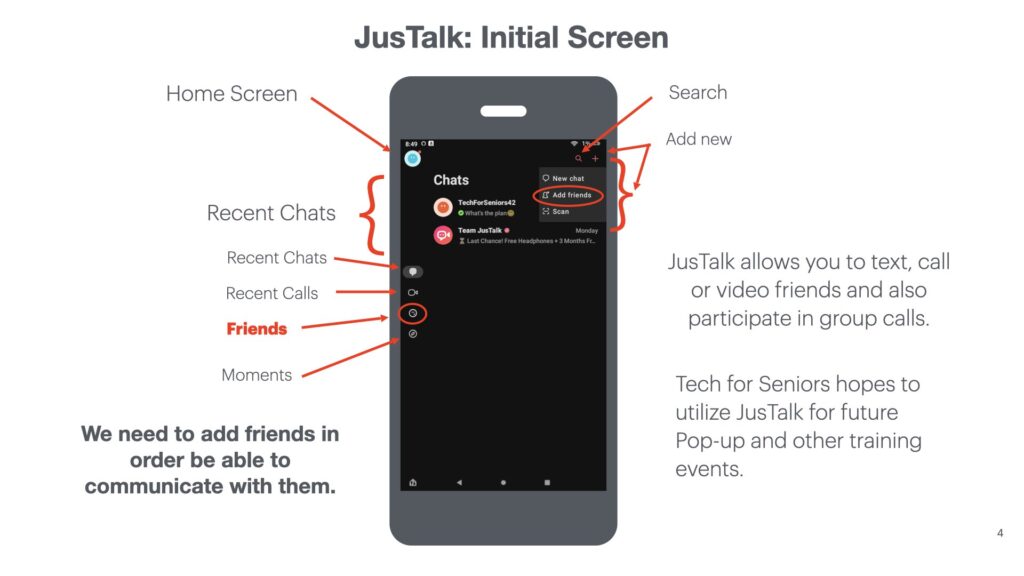
You can refer to this diagram when you need to navigate with JusTalk. We will explore this functionality together. The first thing we need to do is to make some friends to chat or talk with. That’s what the Friends button does (see the drawing to the left).
On the Friends screen we can add new friends (see the circled item on the right). Our friends are listed down the middle of the screen. The icons on the right allow us to add new friends or organize our friends into groups – perhaps by hobby or interest – perhaps your community learning group or your study group.
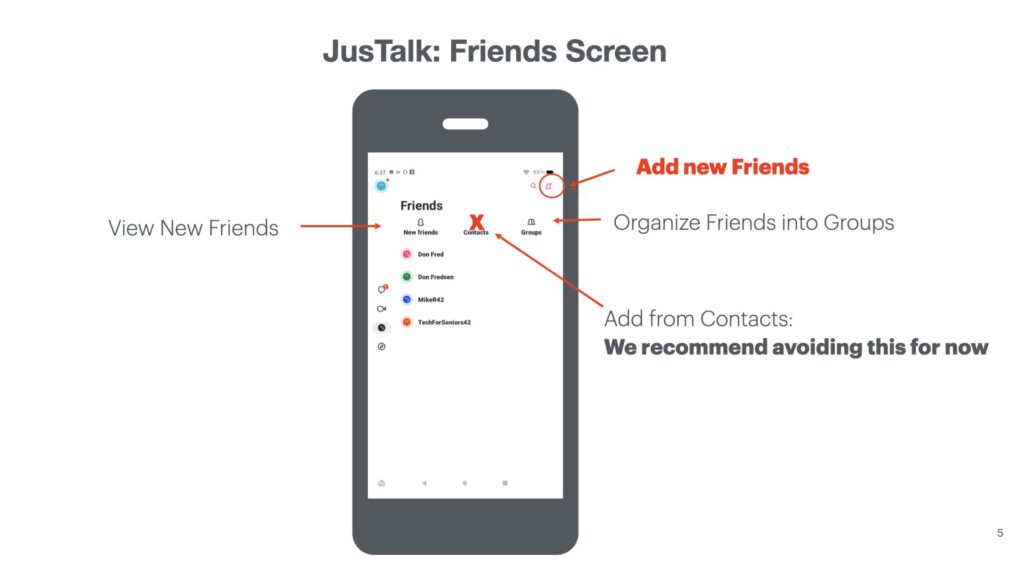
There are multiple ways to establish friendships:
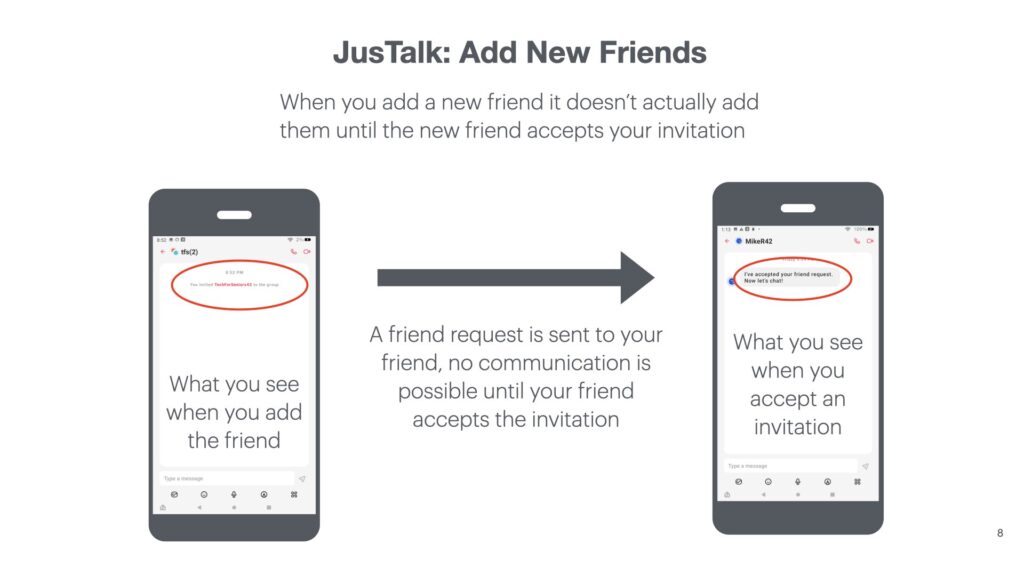
- If you know your friends JusTalk ID you can enter that and a text message will be sent to them asking them to confirm the connection. You will be notified with a chat message when they respond.
- You can send your JusTalk ID to your friend and they can initiate the friend request from their end.
- If your friend is near you, you can scan the QR code on their device and it will establish the connection. Or they can scan your QR code from your device.
- There is an option to add friends from your contacts list, but we don’t recommend using that technique, talk to us about the concern if you feel you would like to use this feature.
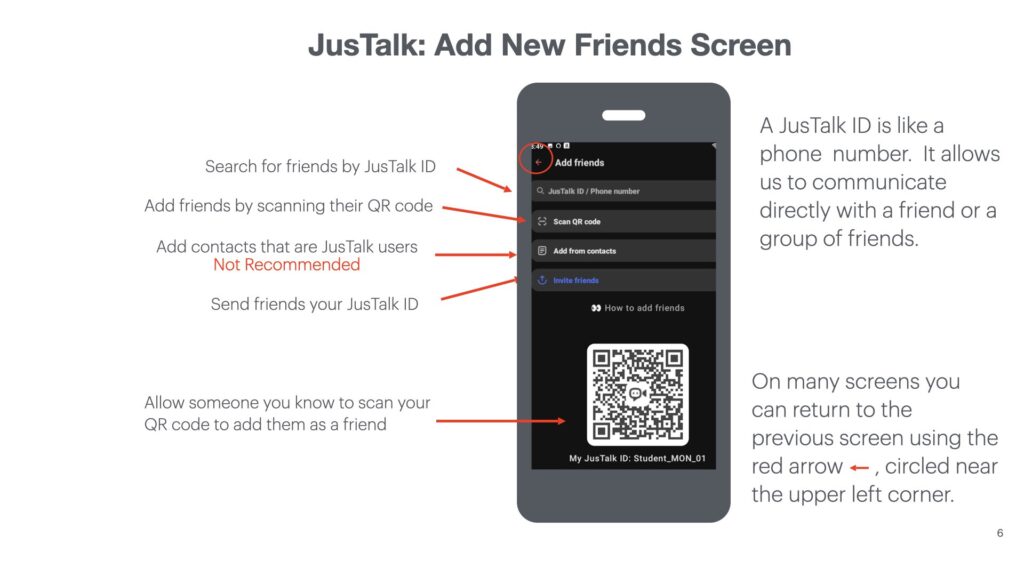
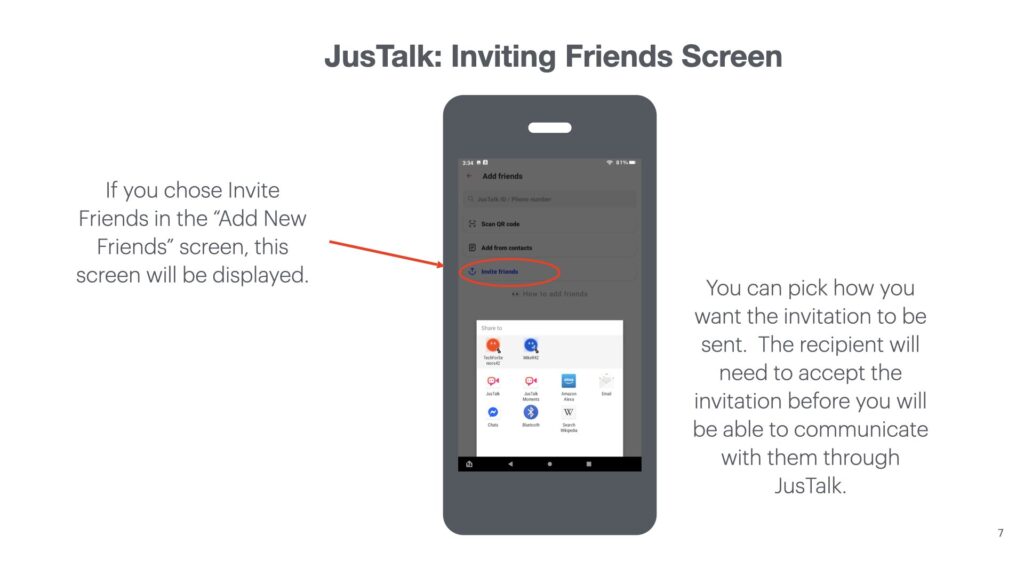
When you choose to send your JusTalk ID to connect to a friend, this screen will be presented. There are several ways to send the ID, through JusTalk is the easiest but there are a number of other ways to do it.
If you use JusTalk to send the request, your friend gets the request and if they choose, they will accept the invitation. You will be notified when they make a decision (hopefully to connect).
Groups
Adding Groups
Once you have added friends you will likely want to group the friends together to form a social community – perhaps your learning group or a subset of that group, a chess or card group, or perhaps your family. Groups are local to your tablet – you won’t be able to see my groups and I can’t see your groups. Group meetings and calls are the only way to share your screen content. Video calls only show a live view of what your tablet camera sees.
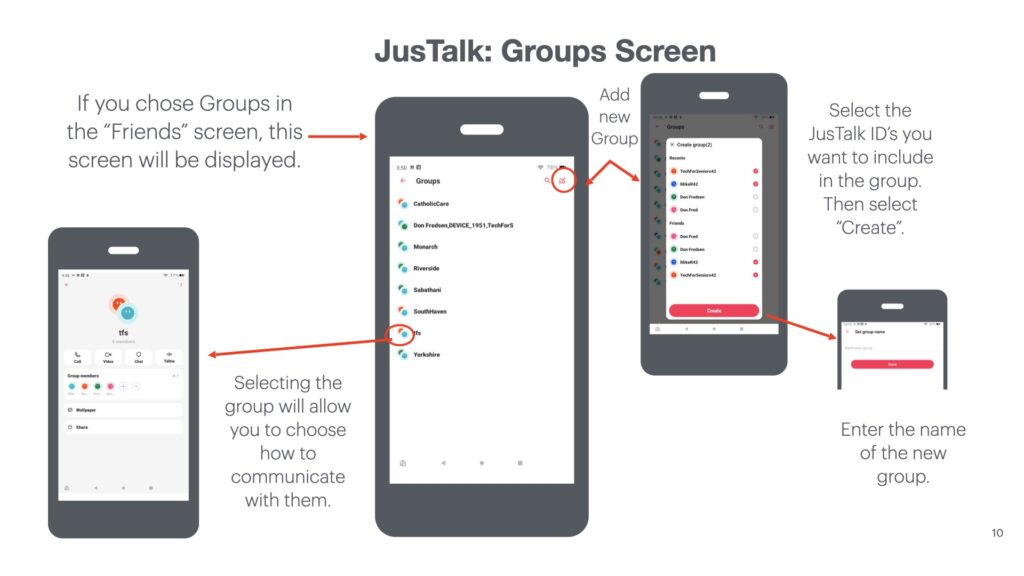
When you select the GROUP icon from the FRIENDS screen, the Group screen will be displayed. Moving to the right of the Groups Screen, you can add a new group using the icon in the upper right of the screen. You will get a screen showing your recent chats and friend list. Choose who you want to include in this group, then select the CREATE button. You will then choose the name for the Group and select DONE. Going to the the left side of the Groups screen illustrates how to to make a group chat or call.
Texting (Chatting) with Friends
JusTalk uses the term Chatting instead of Texting – it means the same thing. Texting is a very popular form of staying connected these days. It’s easy to do, you can multitask (send a text – go do something while your friend reads your text and writes a new one – come back when the tablet tells you received something. Your tablet can be configured to make a noise (which you can choose) when you receive a response.
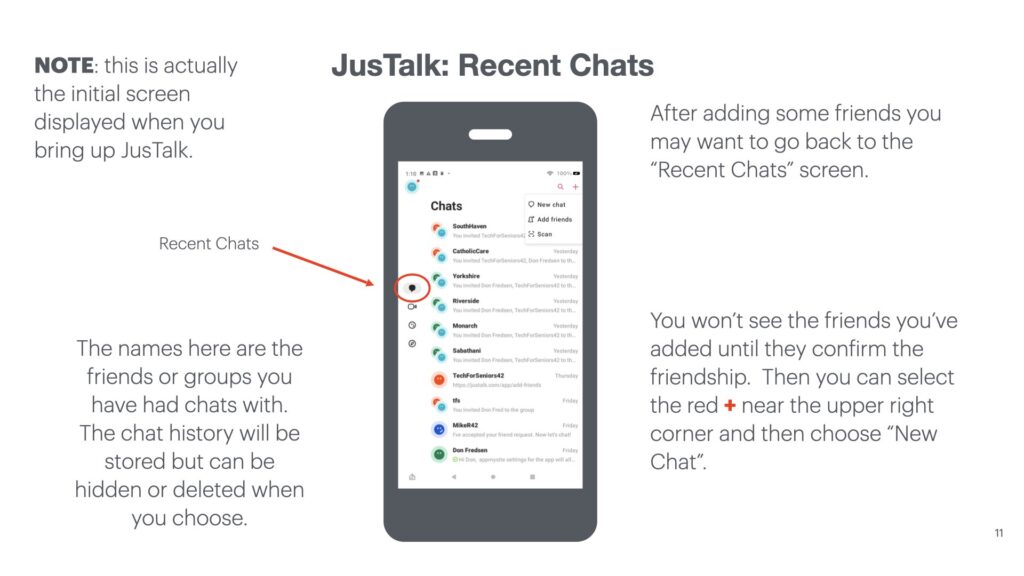
The Chat Screen was actually the first screen we saw when we started JusTalk and we just went through the sequence of adding friends and organizing them. When you select a recent chat by tapping on the name of the friend or group, it will place in the chat where you left off with that Friend or Group and place you on the Chat screen where you left. You can type a message near the bottom of the screen and then hit the send icon (looks like a paper airplane near the bottom right the screen where you just typed.
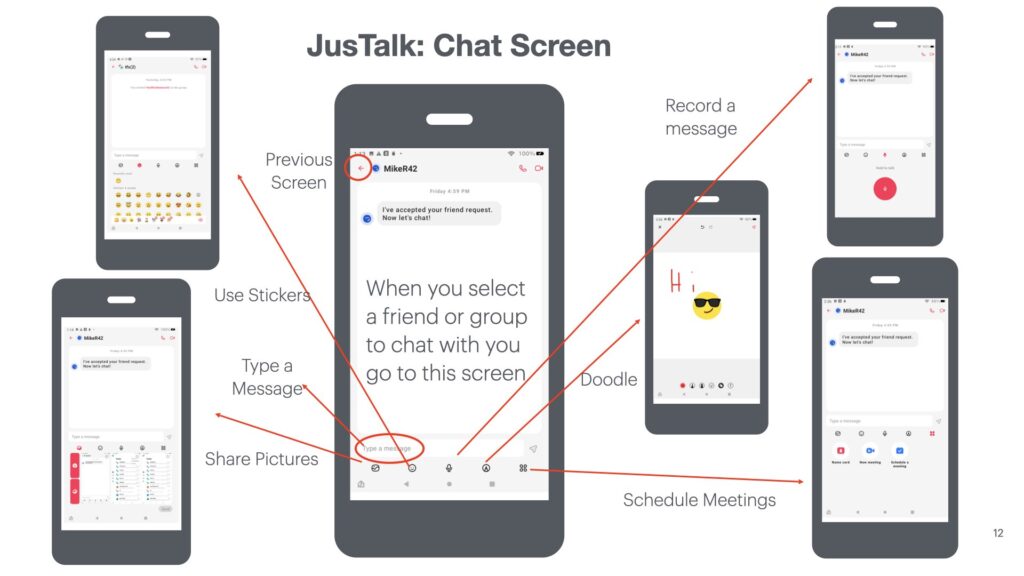
The icon at the bottom left of the screen will allow you to include a picture or a screen shot in the chat. The icon next to that (the 2nd from the left) allows you to include a sticker, in the JusTalk documentation, you can learn how to add more stickers. The middle icon near the bottom of the screen allows you to record an audio message in the chat. The icon second from the right allows you to draw (or doodle) in the chat. The example in the diagram shows a sticker and a doodle. Finally the far right icon allows you to schedule a meeting. On the upper left of the screen is an icon allowing you to return to the previous screen.
Audio and Video Calls with JusTalk
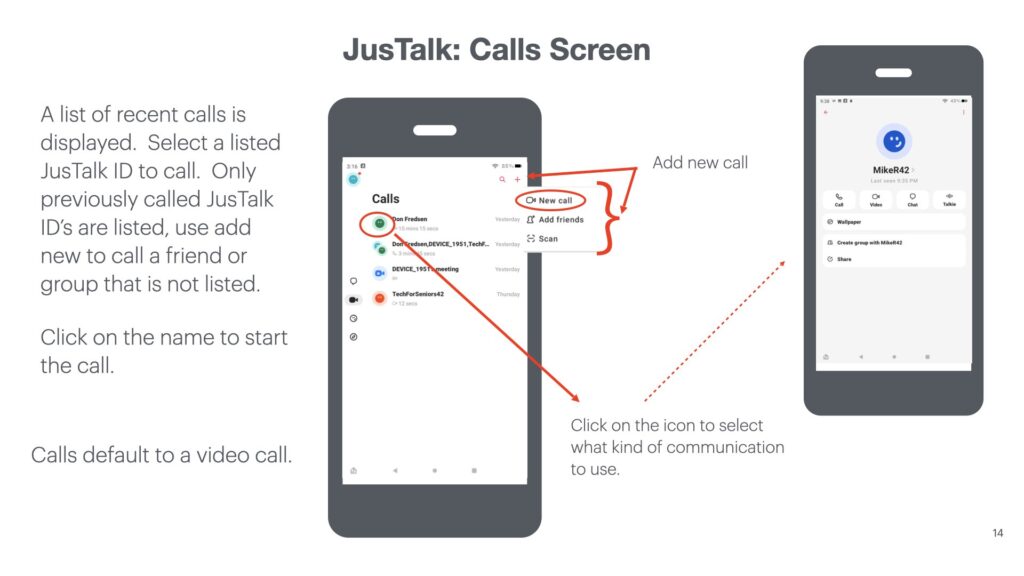
The call screen allows you to quickly make calls to friends you talk to frequently or to create a new call to someone you haven’t spoken with but has accepted your connection invitation. By default a call will be a video call. You will need to take an extra step to do an audio call, a chat, or a “Talkie” call. Once you make the call, you will be able to control the microphone, speaker and camera. There is additional functionality you can explore and play with: games, etc.
JusTalk Moments
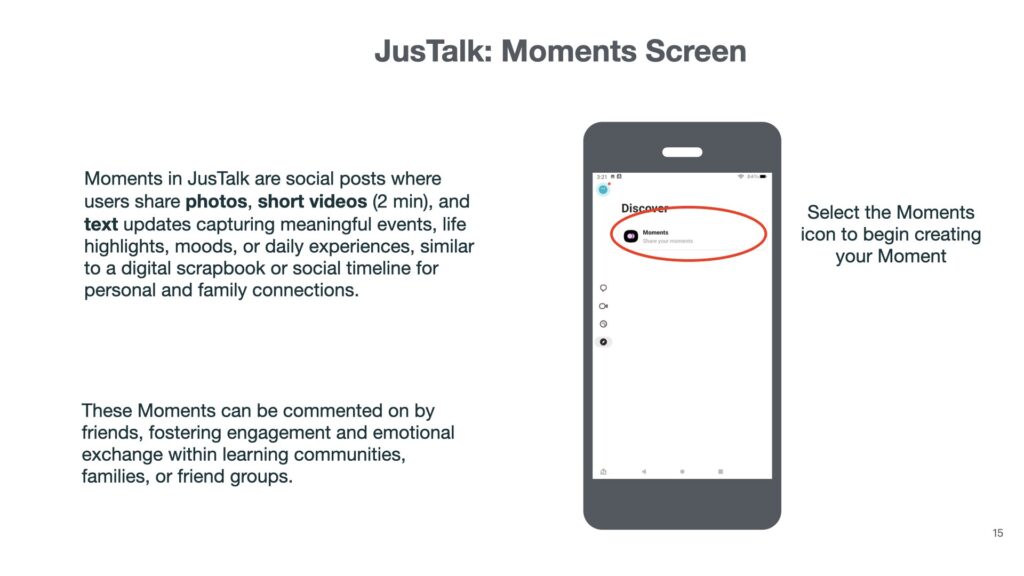
What Are Moments?
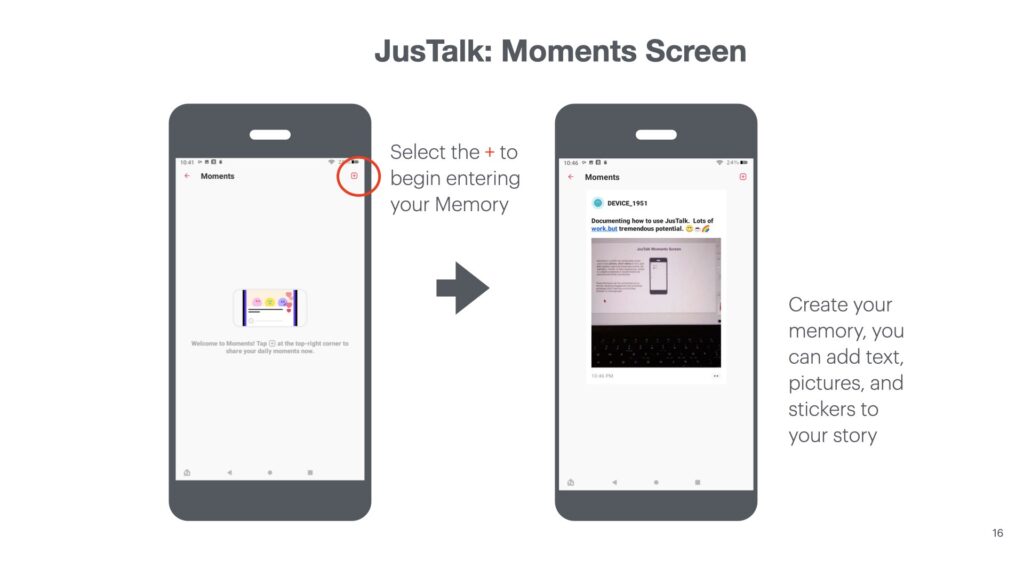
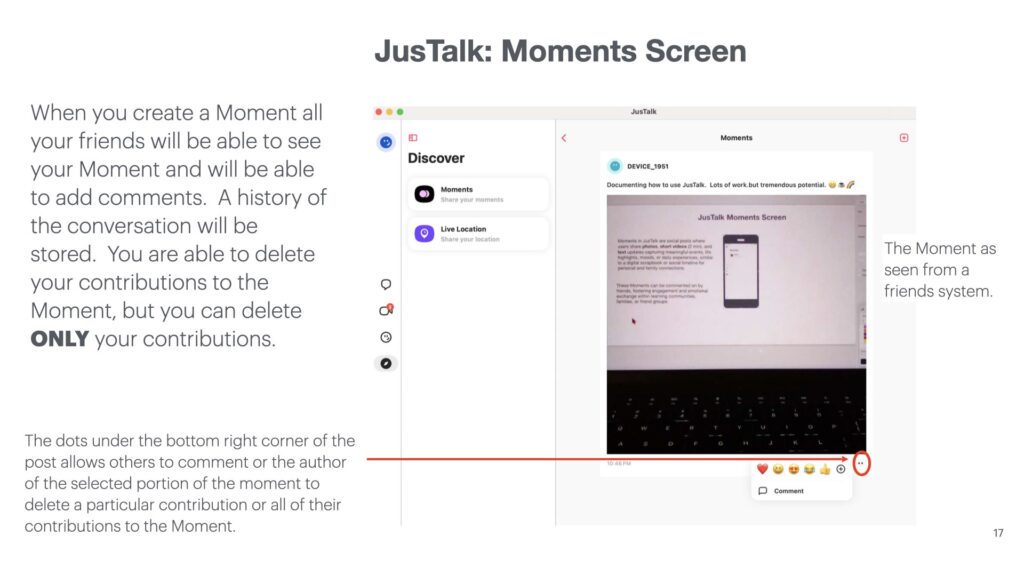
- Moments let users share pictures, brief videos (up to 2 minutes), and text about their lives, accomplishments, or special activities.
- Friends and family can view and interact with posted Moments, using comments or emoticons to provide feedback and encouragement.
- Moments help build a collection of memories accessible within the JusTalk app, making it easy to revisit and cherish key events or moods.
Moments in JusTalk are best used to foster community spirit, emotional connection, and ease of sharing daily life among groups, families, and learning communities.
Good Uses for Moments
- Sharing daily highlights, such as learning milestones, class group activities, or personal achievements in learning communities.
- Recording and sharing fun events or group outings like family trips, community meetups, or virtual club celebrations.
- Saving special video messages, birthday celebrations, or bedtime stories for family members to view again and stay emotionally connected over distance.
- Encouraging discussion and bonding, by posting creative artwork, challenges, or group projects and inviting comments or feedback from community members.
- Building a positive digital scrapbook for kids and families, helping parents keep track of growth, special occasions, and memorable conversations safely.
Example Scenarios for Learning Communities
- Posting weekly updates with snapshots of group projects or achievements.
- Sharing short video reflections after workshops or classes.
- Documenting attendance at community events to highlight participation and engagement.
- Encouraging members to celebrate progress by posting certificates, awards, or personal notes.
- Allowing comments so group members can motivate each other and build supportive relationships.
JusTalk: Setting up Meetings
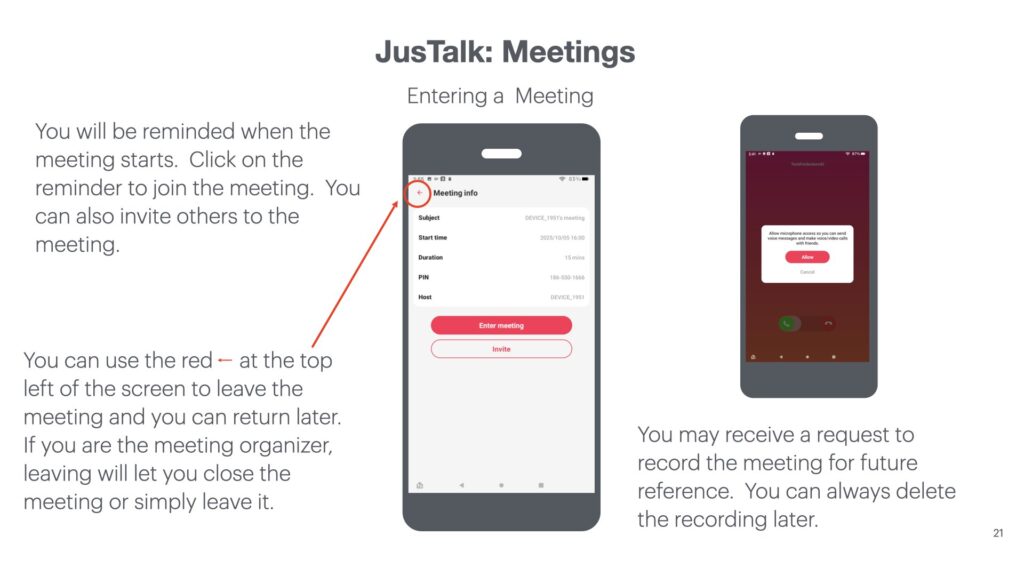
You can schedule meetings with any of your contacts or groups. You need to schedule a meeting at least 15 minutes prior to the start time. You can share your screen during the meeting to show items on your tablet. Meetings can be recorded. Meetings are scheduled through the Chat screen, when it is entered from a friend or group detail screen. The details of this slide are explained in the text below. Basically, you can schedule a meeting from anywhere. The picture also helps you visualize. the relationships of a majority of the functionality you will be working with.
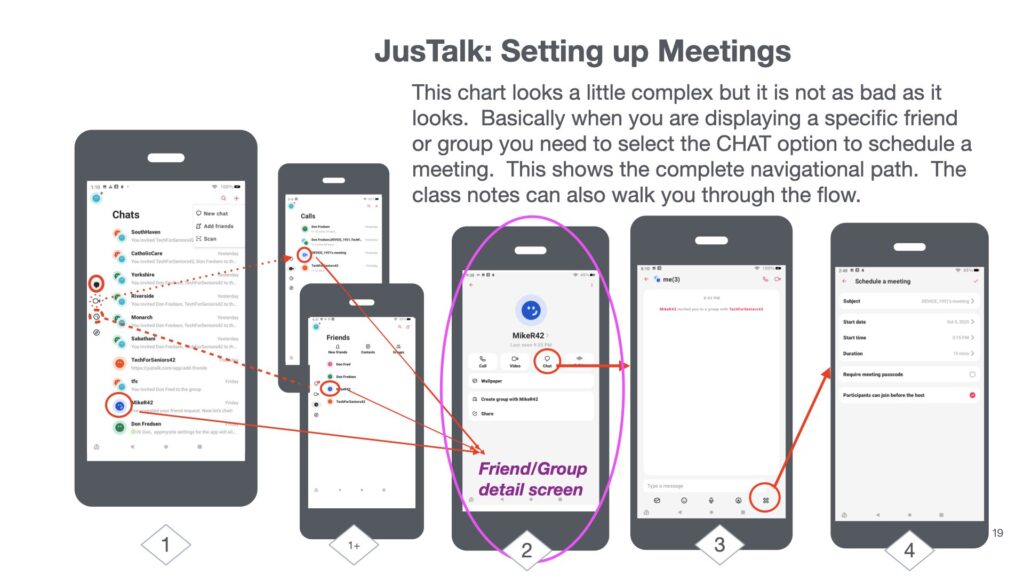
The portion of the screen to the left of the friend/group detail screen shows screens we have seen earlier, so it’s a nice review screen to show the big picture. Basically, we have a short path to communicate or schedule things as you encounter them. We have 3 major paths we can take in JusTalk (chat, call, friend); we are placed in the CHAT screen (#1) by default when you enter. From here you can directly select (solid line) a friend/group screen (#3). If you decide (#1+) to work on friends (dashed line) or calls (dotted line) we can still get to a friend/group screen (#3) quickly.
When you enter a chat from a friend or group detail screen (circled #2), an expanded chat screen is displayed as shown in the second screen from the right (#3). The expanded chat screen allows you to select the Meeting icon (circled in #3), which opens the meeting screen (#4).
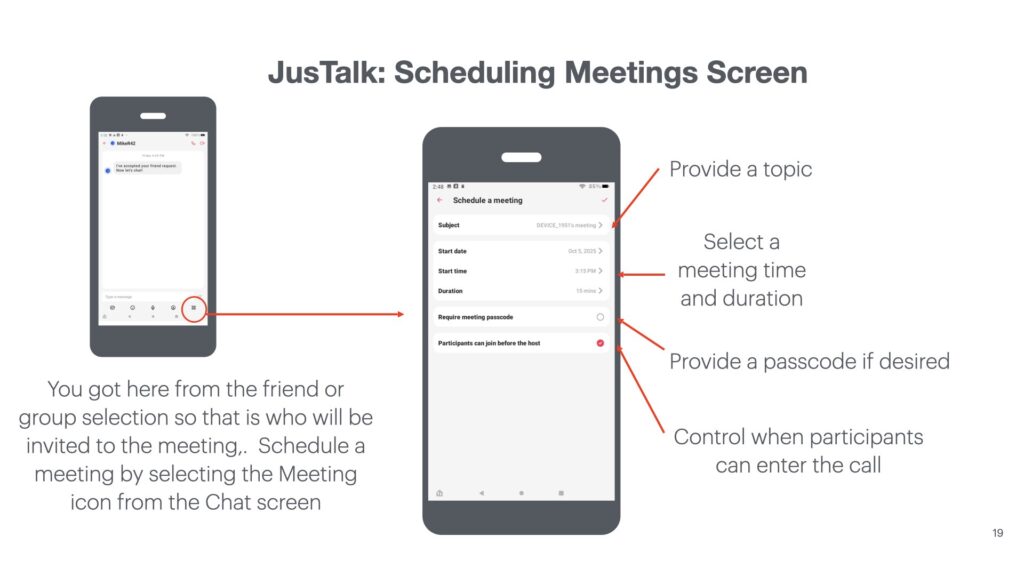
When you get to the group chat screen, a screen with the last communication will be shown. Select the MEETING icon on the lower right of the Group chat screen, you will be able to schedule a meeting. You will provide a topic for the meeting, select a meeting time, optionally select a password, and specify how participants enter the call. Note that the earliest you can schedule a call is 15 minutes from “now”; this makes some sense since it normally takes a little while to round up a group.
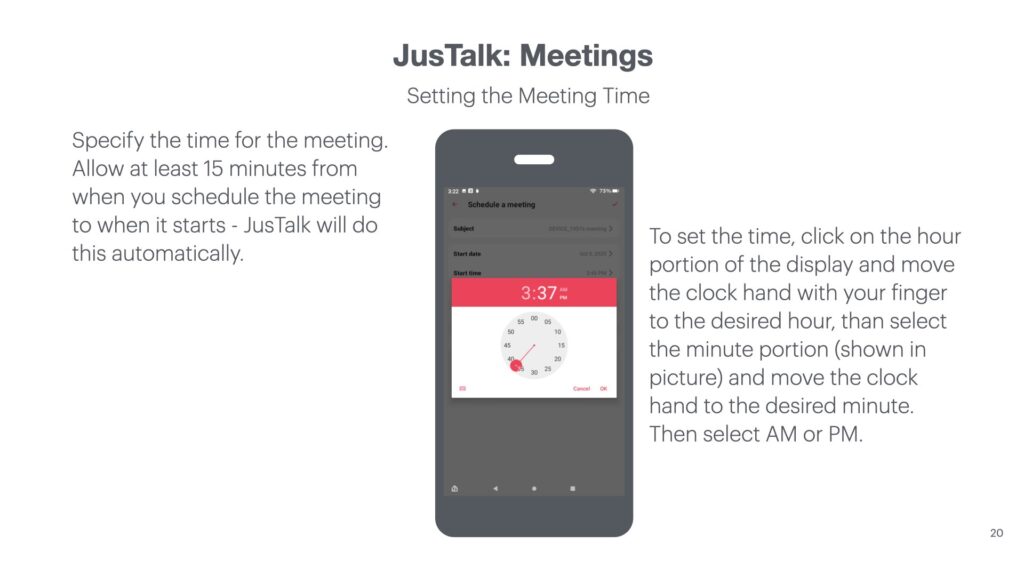
To set start and stop time for a group call, use your finger to position the hour hand to the right hour; then tap on the minute display and position the hand to the right minute; then select AM or PM; and select OK.
When you are done the program will schedule your meeting and send a chat notification as well as a reminder alert for the meeting.
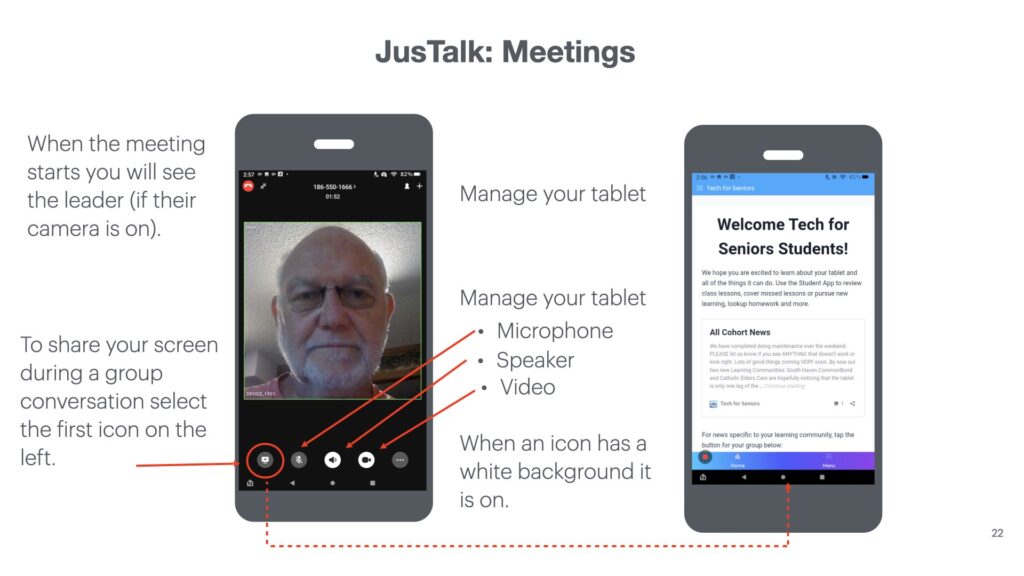
Once you are in the meeting, you have control over your communication. You can adjust sound, microphone and whats on your display (to others) while you are in a meeting. Note that when an icon has a white background it is enabled (on – see Speaker), a black background (off – see Microphone). The screen on the left demonstrates screen sharing.
Screen Sharing
Setting up JusTalk for someone outside your learning community
Once you become familiar with how to use JusTalk within your learning community, it is natural that you may want to expand your communications with other family or friends. Luckily, it works the same as it did when you communicated with your learning community.
First, you will need to check that your family or friend have JusTalk installed and configured. Installing JusTalk is easy since the app is available for free in the Amazon app store, the Apple app store and the Google app store. We have done some testing using it on the Amazon Fire Tablets, an iPad, an iPhone and a MacBook Pro (with some limitations on the Macbook). Unfortunately it is not available on WIndows platforms. See the earlier install section of this post.
When your friend/family configured JusTalk, they chose a JusTalk ID just like you did. If you know their JusTalk ID, you can start the “friending” process just like we did for your learning community. You can also scan their QR code or have them scan yours. If you recall, there are other ways to initiate the friending but eventually your friend/family will need to install JusTalk for this to work; and then you exchange JusTalk IDs and accept the friendship connection.
Security with JusTalk
There are a number of security features with JusTalk.
- First, only JusTalk users and use JusTalk to communicate with eachother
- To communicate you need to know the JusTalk ID of your friend/family and the connection must be accepted by the receiver of the friend request
- All communication between JusTalk users is encrypted and is only store on the associated tablets
- DON’T ACCEPT A REQUEST TO CONNECT FROM SOMEONE YOU DON’T KNOW!!
- We have configured the tablets to NOT allow unknown contacts from communicating with you.
- Your friends and family connection information is only stored on your tablet
- Don’t accept any contacts from sources you are not COMPLETELY comfortable with
- There are limited advertisements – of course there are a few, that’s why it’s free
JusTalk comes highly recommended for senior learning communities for it’s cost (free), ease of use, relatively broad functionality and security.