JusTalk Review

JusTalk allows you to use your table to connect with friends, families and events remotely. You can text, make audio and video calls, and participate in group chats. This allows you to participate in social activities and stay in contact from the comfort of your home.
When in-person meetings aren’t possible, it can help bring people together. And best of all, JusTalk makes it easy. This is a long topic, use the buttons to help find what you are looking for.
Adding new contacts with JusTalk
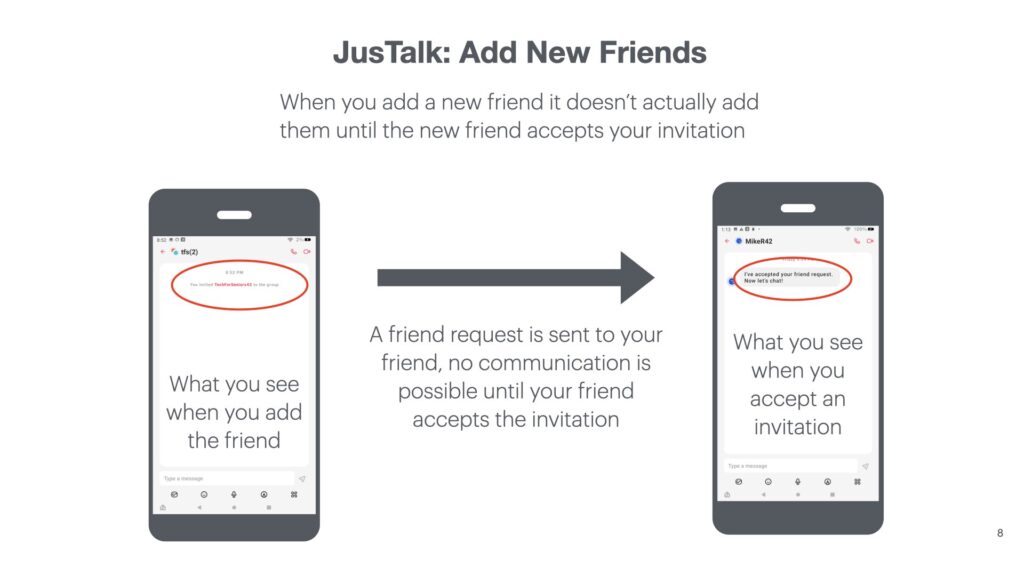
To start using JusTalk you will need to add friends and create groups to enable communicating with them. JusTalk requires you to both agree to be friends to be able to communicate.
There are multiple ways to initiate the friendship:
- you can send a request to your friend if know their JusTalk ID
- You can scan their QR code if you are near each other
- They can scan your QR code if you are near each other
- You can add then from your Amazon contact list – not recommended
JusTalk encrypts all communications from your device to your friends device so it is very secure. Unfortunately, like many free apps there will be some advertising, but you can just SKIP or IGNORE the adds.
The initial screen displayed after entering JusTalk is the Chat Screen. From this screen you can access any functionality within JusChat with just a click or two.
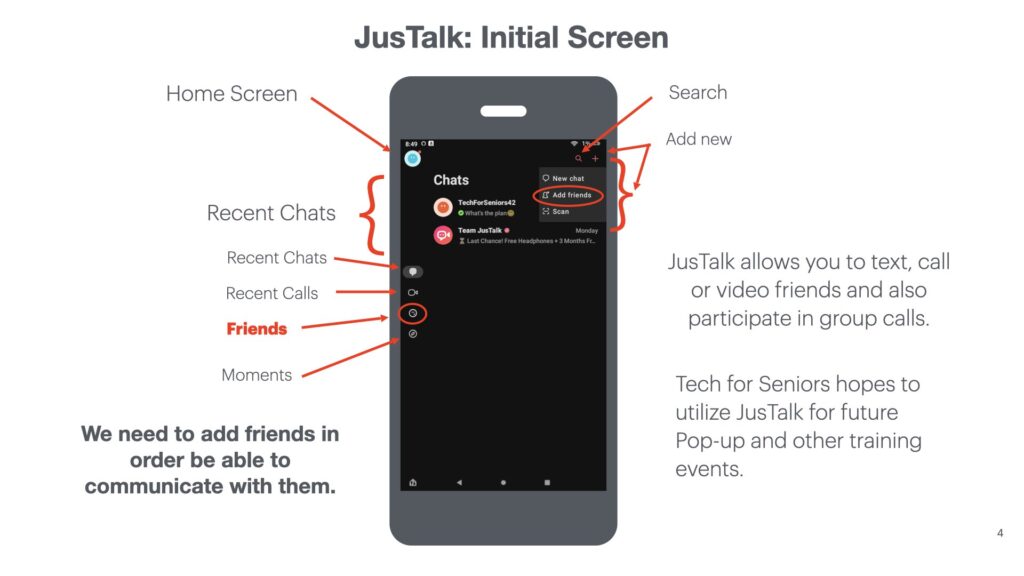
You can refer to this diagram when you need to navigate with JusTalk. We will explore this functionality together. The first thing we need to do is to make some friends to chat or talk with. That’s what the Friends button does (see the drawing to the left).
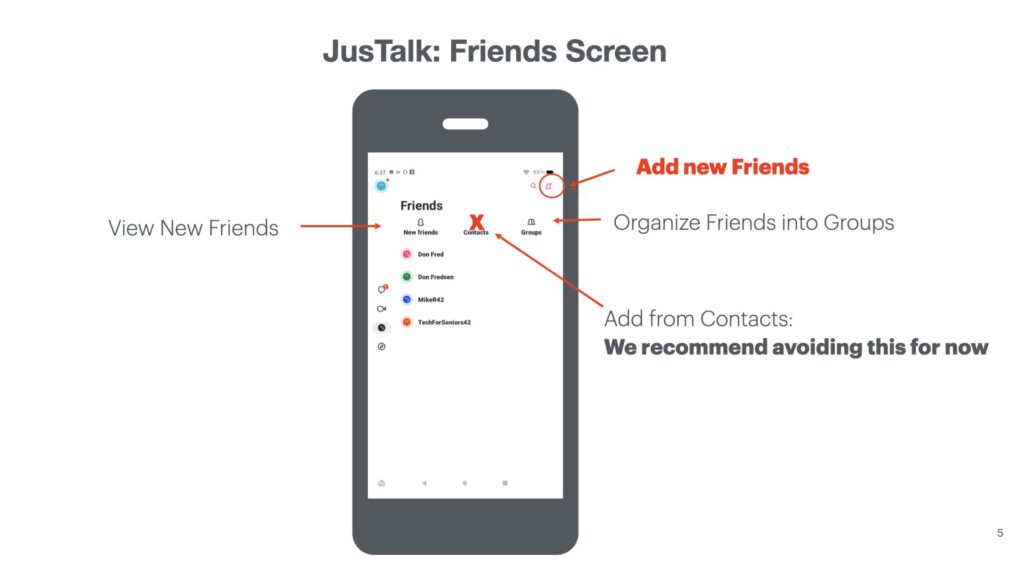
On the Friends screen we can add new friends (see the circled item on the right). Our friends are listed down the middle of the screen. The icons on the right allow us to add new friends or organize our friends into groups – perhaps by hobby or interest – perhaps your community learning group or your study group.
There are multiple ways to establish friendships:
- If you know your friends JusTalk ID you can enter that and a text message will be sent to them asking them to confirm the connection. You will be notified with a chat message when they respond.
- You can send your JusTalk ID to your friend and they can initiate the friend request from their end.
- If your friend is near you, you can scan the QR code on their device and it will establish the connection. Or they can scan your QR code from your device.
- There is an option to add friends from your contacts list, but we don’t recommend using that technique, talk to us about the concern if you feel you would like to use this feature.
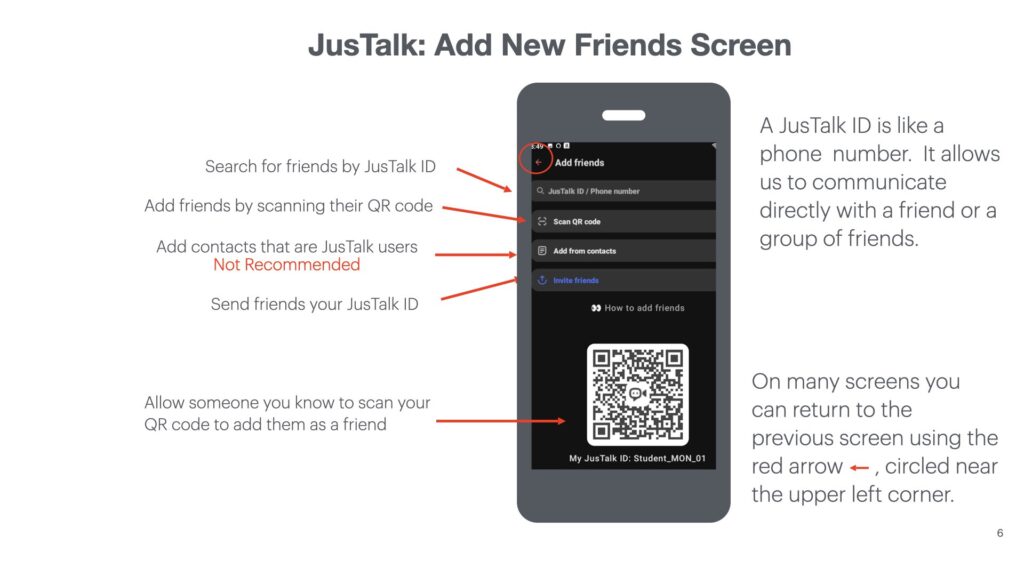
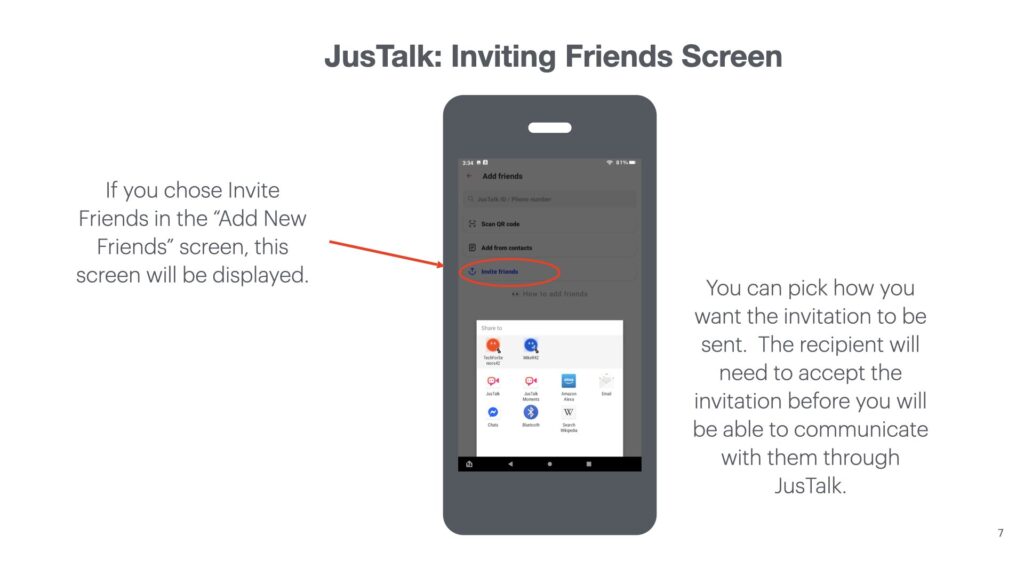
When you choose to send your JusTalk ID to connect to a friend, this screen will be presented. There are several ways to send the ID, through JusTalk is the easiest but there are a number of other ways to do it.
If you use JusTalk to send the request, your friend gets the request and if they choose, they will accept the invitation. You will be notified when they make a decision (hopefully to connect).
Groups
Adding Groups
Once you have added friends you will likely want to group the friends together to form a social community – perhaps your learning group or a subset of that group, a chess or card group, or perhaps your family. Groups are local to your tablet – you won’t be able to see my groups and I can’t see your groups. Group meetings and calls are the only way to share your screen content. Video calls only show a live view of what your tablet camera sees.
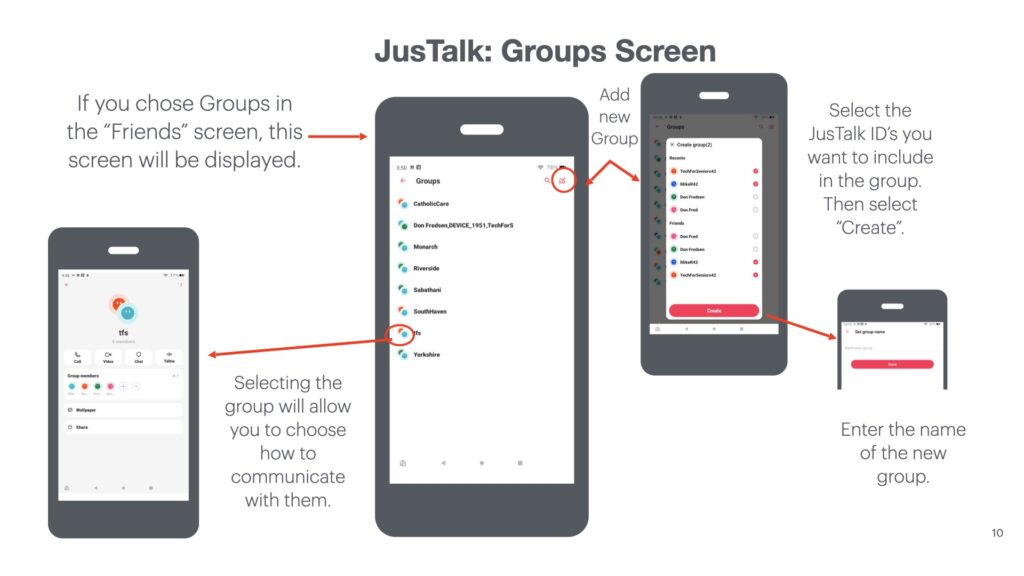
When you select the GROUP icon from the FRIENDS screen, the Group screen will be displayed. Moving to the right of the Groups Screen, you can add a new group using the icon in the upper right of the screen. You will get a screen showing your recent chats and friend list. Choose who you want to include in this group, then select the CREATE button. You will then choose the name for the Group and select DONE. Going to the the left side of the Groups screen illustrates how to to make a group chat or call.
Texting (Chatting) with Friends
JusTalk uses the term Chatting instead of Texting – it means the same thing. Texting is a very popular form of staying connected these days. It’s easy to do, you can multitask (send a text – go do something while your friend reads your text and writes a new one – come back when the tablet tells you received something. Your tablet can be configured to make a noise (which you can choose) when you receive a response.
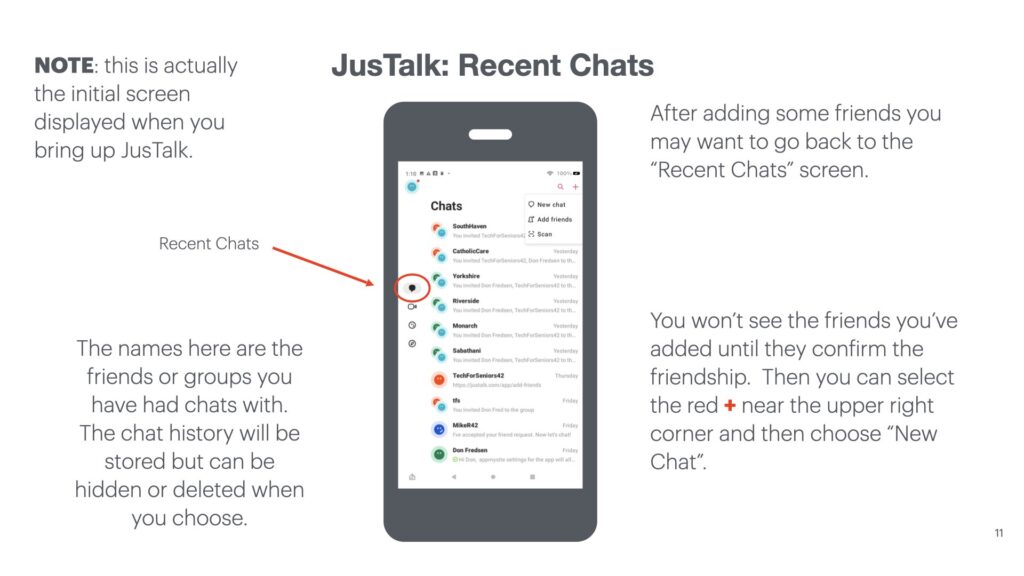
The Chat Screen was actually the first screen we saw when we started JusTalk and we just went through the sequence of adding friends and organizing them. When you select a recent chat by tapping on the name of the friend or group, it will place in the chat where you left off with that Friend or Group and place you on the Chat screen where you left. You can type a message near the bottom of the screen and then hit the send icon (looks like a paper airplane near the bottom right the screen where you just typed.
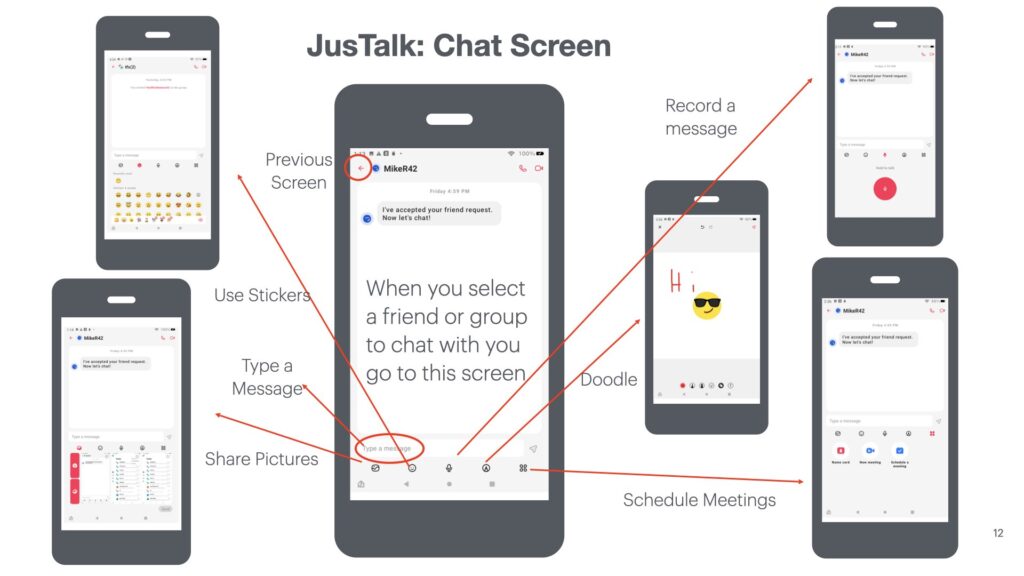
The icon at the bottom left of the screen will allow you to include a picture or a screen shot in the chat. The icon next to that (the 2nd from the left) allows you to include a sticker, in the JusTalk documentation, you can learn how to add more stickers. The middle icon near the bottom of the screen allows you to record an audio message in the chat. The icon second from the right allows you to draw (or doodle) in the chat. The example in the diagram shows a sticker and a doodle. Finally the far right icon allows you to schedule a meeting. On the upper left of the screen is an icon allowing you to return to the previous screen.
Audio and Video Calls with JusTalk
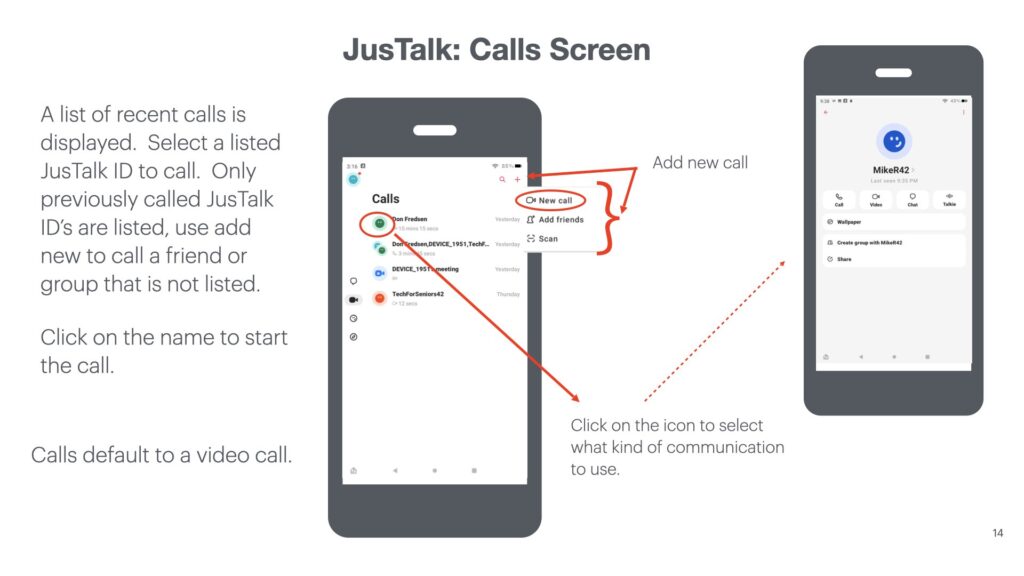
The call screen allows you to quickly make calls to friends you talk to frequently or to create a new call to someone you haven’t spoken with but has accepted your connection invitation. By default a call will be a video call. You will need to take an extra step to do an audio call, a chat, or a “Talkie” call. Once you make the call, you will be able to control the microphone, speaker and camera. There is additional functionality you can explore and play with: games, etc.