
Gladstone Links
Your Learning Group is Gladstone
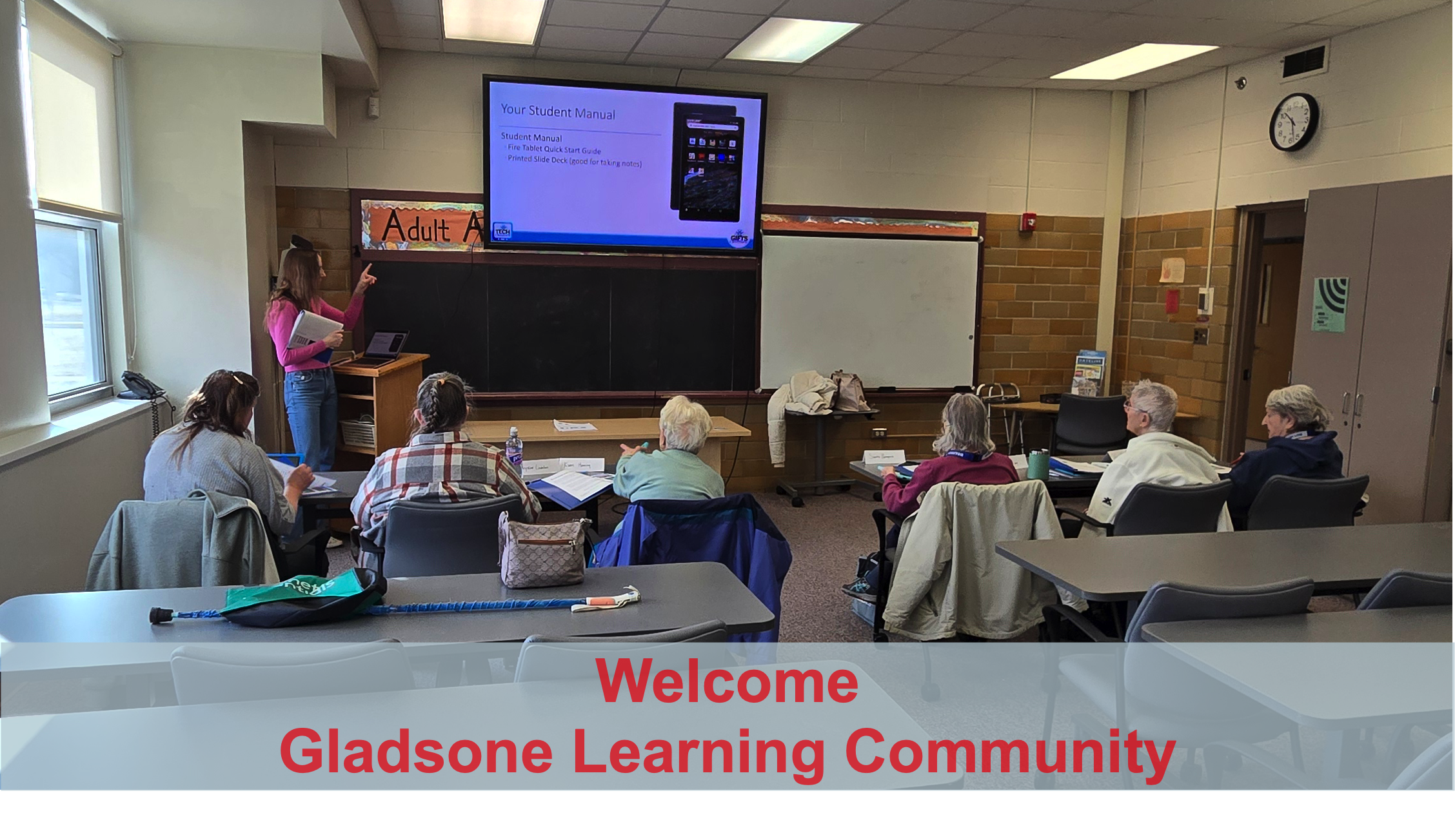
Below are the links for news and resources that we make available to the learning group from Gladstone Learning Center.
News
Welcome Gladstone students. Session 4 is this week. We hope you are enjoying working with Alexa to help your daily llife. “Hey Alexa, what’s today’s weather?”
Thanks to Sandra, Geri, Karen, Krystine, Georgia and Catherine for continuing with the classes and doing a great job!
Your Course
Our objective for this course is to facilitate your journey in feeling comfortable using technology to enrich your life. We will learn how to take care of your tablet, use it to play games, keep in touch with others and safely navigate and explore the treasure of information available on the internet.
Classes are help on consecutive Thursdays from 3/5/2026 through 4/23/2026 from 10:00 AM to 11:30 PM.
- Week 1 – 3/5 @ 10:00AM Getting Started with Your Tablet
- Week 2 – 3/12 @ 10:00AM Using your Fingers to Navigate on your Tablet
- Week 3 – 3/19 @ 10:00AM Controlling your Tablet with your Voice and Alexa
- Week 4 – 3/26 @ 10:00AM Wikipedia & 7 Words
- Week 5 – 4/2 @ 10:00AM Zoom and Links for Seniors
- Week 6 – 4/9 @ 10:00AM Games & Utilities
- Week 7 – 4/16 @ 10:00AM Introduction to the Internet
- Week 8 – 4/23@ 10:00AM What’s Next/Final Survey/Exploring the World
NOTE: Please assure that your tablet is charged for class. A suggestion is to always leave it plugged in. That way it is always available when you want to use it.
Lessons
This section shows your training schedule. Each Community’s training is crafted to the needs of the specific group. Your schedule may progress differently than this and your curriculum will be updated to guide you through learning how to take most advantage of your tablet..
Week 1
Learn how to work with your new tablet. Introduce yourself to Alexa and play your first game.
Week 2
This lesson will teach you basic gestures and actions for your tablet using the MapQuest app. We’ll also introduce you to typing using the onscreen keyboard.
Week 3
This lesson will dive into the Alexa app and how you can use Alex on your tablet as a personal assistant.
Week 4
This lesson will show you how to lookup information, play an interesting game and listen to music or radio on your tablet.
Week 5
This lesson will how you can use your tablet to communicate with others, introduce you to the internet and provide an overview of the TFS safe website.
Week 6
The Week 6 Lesson for the community covers the Weather app, the Clock app the Calculator app and the Suduko game.
Week 7
This lesson will teach you how to take and edit pictures and the Calendar app.
Week 8
Congratulations on completing your course. This week will review some of the material some students have trouble with.
Your Homework
Week 1 – Homework
Using your Fingers to Navigate on your Tablet
- Review the Fire Tablet Quick Start Guide. Make a note of any questions you have about getting started.
- Charge and explore your tablet. Have you found a counter or side table where you can leave it plugged in?
- Watch a video from the Week 1 Lesson in the Student App.
- Have your tablet sitting in a location where you can ask it “Alexa, What time is it?” and “Alexa, What day is it?”
- Play a game of classic solitaire. Our homework for this lesson is easy and fun. We want you to play an old-fashioned game of Solitaire Classic.
- Be prepared to report to class if you have won a game of solitaire!
We want you to have great fun with your new tablet. And most importantly:
Never Stop Learning!
Week 2 – Homework
Our homework for this lesson is easy and fun. We want you to use the MapQuest app to look up your childhood home. Here are the steps:
- Launch the MapQuest app.
- Use the Find Places (Magnifying Glass) to search for your childhood city or town.
- Use drag, pinch and expand to find the location of your childhood home.
- Tap the Layer and Satellite icons to switch to the satellite view.
- Use drag, expand to view the satellite image of your childhood home.
- Have fun looking around the neighborhood.
- Restore the normal map view by tapping Satellite again.
We want you to have great fun with the Maps app while practicing your tablet skills. And most importantly:
Never Stop Learning!
Week 3 – Homework
Practice is important in your learning. Here is your practice homework for this lesson:
Homework is necessary to master Alexa. Here are some commands that you can use for practice.
| Summon | Command or Question | Response |
| Alexa, | How old is Micheal Douglas? (substitue any famous person here) | [Famous Person] is xx years old. |
| Alexa, | What day is it? | “Today is xxxxxx” |
| Alexa, | Start a timer for 1 minute and 30 seconds. | Press Stop to stop the timer notice. |
| Alexa, | What is the weather? | “Today’s weather is xxxxxx” |
| Alexa, | Tell me a joke. | I hope it is funny. |
Have fun with Alexa. It is a great way to get more from your tablet.
Never Stop Learning!
Week 4 – Homework
Read two topics of your choosing on Wikipedia.
- Use the search function to search for your hometown and learn about your hometown’s history and features.
- Use search to explore another topic that interests you. Pick places, people, celebrities, or subjects. Be prepared to share your topics and learning with next week’s class
- Play a few games of 7 Little Words. Remember you get a new free Daily Puzzle every day.
We want you to have great fun with while practicing your tablet skills. And most importantly:
Never Stop Learning!
Week 5 – Homework
JusTalk is a great way to stay in touch with friends and family. Social connections are important for your health.
- Add a Friend to JusTalk
- Text the Friend you just added with JusTalk
- Call the Friend you just added with JusTalk
Links for Seniors is intended to be a safe area for you to learn about your tablet and navigating the internet.
- Use Links for Seniors to discover what applications are installed on your tablet. Hint: look at the Your Tablet link.
Never Stop Learning!
Week 6- Homework
Mastering your tablet requires study and practice. To help with the mission, complete the following tasks this week:
- Play a game of Sudoku. Go to the Week 6 online lesson for tips on how to play.
- Refer to the weather app for the hourly or daily forecast. Find instructions for the weather app in this week’s lesson.
- Use the calculator for a household function.
- Calculate a 12% tip on a dinner bill of $35.15 (Hint: 35.15 +12%)
- How much does a $15 item with .05 percent tax cost? (Hint: 15 + 5%)
- Use the Clock timer for a household task
- Set an alarm for 5 minutes from now.
- did the alarm go off
- were you able to turn off the alarm
Never Stop Learning!
Week 7 – Homework
Mastering your tablet requires study and practice. To help with the mission, complete the following tasks this week:
Many people find enjoyment in taking pictures and editing them.
- Take a photo of your residence and view it in the Gallery
- Take a selfie, view it and delete it in the Gallery
- Enter your birthday as an event in your calendar.
- Put an upcoming event in your calendar.
We want you to have fun being creative with the Camera and Gallery app while practicing your tablet skills. And most importantly:
Never Stop Learning!
Week 8 – Homework
We want you to have great fun with the Maps app while practicing your tablet skills. And most importantly:
Never Stop Learning!
Help
If you need help, use this link to reach out to us: