
Getting Started with Your Tablet
Quick Start to Your Tablet
We hope you have been able to read the printed Fire Tablet Quick Start Guide. This guide is intended to give you a quick start with some basic skills.
If you haven’t read the guide, no problem. We’ll cover and even expand on the same topics in the video and lesson materials below.
Your Quick Start Guide – Video
Charging your Tablet
Your tablet runs using battery power. Although we will try to provide you with a tablet that is already charged, in some situations the battery in your tablet may need to be charged before you can use it. Once charged, you should get days of use from that single charge.
Here are the steps to charge your battery:
There are two parts to your charger, 1the cord and 2the power adapter that plugs into your electrical outlet.
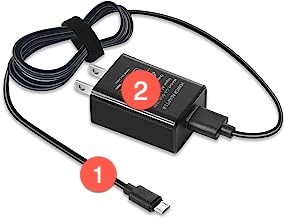
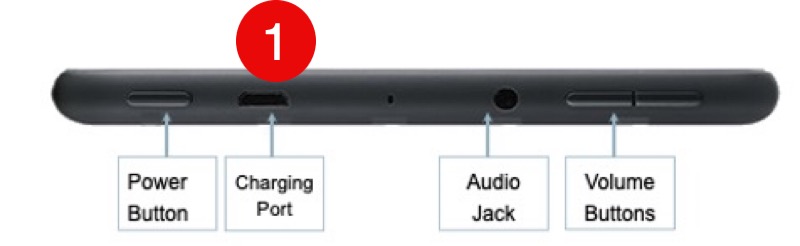
First, connect the smaller end of the cord to your Fire tablet Charging Port 1. If your tablet has a protective cover, a slot in the cover will give you access to this skinny port. If you can’t get the cable to plug in, flip the cord over and try again. The plug only goes in one direction. The larger plug on the cord will plug into the power adapter. Again if you can’t get it to plug in, flip it over and try again. Finally, plug the adapter into an electrical outlet.
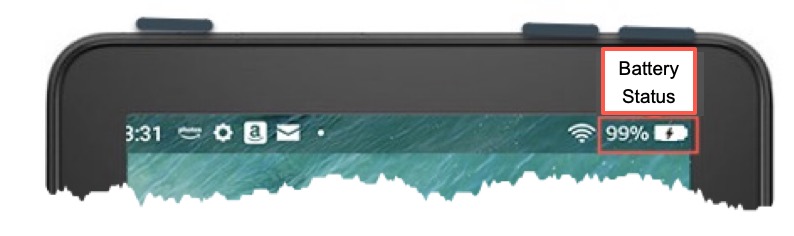
Check your tablet’s screen. A Battery Status on the upper right screen will indicate with a lightning bolt/battery image indicates that your battery is charging. This same Battery Status indicater will also display the percentage of battery left on your device.
Your battery should last days under normal use. And when the status percentage indicates that it is running low, just plug it into the charger for a couple of hours. This is something that you will do fairly often in your tablet use. Find a convenient place on a counter or table where you can charge your battery.
Starting Your Tablet
If you previously had been using your tablet and it has gone to sleep, tap the Power Button and an Amazon ad or Home screen should appear.
If your tablet was totally shut down, press and hold the Power Button for 5 seconds until you see the Amazon Logo on the screen. The wait for an ad screen to appear.
Shutting Down Your Tablet
For everyday use, just put your tablet to sleep by tapping the Power Button. Wake it by tapping again.
If you want to totally power off your tablet, press and hold the Power Button until you get a Power Off message on the screen. Tap the Power Off message to totally shut of your tablet.
Generally, putting your tablet to sleep is preferred when you are not using your tablet. If you are not using your tablet, it will go to sleep automatically in a couple of minutes.

Unlocking Your Tablet
The initial display on your tablet is often Amazon advertising which you should ignore.

From the ad screen, swipe up from the bottom of the screen to access the tablet’s Home Screen where icons for your apps will appear.
The Home Screen
The starting point for much of your time on your tablet is the Home Screen. You will find the icons for your various apps on the Home Screen. The Home Screen is a touch screen where your primary action is to tap on the screen to run apps or games. The Home Tab 1 at the top of the screen will display the Home Screen.
Let’s focus on finding your way around your home screen and essential tools you will need.

2 Apps
The main part of the Home Screen contains icons that you tap to launch the apps installed on your tablet. Apps are the programs that you run. You can simply use your finger to tap an icon to run an app.
Some apps like Games are grouped together in a folder to help keep your Home screen organized. Open a folder by tapping on it to display the grouped apps.
The apps installed on your tablet are specially selected for older adults and include games, utilities and more.
The first app you should consider is the Tech for Seniors Student app. The Student app provides lessons on the lessons and topics that we will explore during our course. More information on the Student app can be found in the topic Getting Started with the Student App.
Navigation Bar
The black bar at the bottom of the screen provides icons that you can use to navigate between different screens and apps. You will frequently tap Home w on the Navigation Bar to display or return to the Home Screen on your tablet. This give you access to the apps and functions that have been selected for you.
If you do not see the Navigation Bar because you are in a full screen app, swipe up from the bottom of the screen and the Navigation Bar will appear at the bottom of your screen.
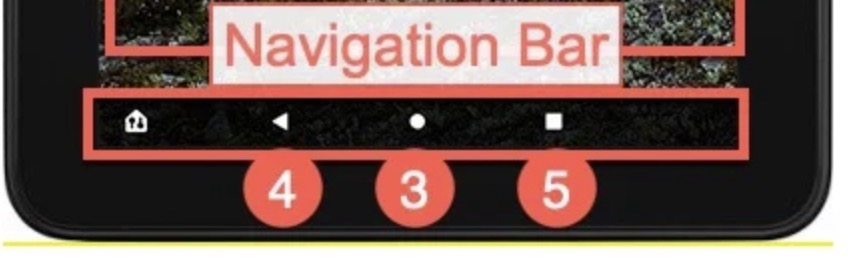
3 To go back to the Home Screen, tap the circle icon.
4 To return to the previous screen tap the left arrow.
5 To return to the previous app, tap the square on the right.
Never Stop Learning!
Quick Start to Your Tablet – Homework
- Review the Fire Tablet Quick Start Guide. Make a note of any questions you have about getting started.
- Charge and explore your tablet. Have you found a counter or side table where you can leave it plugged in? Make sure your tablet is charged when you come to class.
- Watch a video from the Week 1 Lesson in the Student App.