Links For Seniors Class Notes
Links for Seniors provides a safe internet environment to access material relevant to using the Gifts for Seniors/Tech for Seniors tablets.
Each of our Learning Communities have different interests, questions, experience, priorities, etc. To accommodate this diversity, we have organized the Links For Seniors web site by Topic with the ability to select relevant material for each communities unique needs. Similar to the GFS/TFS Student Application on your tablet, you begin by advancing through your Community Landing page and go to your Learning Communities Specific site.
In fact, the Links for Seniors workflow is exactly the same as your Student App. The major difference is that the Student App doesn’t currently support landscape display mode (with the tablet held horizontally). The horizontal view provides a wider screen so your can see details on pictures easier. Note that the images in this tutorial are mainly in portrait mode – the discussion on Using Your Tablet section illustrates the difference between the portrait and landscape modes.
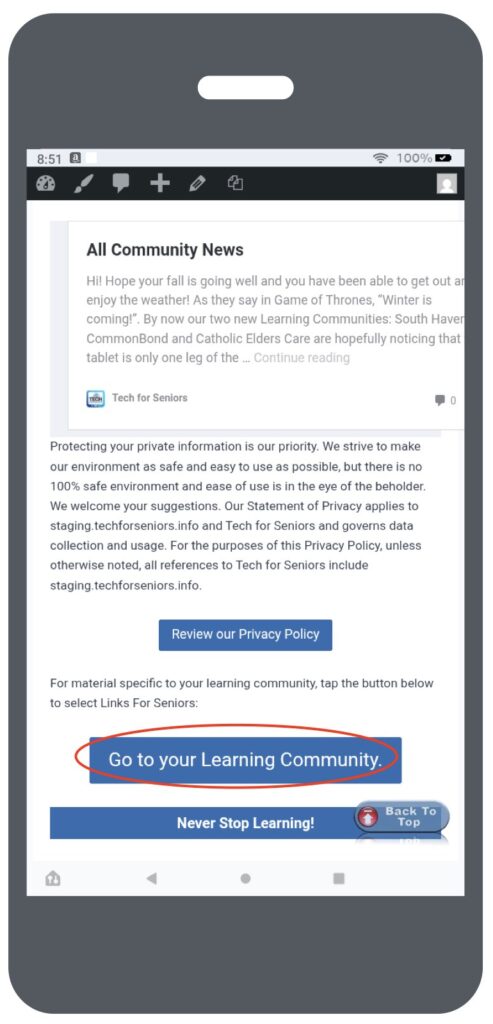
As we mentioned the first few screens are the same as when you used the Student App. When you get to your Learning Community landing page, you select “Links For Seniors” to enter the TFS secure website.
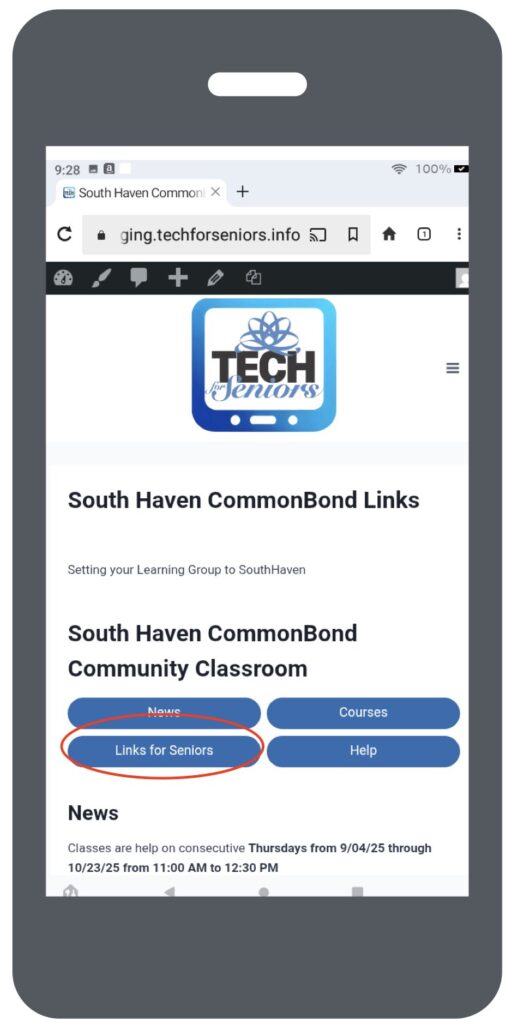
As we mentioned the first few screens are the same as when you used the Student App. When you get to your Learning Community landing page, you select “Links For Seniors” to enter the TFS secure website.
Links for Seniors Links
The material in this section is expected to be dynamic in order to address your interests and react to application and technology changes. Some sections may be specific to your Learning Group. It is organized into 5 sections:
Your Tablet – contains useful information on how to use your tablet. Review stuff you learned in class and new stuff you didn’t discuss.
News & Information – contains information about current news sources and interesting websites.
Games & Fun – contains info on games you might want to try. We have included one external website at the bottom of this page. If you decide to use it BE CAREFUL – consider reviewing Internet Hygeine 101.
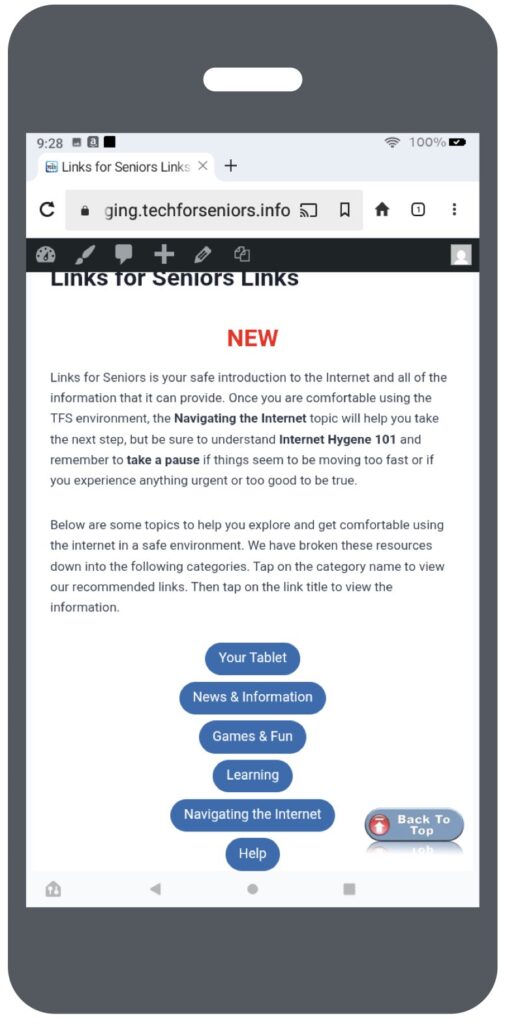
Learning – This is a catchall category with lots of interesting material, from course material to advanced course material, to details on your tablet, to how to load apps from the TFS library. contains links to your Learning Community’s course material. This is similar to the class information shown in the GFS/TFS Student Application on your tablet. Note that Zoom sessions cannot currently be started through the Links for Seniors application.
Help – contains instructions on getting help if you run into trouble. Please don’t give up! Use this information to find answers to questions or issues you encounter. It is likely others might be having the same issues so letting us know will help everyone be successful.
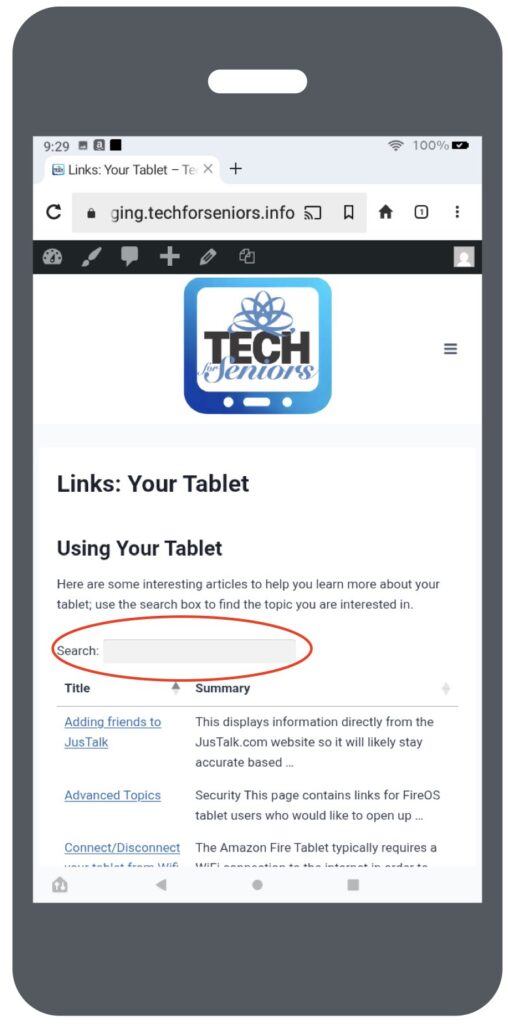
Links: Using Your Tablet
The Links: Tablet screen allows you to explore applications on your tablet, as well as find other information about it . Things such as performance, security, connecting/disconnecting from the internet and why you might want to.
The search area (circled) allows you to search for topics rather than scrolling down through all the material. Just start typing and all the articles associated with your topic will be displayed
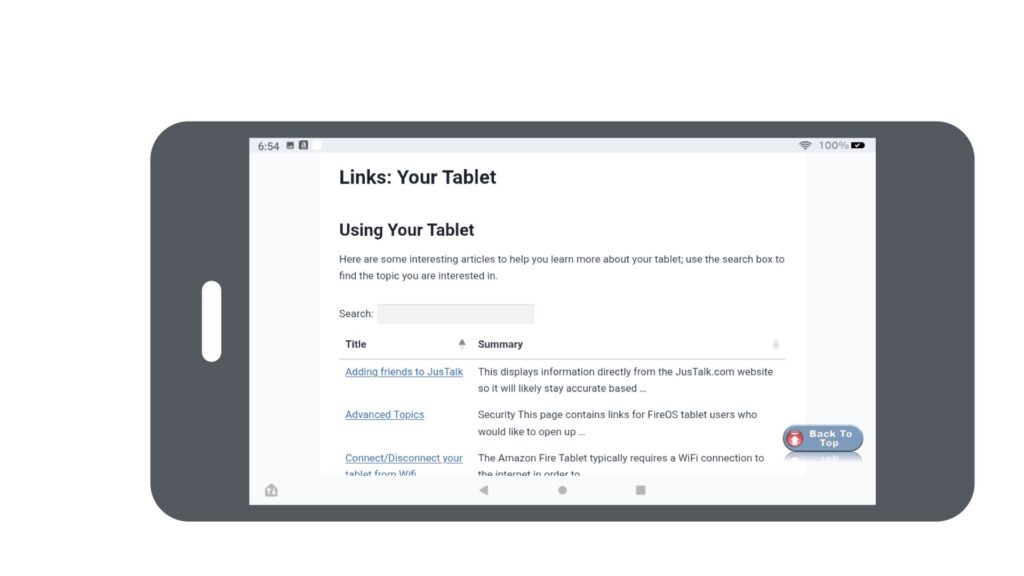
Landscape Mode
Earlier we mentioned one reason to use the Links for Seniors app is Landscape support. You can see the difference here from the previous portrait screen.
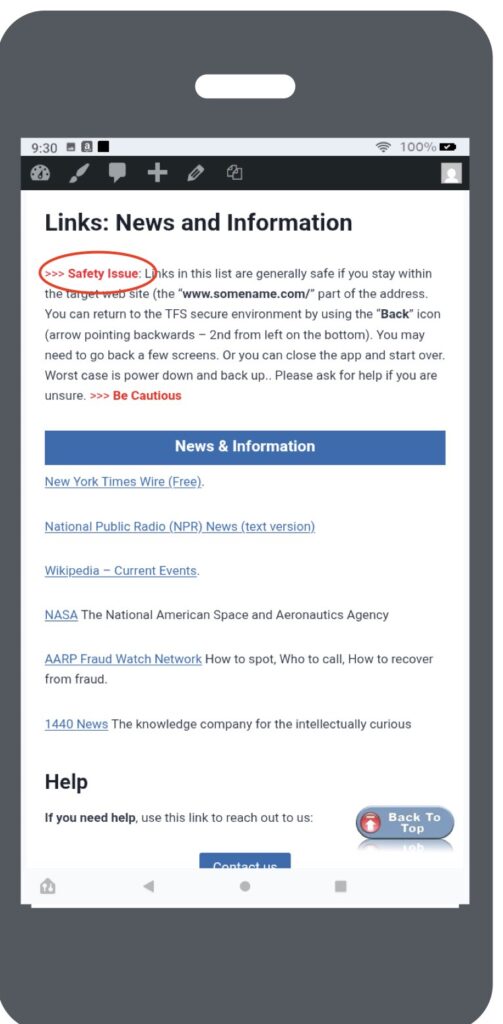
Links: News and Information
Many of our learning communities have expressed an interest in having access to news feeds online. We have strived to identify unbiased news sources for you to explorer.
Note the warning on the top of the screen. Many of these sites are NOT in the TFS secure environment so it is important to understand how to safely navigate these environments. You can always use the back arrow (second from the left on the bottom of the screen) to return to the TFS environment. Consider reviewing the Internet Hygiene 101 training.
Links: Fun and Games
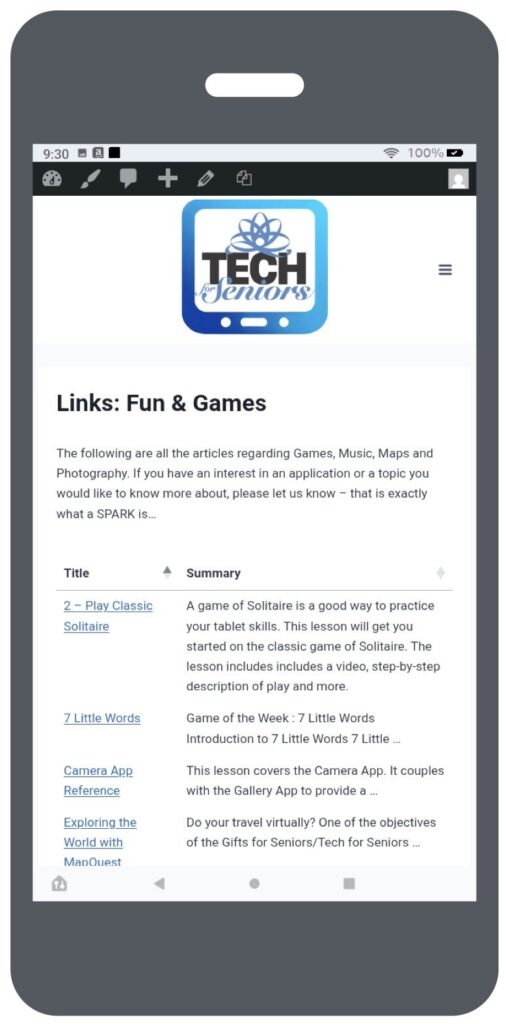
There are 2 sections to the Games path:
The first is games that we have vetted and have found to have limited ads and external “annoyances” These games are either installed on your tablet or can be installed from our Library on the Amazon App Store. See Working with the Amazon App Store – Library for more information on how to do this.
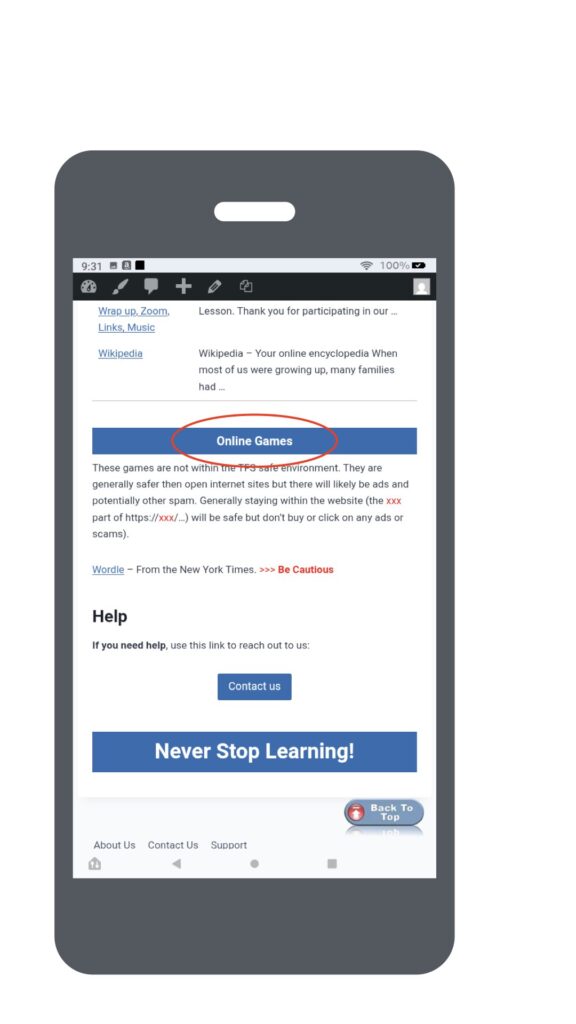
The second component of Fun & Games points to on external sites that have a limited number of ads and are relatively safe. We are working on adding additional games in this area but they will be outside the TFS environment. Continue learning about the internet in the Navigating the Internet portion of Links for Seniors and consider reviewing the Internet Hygeine 101 training if you are at all uneasy with leaving the TFS environment.
Also important, is to let us know if you would like to share your favorite gaming site with your fellow learners.
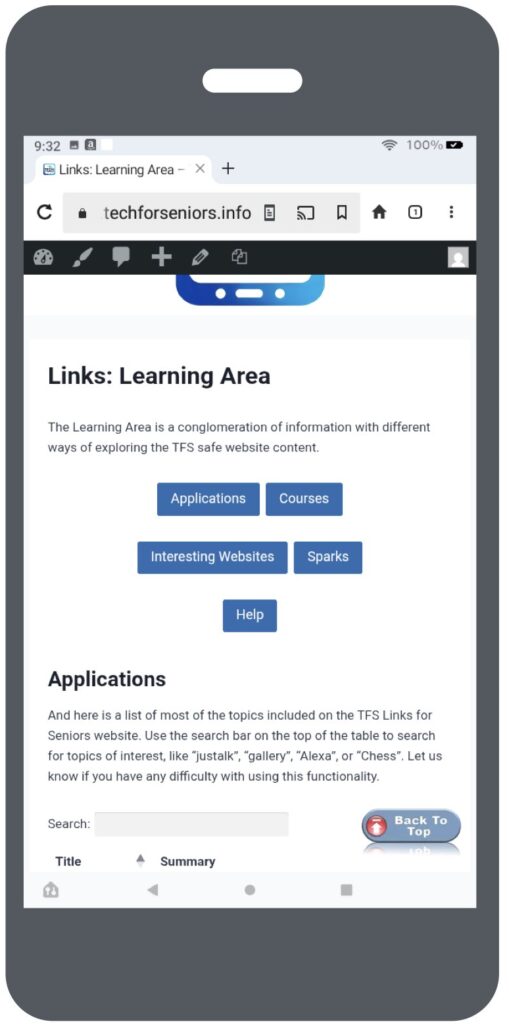
Links: Learning Area
The Learning Area is sort of a catch-all area intended to allow you to search across the entire TFS website. It provides a number of different ways to locate material included in the TFS environment as well as a few interesting external links (always be cautious when wandering outside the TFS environment).
Please let us know if you have suggestions on improving our system to make it easier and more fun to use.
Links: Applications
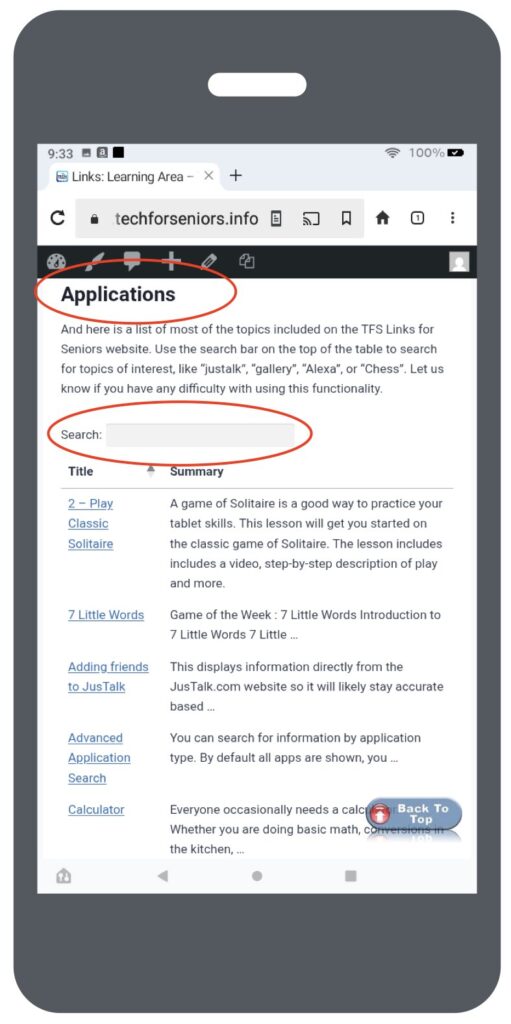
The Application screen collects all the application information on the TFS website and displays it in alphabetic order. This is helpful if you just want to look at what’s there or if you are looking to explorer something new (of course, Sparks is also a great way for that).
We are always interested in suggestions on things you might like to be able to do on your tablet.
Links: Courses
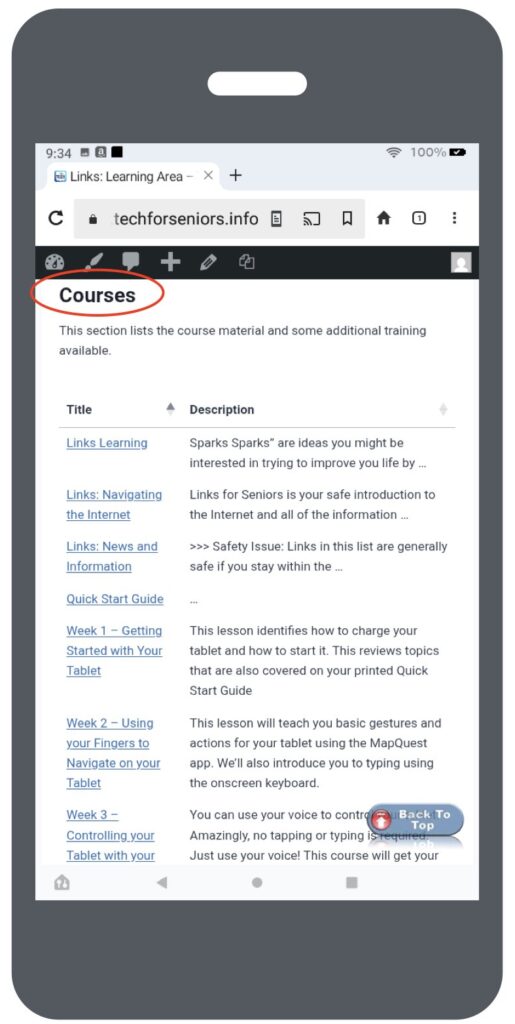
The Courses screen displays all the course material. You can always return to refresh a course you may have missed (or didn’t understand) and to view new material about your using your tablet we have developed since you last a attended training session.
Links: Interesting Learning Sites
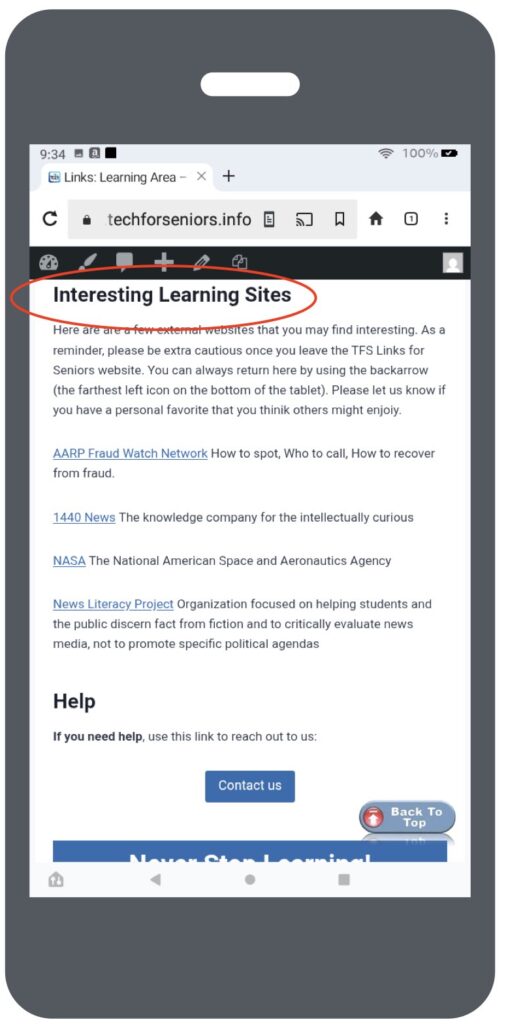
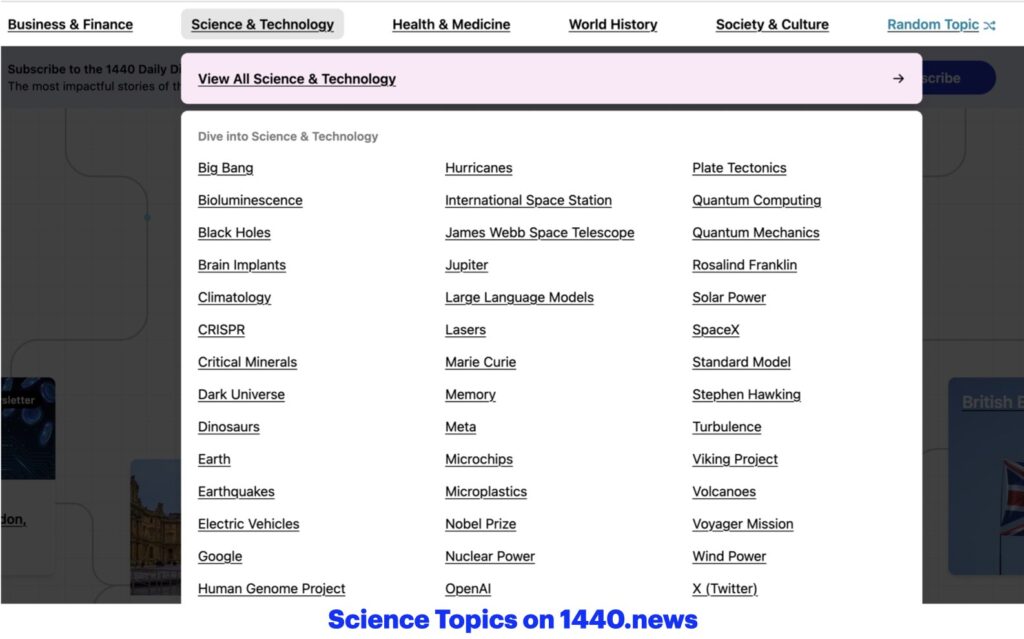
This screen contains a collection of interesting external sites where you can learn about fraud and how to protect yourself, Black Holes, Alzheimers, or Ancient Egypt and other topics, news from NASA, and how to discern fact from fiction in various news articles. The screen show below shows the topics available in the Science & Technology area alone, you can see the other categories available on the 1440 site. The other sites are just as ripe with useful and interesting information,
Let us know if you have a favorite site you would like us to add or if you have a favorite topic you would like to recommend (eg Taylor Swift Blog or Minnesota Twins news).
Links: Sparks
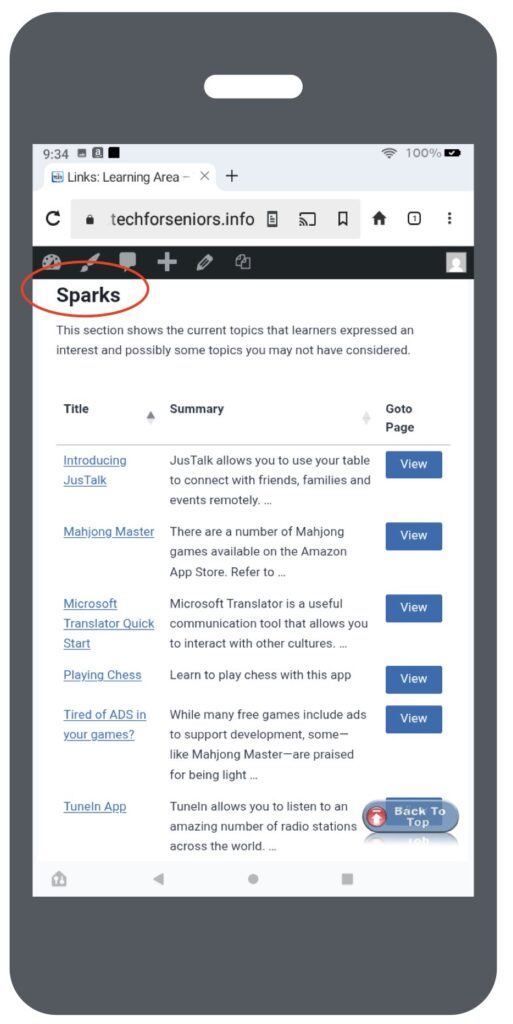
Finally we get to Sparks, one of my personal favorite ideas of GFS/TFS. This is list of applications, games, and ideas we have gotten from our communities. Past ideas have been using it to text and make phone calls, play chess, listen to music, access religious material online, talk to a friend who doesn’t speak English, and many more.
Let us know your ideas, if we can find a way we will help. And add it to our list of Sparks. Help us help you, Please.
Links: Navigating the Internet
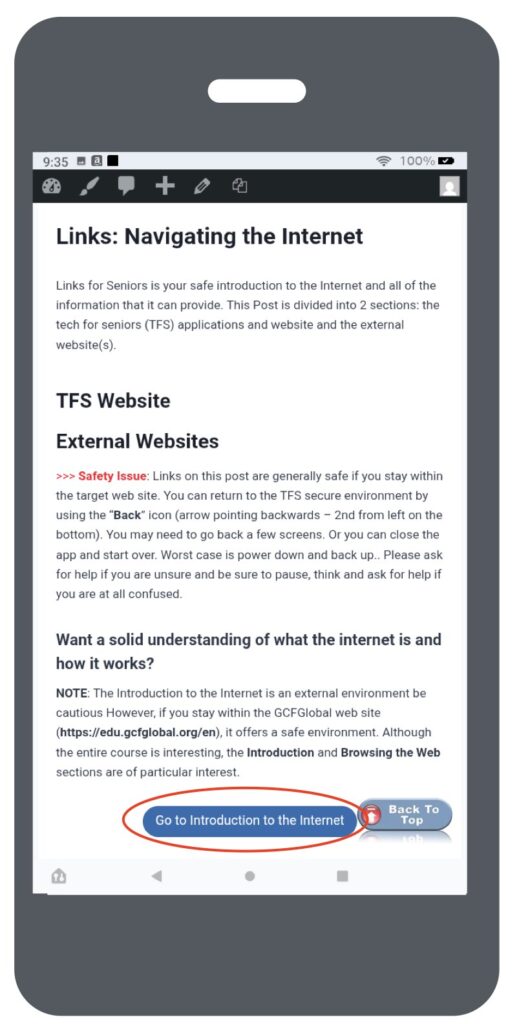
The Navigating the Internet screen helps you learn about the internet. The “Introduction to the Internet” website (circled) contains an interactive training course that is very good. It can help you understand what the internet is, how it works, and how to use it best. It contains a great deal of information but you can pick and choose the topics that are of most interest to you. Just browsing through the first couple of chapters will get you up to speed or refresh your memory quickly. Remember your internet hygiene since it is not inside the TFS environment.
There are also a number of other topics related to the internet such as an Internet Hygiene video and other security topics that you can explore. We hope to add more.
The Help Screen
The HELP screen is probably the most important screen in the TFS website. I am sure you’ve heard multiple times that the learning exercise you are undertaking has three important legs. One of the most important is your training team.
This screen contains instructions on getting help if you run into trouble. Please don’t give up! Use this information to find answers to questions or issues you encounter. It is likely others might be having the same issues so letting us know will help everyone be successful.