
Adding a website shortcut to your Home Screen
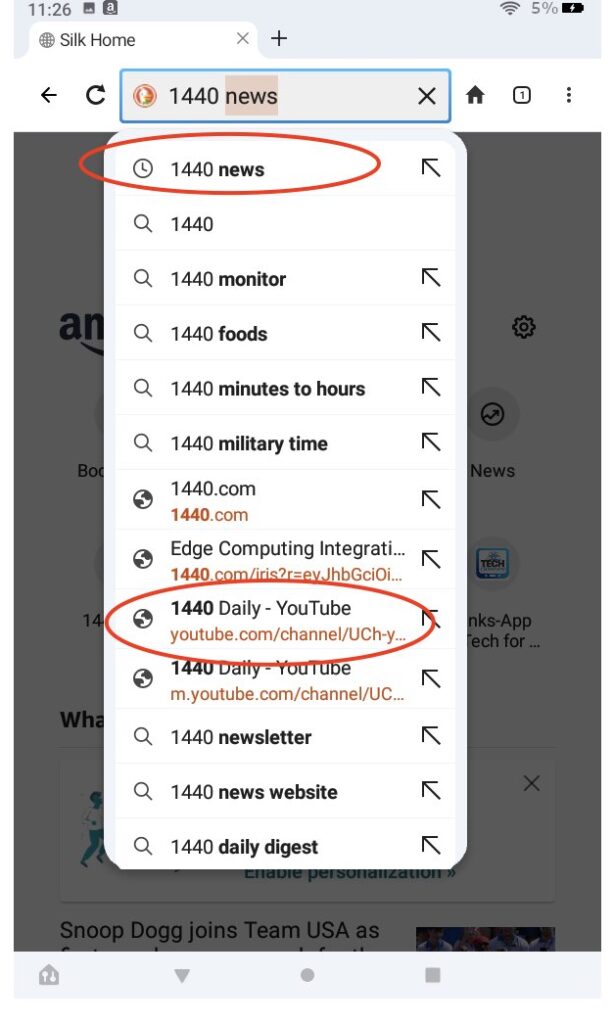
This Post describes how you can create a shortcut on your tablet Home Screen to quickly open a web page. Suppose you are very interested in a daily summary of the news from a non-biased source. You could open the Silk browser and search for “unbiased news sources” and find a news source that is rated as highly unbiased. There are many options but for purposes of illustration I chose “1440 news”.
I would type “1440 news” in the Silk Browser search area and would be presented a screen like the one to the right. Let’s say I wanted to use the YouTube presentation of the material – I would select the lower circled headline.
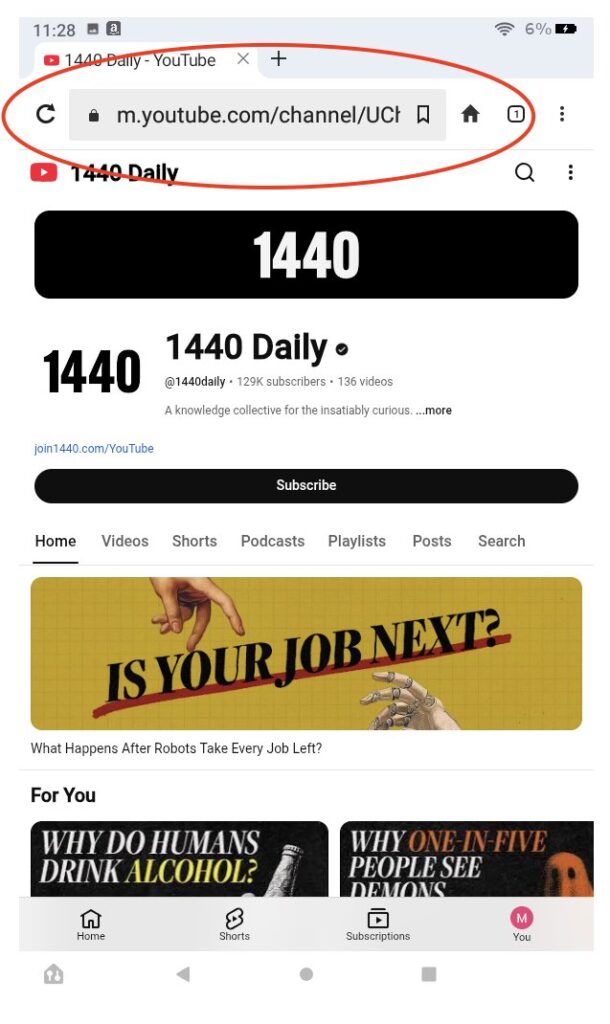
Beware that you may experience adds and solicitations to subscribe. You can normally continue to use the site without subscribing, although some sites may require you to sign in or subscribe to use them. We encourage you NOT to subscribe unless you are confident you understand the risks and commitments.
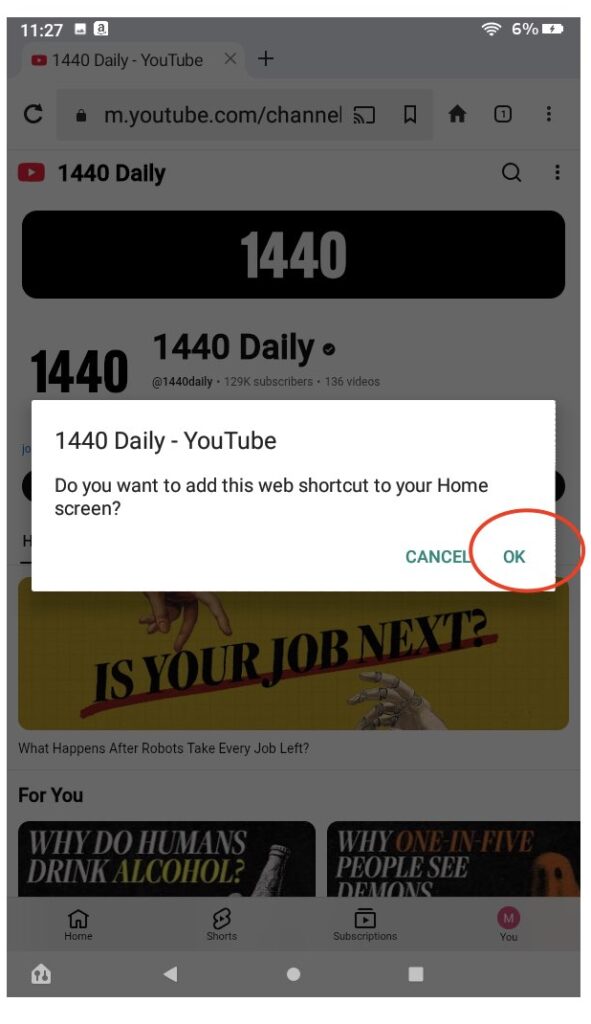
Confirm that you want to continue adding this page as a web shortcut.
You will be prompted to name the shortcut and add it to your Home Screen.
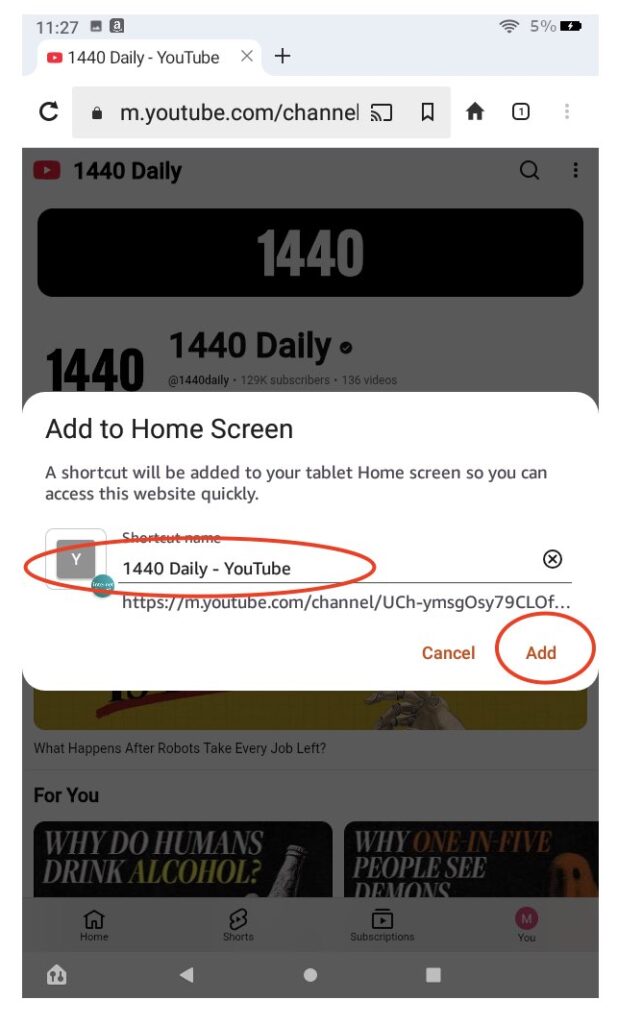
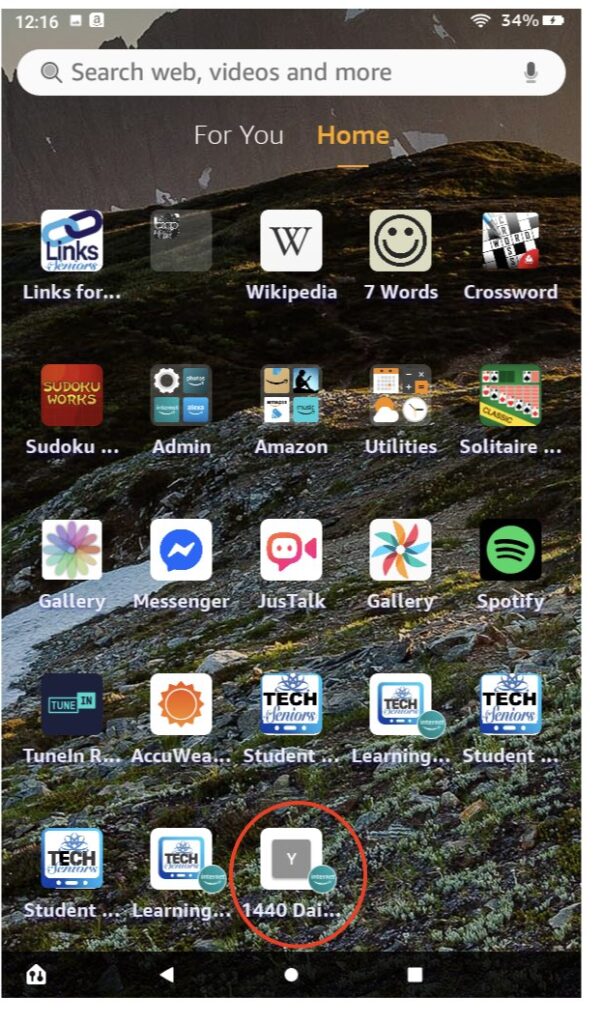
You have now created a web shortcut on your Home Screen. Clicking on the shortcut icon will open that web page in the Silk Browser (the default web browser on your tablet.
This technique can be used for any web site you frequently visit. In our case I would click on the icon to view today’s news or to listen to one the many podcasts available.