
Windows Basic Operations & TFS Tools
Windows is the core software that runs and manages your laptop. The first thing that you will see after starting your laptop is the Windows Sign in screen.
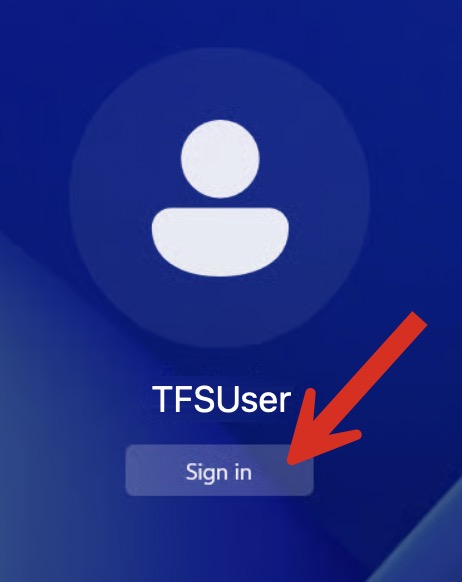
TFSUser is the user name that we have set up for you to get a quick start with your laptop.
Move the pointer on the screen using your mouse to the Sign in button and click the left mouse button.
or
You can also do the Sign in by pressing the Return key on the keyboard to get started.
Either action will bring you to the Windows desktop.
The Windows Desktop
Let’s look at the Windows Desktop and its essential components. The numbered items on the screen image are described below.
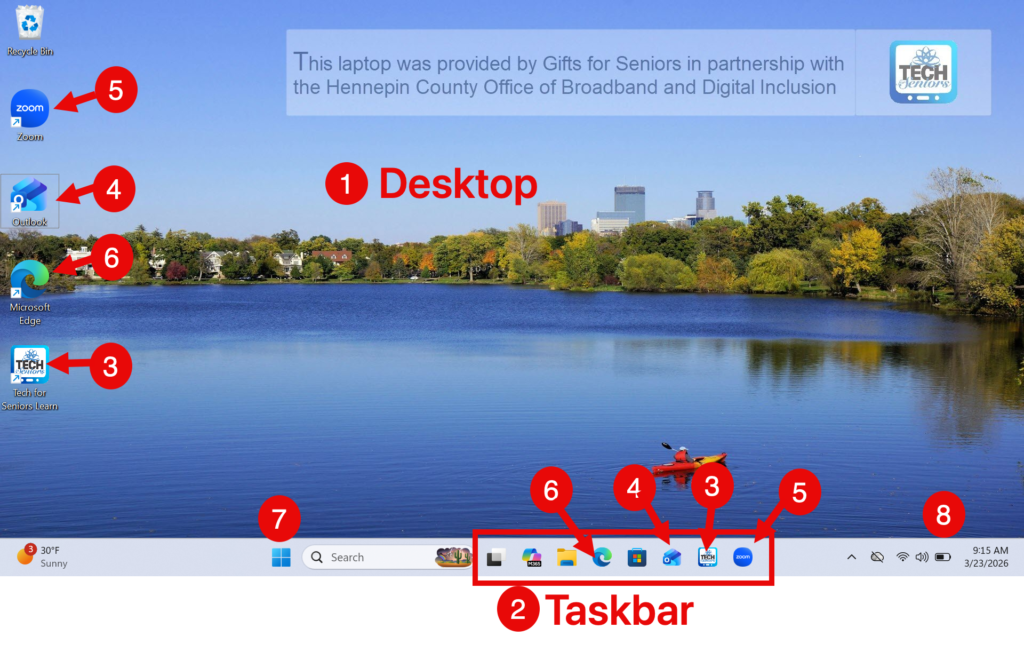
1 Desktop – The Minneapolis skyline scene is the background for your Windows Desktop. You will find icons on the desktop that you can double click to launch.
2 Taskbar – The Taskbar runs along the bottom of the screen and includes icons to run essential applications. You simply click on the icons in the taskbar to run these apps.
Essential TFS Tools
There are three tools or functions that TFS will use to aide your learning and exploration. We have placed icons on the Desktop and the Taskbar to make it easy to access these tools. You will double click icons on the Desktop. You click once on icons on the Taskbar to start those functions.
Here are the tools you will use. Use the numbered labels to find those tools on the Windows Desktop screen above.
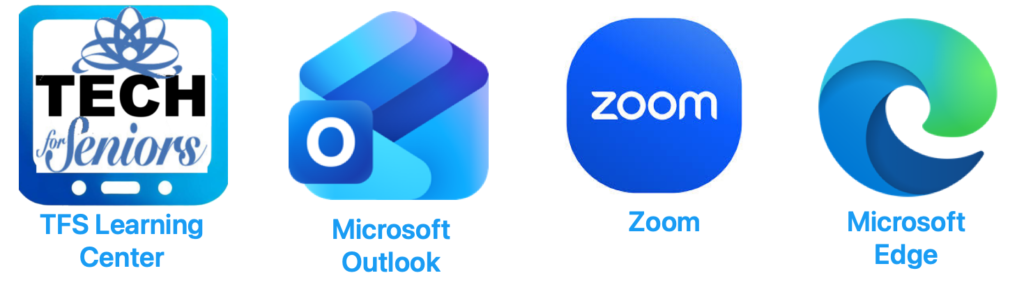
3 Tech for Seniors Learning Center – You will find the Tech for Seniors Learning Center icon on the Taskbar and the Desktop. Click once on the taskbar icon and double click on the desktop icon to bring you directly to the TFS Learning center for your laptop.
4 Outlook – Email is an important part of the TFS program. Access the TFS announcement emails by clicking on the Microsoft Outlook icon
5 Zoom – Zoom is the tool that TFS uses for video meetings. You will usually start your video meetings from links or buttons on web pages or links that you receive in email (see Help Me Page) However we have placed a Zoom icon on the desktop to help you with other Zoom functions.
6 Edge – Microsoft Edge is your Internet browser that will allow you to browser the Internet for unlimited learning and discovery.
Other Windows Tools
7 Start Menu: Located at the center of the taskbar, the Start Menu provides quick access to your applications, settings, and files. Click on the Windows icon to access the Start Menu to find other applications and functions. You can also press the Windows key on your keyboard to access the Start Menu. Use the Start Menu to find other apps and games that you can explore on your own.
8 Status – In the Status area of youw Windows screen, you will find the date, time, battery charge and WiFi indicator.
Controlling a Windows App
There are just a couple of Windows functions that you will use to control the apps that you run. These will vary depending on what apps you are running but lets explore a couple of common functions as seen in the screen below:
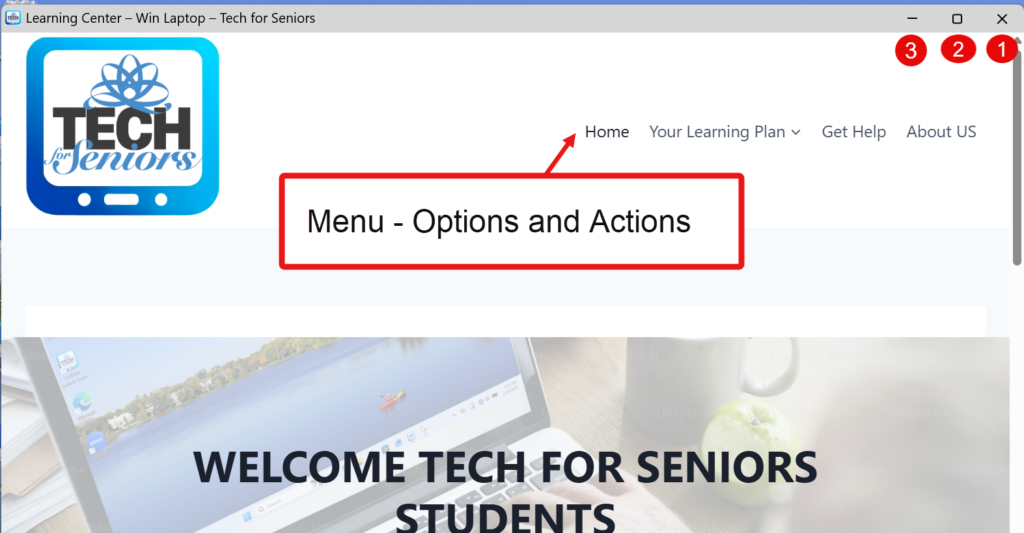
Experienced Windows users will immediately recognize the actions available on the TFS screenshot. But if you are brand new to Windows, here is a summary.
Menu – Options and Actions
Just like at a restaurant, a menu provides options that you can select. With the Menu on the TFS screen, you click on the item in order to move to that option or action.
- Click on Home to return to the home page.
- Click on Your Learning Plan to be able to choose a learning topic.
The menu allows you to select your options. The menues will vary depending on the app that you are running.
Manage the Window
Your Windows apps have other common control functions that you will find on nearly every app that you run. These control functions are numbered on the screenshot above.
On the title bar of the window, you have important controls in the upper right corner. They include:
1 X Click on X to exit a Window. It is the easiest way to exit, close and go to another function.
2 Full Screen/Restore. Click Full Screen/Restore. Clicking here will enlarge the window to be full screen. Clicking again will restore the screen to its original size.
3 Minimize. Click Minimize to close the window by minimizing it on the taskbar. The app is still running but it is hidden. Click on the icon in the Taskbar to restore the app.
4 Scroll Bar. Click-Hold-Drag with your mousee on the Scroll Bar in order to scroll up and down the page. This is essential to reading long lessons and articles. You can get the same scroll action by using the wheel on the top of your mouse.
Learn More About Windows
The functions we discuss on this page are just the essentials that importnat to your learning. When you are confident in using these tools, we invite you to learn more about Windows and how you get get more from Windows and even customize it to fit your needs.
We recommend the following lessons from other sources. Click on these topics to continue your learning:
Microsoft – Meet Windows 11: The Basics – Read about these same Windows tools and much more in materials directly from Microsoft.
Digital Learn.org – Using a Windows 11 PC – This is a recommended lesson on the use and functions of Windows 11. The lessons include video lessons to be able to master basic Windows functions.
Have fun exploring and remember…..