
DOC – Resetting Community Cookie
In the event that a student is connecting to the wrong cohort or someone is testing by changing the Learning Communities Post, we may need to reset the Cookie. We may also want to change the cookie to cycle through the Communities to verify that they are working correctly after system maintenance.
The first way you can reset the cookie is using the “Reset Community Cookie” post (see below). From the “Links for Seniors Links” Post, select “Your Tablet“. Scroll down and select “Reset Community Cookie” – this will open the post that by default runs the code snippet to set the cookie to “” (empty – the default). You should close the Student App on your tablet. When you reopen the app, you will go through the initial entry sequence again, where you can reset the cookie as you enter your learning community’s Home Screen. The next time opening the Student app they will be routed directly to their Community page. Beware that this may not always work (see discussion on caching).
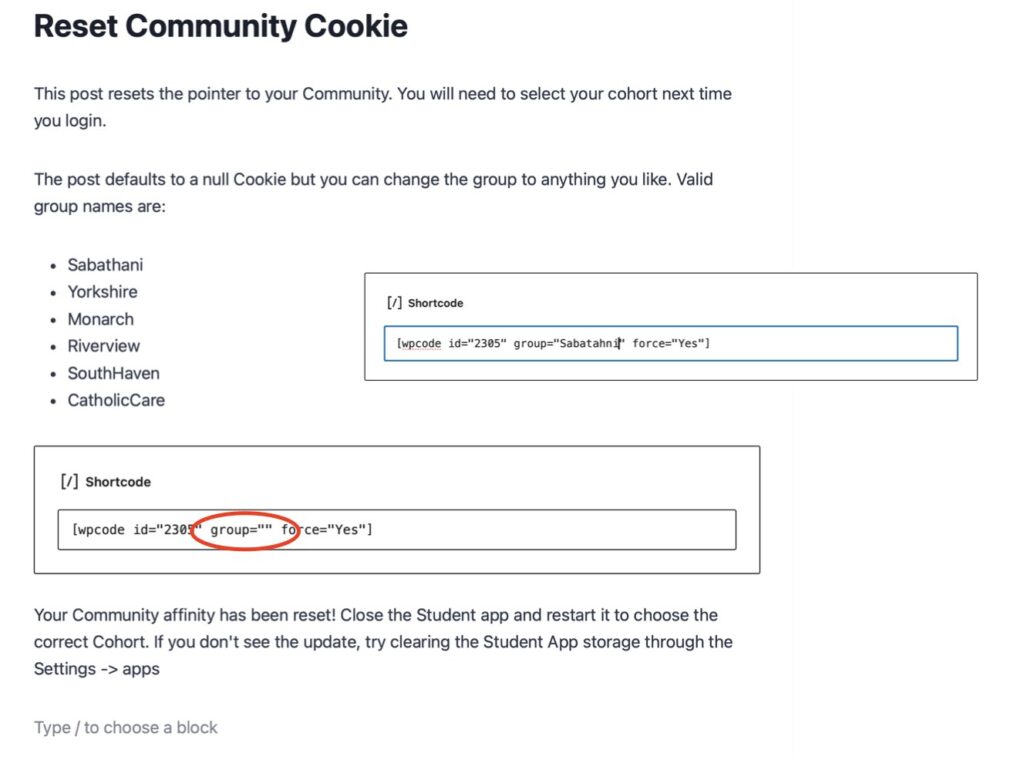
You could also change the community argument in the code block to the name you used in the new Community’s links page (see the insert to the right above). For example, we might use “Sabathani”. Save and execute (“Preview”) the post, this sets the Cookie on your device to the name in the “group” argument. You can cycle through all the Communities to be sure everything is working. In other words, change “Reset Community Cookie” to add one of the Cohorts (Sabathani, Yorkshire, Monarch, Riverview), then “execute (view) the “Learning Communities” Post, this should take you straight to the Cohort whose cookie you specified. Repeat for each Cohort. This technique works well if you are running the tests through the WordPress editor on a PC. Don’t forget to reset the community name in the Reset Community Cookie Post back to null.
Unfortunately, if you are running these tests from your tablet through the Student App you may not always see the changes you expect. You need to remember that in order to speed things up we save information at various locations along the transmission path; this is called caching. The transmission of that screen only has to travel from the closest cached copy of the screen.
In particular the Amazon Tablets experience this issue. The resolution is to clear the cache for the application. Check out Understanding Caching for more on this.