DOC – Working with logs
Hostinger Logs
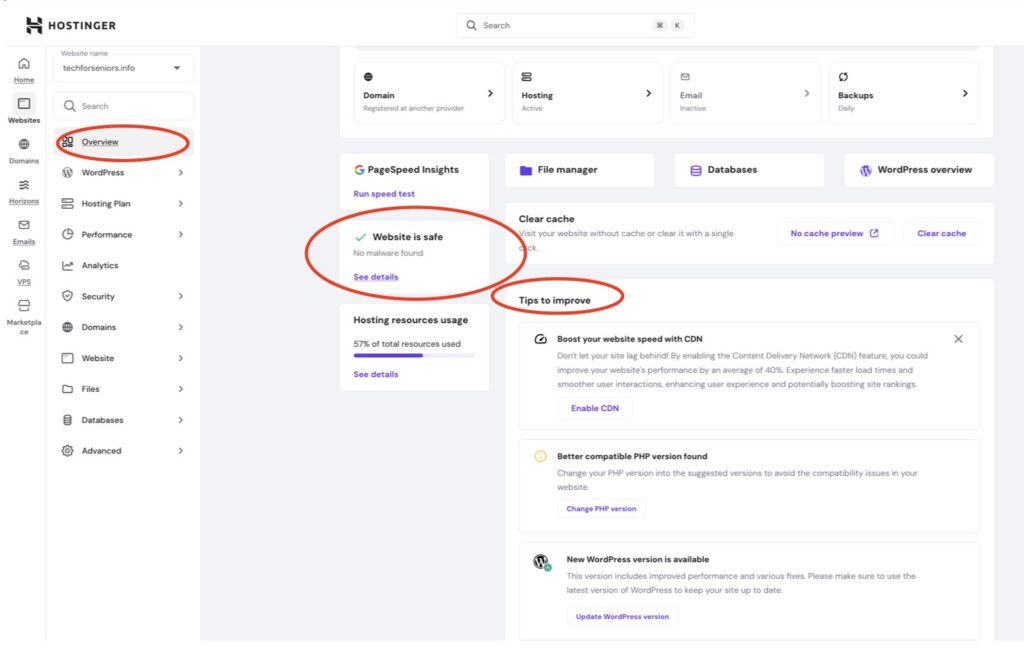
It is useful to check the information collected by the Hostinger system. Here we see the Overview screen where we can see the the website is safe and how much of our Hosintger resources we are using. There are also some tips on things we can improve.
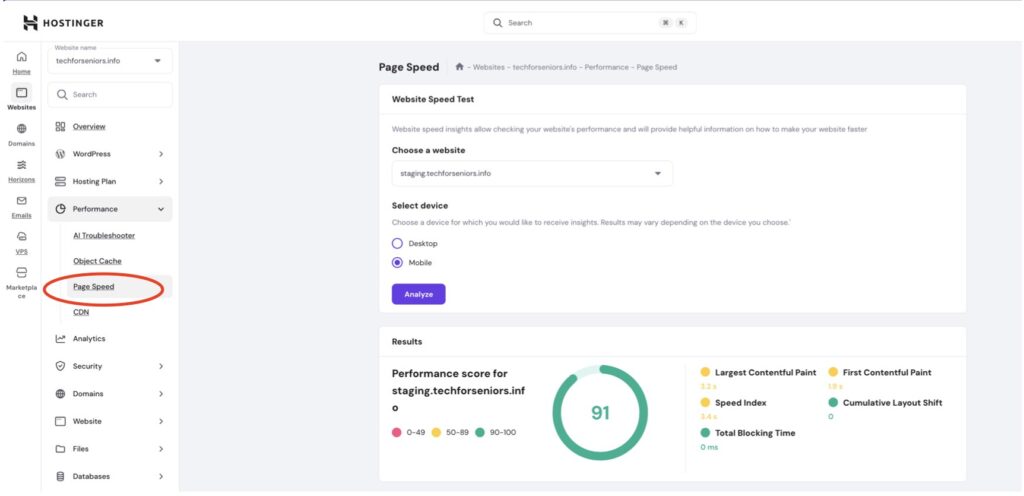
Running the speed test can be helpful in understanding how well the website is performing.
System Logs
Check the health of the WordPress website – here we are testing the staging environment. We found here that after setting up a session for our session variable caused an issue since we where not logging out and closing the session. We commented the Session Variable section of the functions.php file to remove this issue.
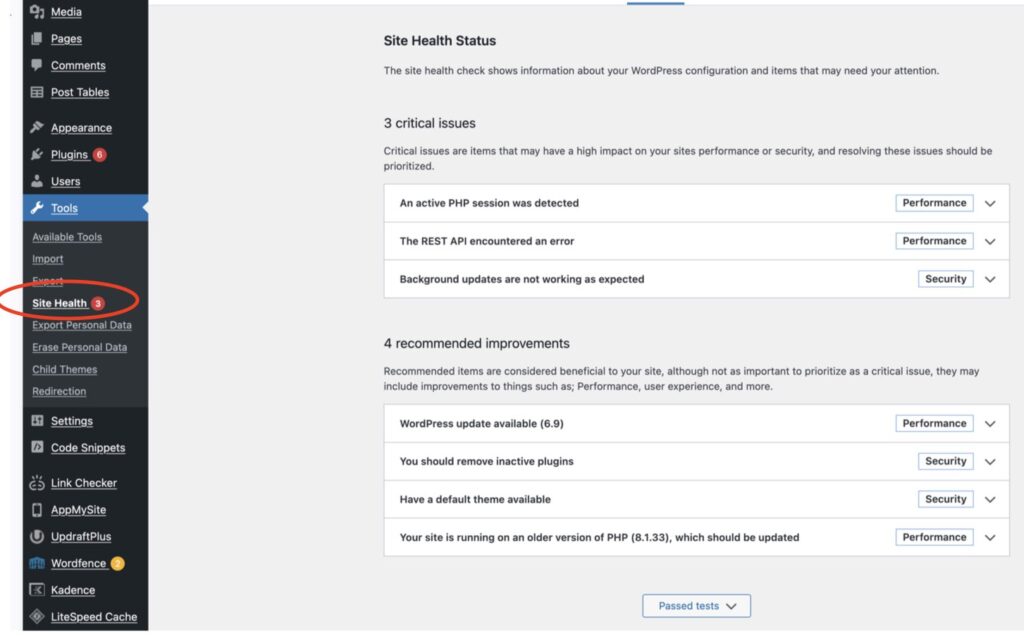
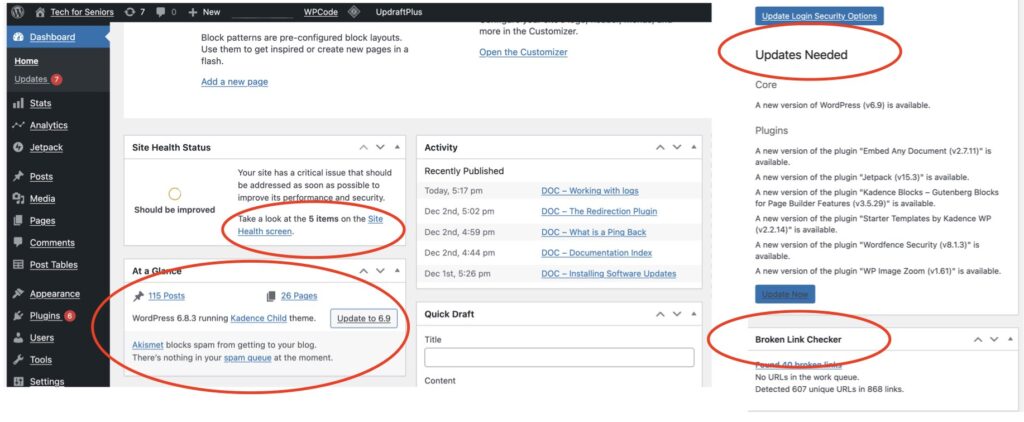
The Dashboard will also show us information about how the environment is performing. There is a lot of information on the Dashboard; it’s easy to get to so it is worth reviewing it periodically.
Redirect Logs
It is important to periodically review various logs the system to assure things are running smoothly.
Clearing Logs
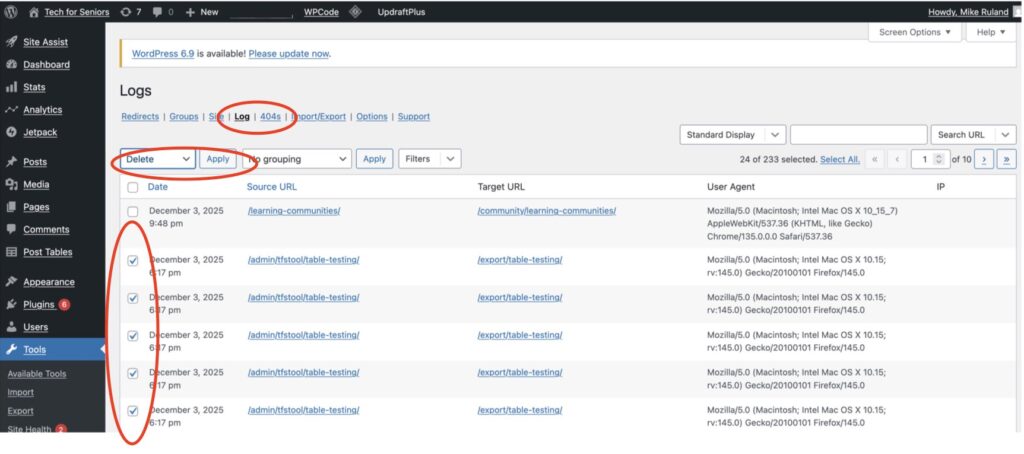
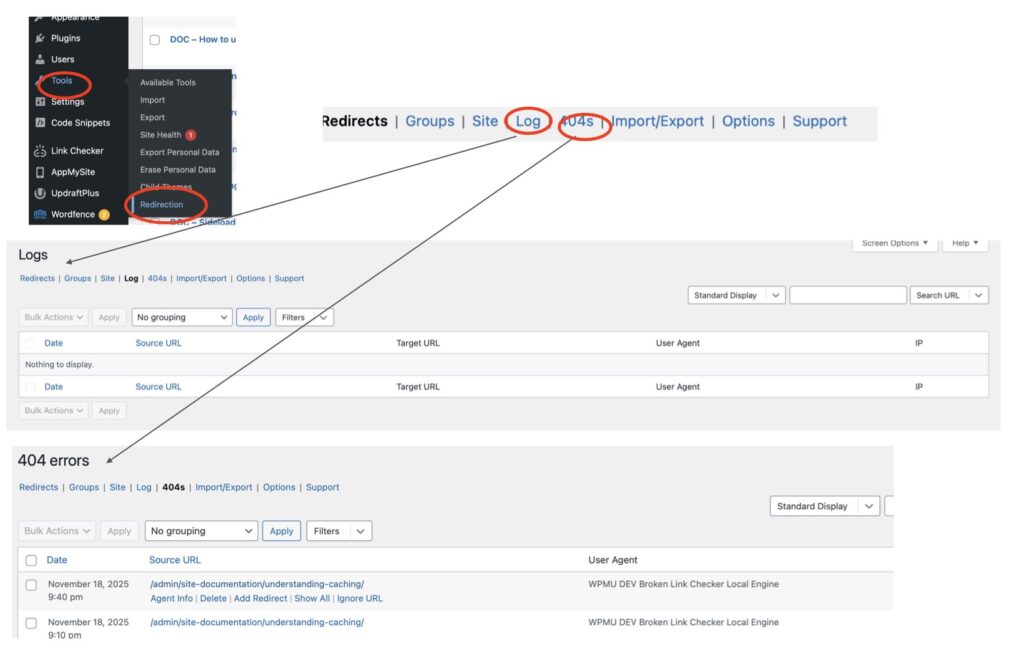
Clearing the redirection logs is easy. Go to the Tools menu and select redirection. Then select the logs to delete (checkmark) and select the drop down button and pick DELETE, finally select the Apply button. This example shows the log after changing the Category on a number of Posts from “export” to “Documentation”; notice all the redirections it caused. Once we cleaned things up, the redirections were no longer encountered. Note that the “Logs” and “404s” (not found) should both be checked.