DOC – Working with Plugins
Plugin are useful toolkits that expand WordPress capabilities. As WordPress changes, improvements are made to the Plugin software, security exposures are corrected, etc., and the Plugin will require updating. These changes occur frequently and are probably the most frequent changes to the system. Since they occur so regularly, it often makes sense to do these in each environment individually. Usually we would prefer doing these updates in staging first and testing them there; once comfortable that they aren’t breaking anything we would then update the production system. We use the same basic pattern on our Domain as well as on the subDomains.
Before doing anything backup the environment. Use Updraft to backup the system.
Checking for updates
Check for Plugin updates is easy. You will see an indication that there are updates waiting by looking at the admin login screen. The “Updates” and “Plugins” menu items will indicate updates are available (#1). When you go to the Updates panel, you a see which plugins and themes have updates available.
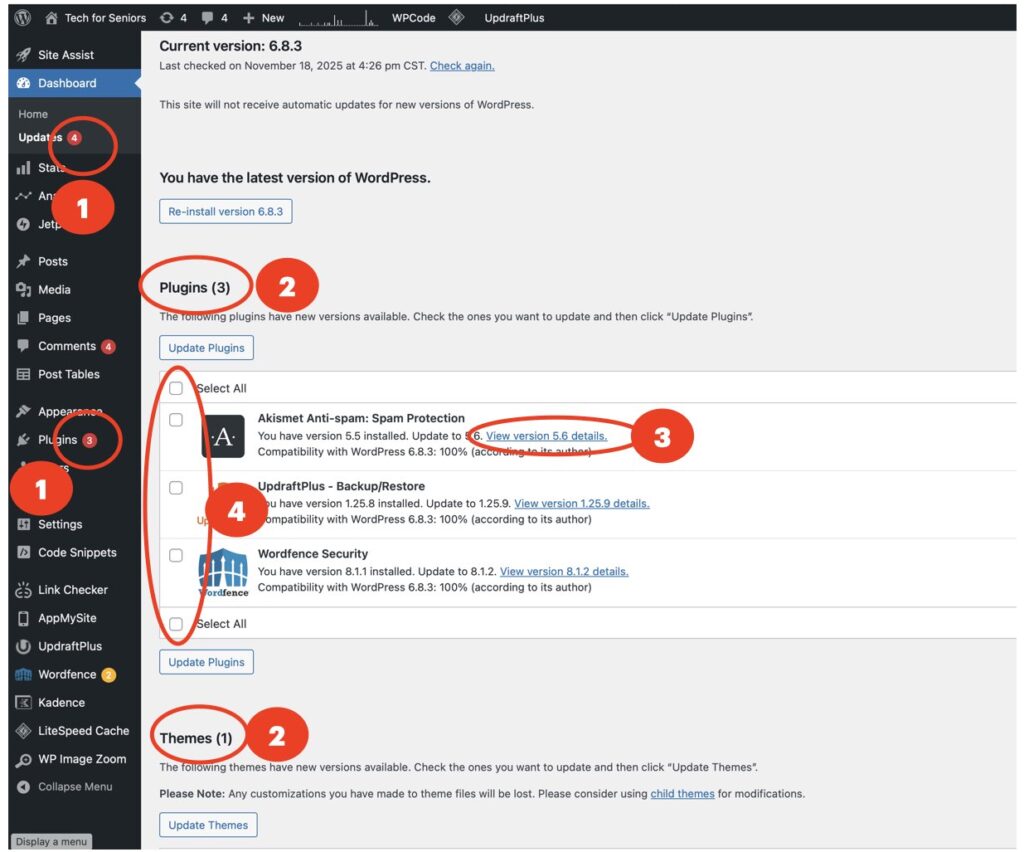
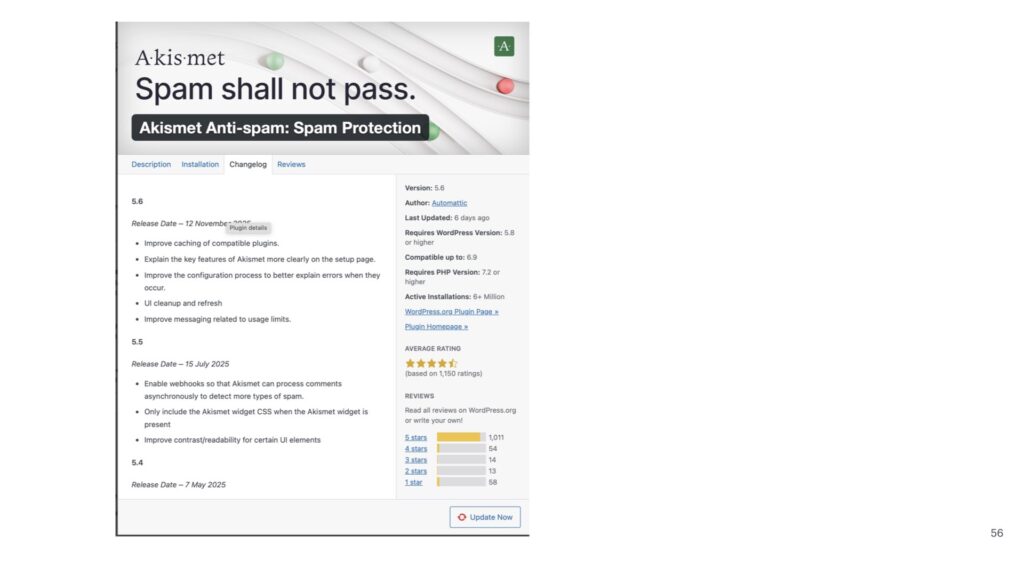
Before applying the updates it is always a good idea to review what changes are being made to the plug (#3). In Akismet for example, we see that we are currently running version 5.5 and the update would take us to 5.6 so we should review what changes are being introduced to the system. Note that this maintenance will also update UpDraftPlus – we need to be careful here since if backups fail we may lose things. Luckily it was nothing major.
After reviewing the changes we are ready to update the plugins.
Applying updates
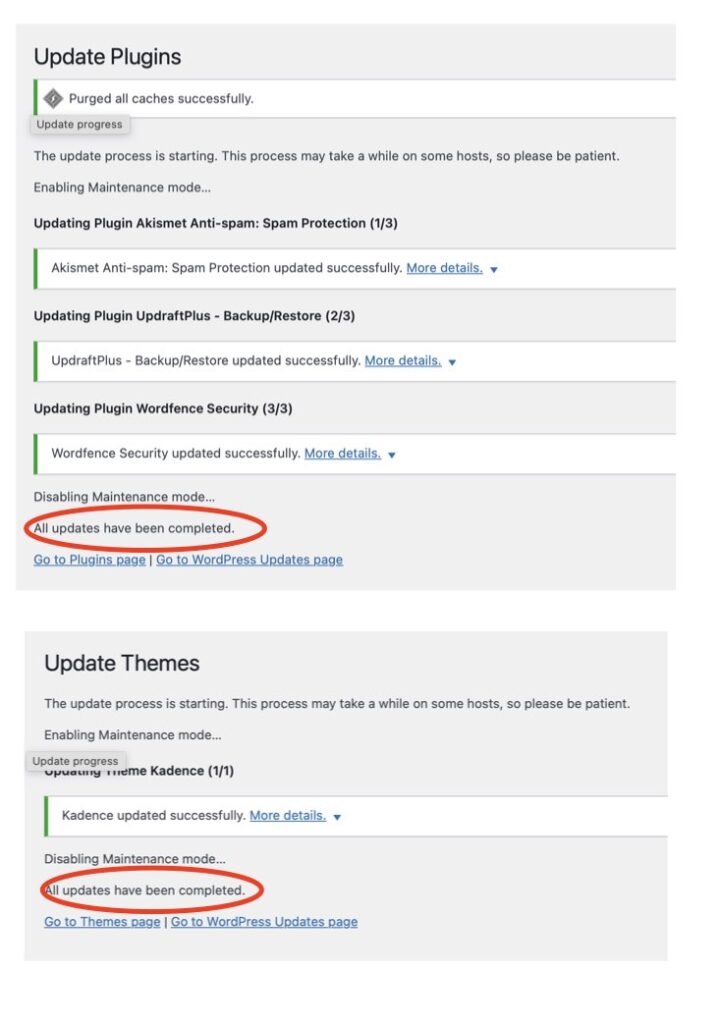
#4 in the first picture earlier shows the selection menu on what we want to update. You can either pick individual updates if you are concerned with one of the updates after reviewing the details or you can select all to do them all at once. Here you can see that we chose to update all the plugins on the first pass and then the Theme once the plugins update completed successfully.
Note that we are using Child Themes to avoid interfering with Theme updates and improvements to the Kadence plugin. See the Post on Child Themes and functions.php for further details.
One final note: The current license for the Post Table Pro plugin only allows us to update it in the production environment. Be sure to run a thorough test when Post Table Pro is updated. A good is the TFS – Post Table Validation and Queries Post.
Validating the Environment
Once the plugins have been updated you should view the log (scroll to the very bottom) as shown in the diagram below. Look for a successful completion message or ANY warning messages.
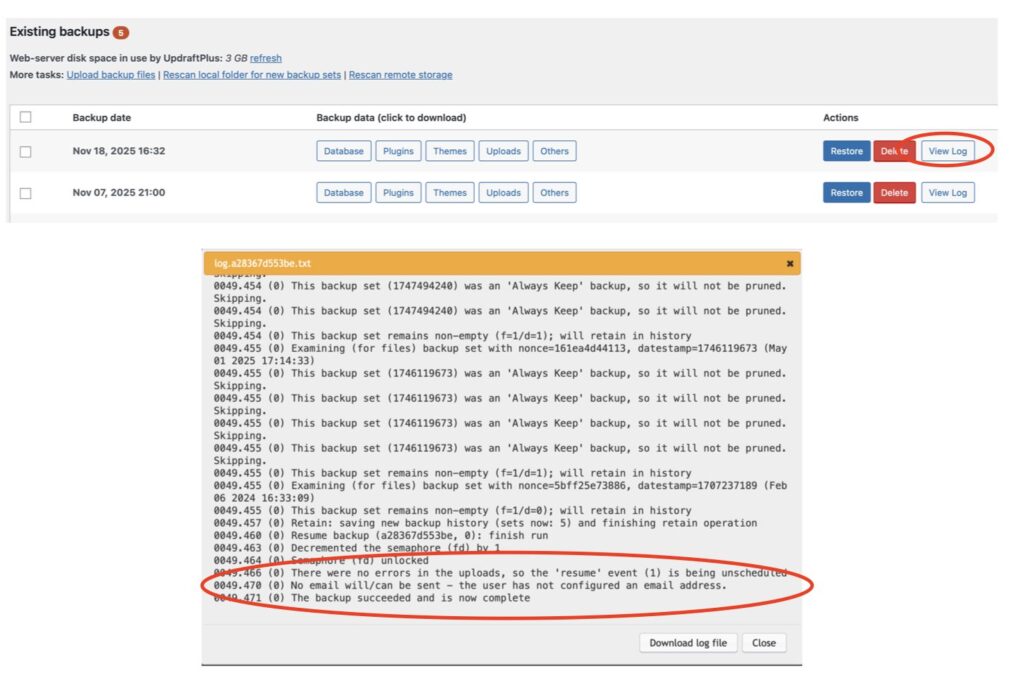
Now it’s time to run a test on the updated system to verify that everything is working.
Finally update the All Community News to alert everyone to watch for any unusual results.
Deactivating Plugins
Some plugins we use are only necessary in the staging/testing environments. After promotion to production these plugins should be deactivated. The following plugins should be deactivated in the production environment:
- Broken Link Checker
- Category to Tag Converter
- Child Theme Configurator
- WordPress Importer
- WP Optimize
- Yost Duplicate Post
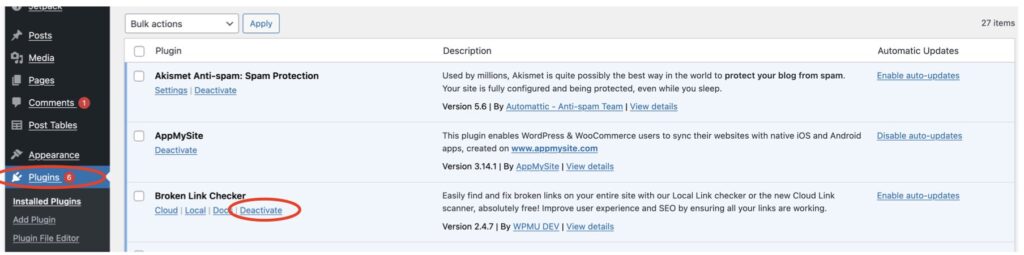
The following screen shot of the Plugin panel illustrates how to disable/enable a plugin.