
Create a New Gmail Account
Here are the steps to create a new Gmail account for a client who does not have email or who doesn’t know the password for an existing email.
⭐ What You’ll Need
- A computer, tablet, or phone with internet
- A first name (last name optional)
- A simple password the person can remember
- A cell phone for texting a verification code.
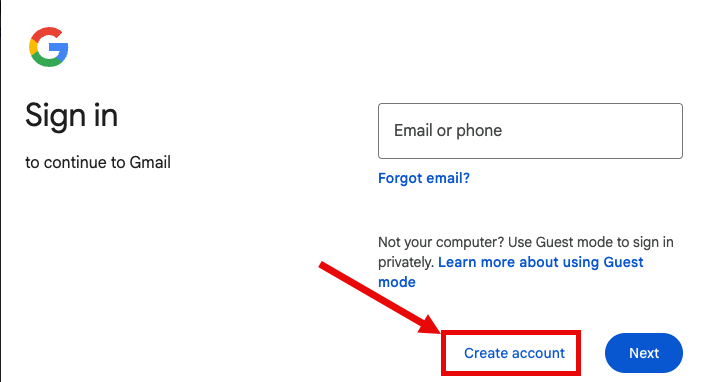
1️⃣ Go to the Gmail Sign‑Up Page
- Open a web browser ( Edge on the TFS laptops).
- Type gmail.com in the address bar.
- Click Create account → choose For my personal use.
—
2️⃣ Enter Basic Information
Fill in the simple form:
- First name (can be real or an initial)
- Last name (optional)
- Click Next
- Birthdate (December 25, 1960 is standard and private. )
- Gender (can choose Rather not say)
- Click Next
- Choose a Gmail address
- Choose one of the options provided
- Or create your own. (If this is a temporary address as the user already has an email but doesn’t know the password, consider using FirstName.TFS2026)
- Click Next
- Create a password – must be 8 characters, must include mix of letters, numbers, and symbol like a “-”
- Write it down for the person if needed
Click Next.
—
3️⃣ Confirm you’re not a robot
You can use the student smart phone number for the startup verification code. If the student doesn’t have a phone, ask another student if the number than be sent to their phone. If you use your personal number, Google actually limits how many accounts can use a single phone number.
Google may ask for:
- Phone number
- Recovery email
These are optional.
Click Skip to continue.
—
4️⃣ Accept Google’s Terms
- Scroll through the Privacy & Terms page.
- Click I agree.
—
🎉 Account Created
You’ll be taken to the new Gmail inbox.
The person can now send and receive email.
—