
Right Click: Your Shortcut to Everyday Computer Tasks
The Right-Click: Your Shortcut to Everyday Computer Tasks
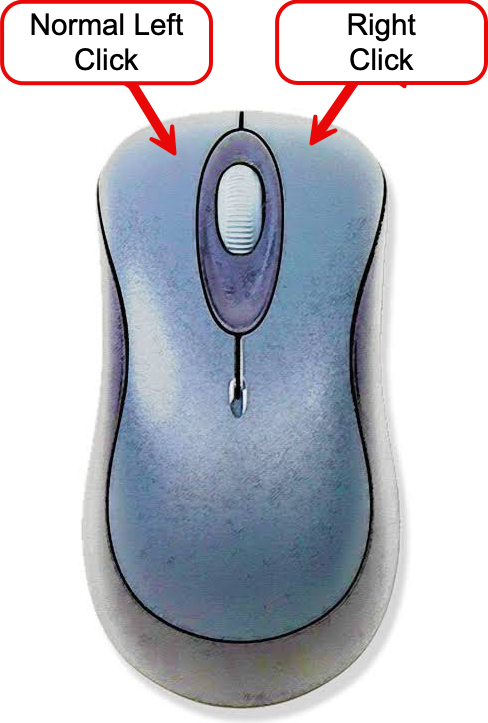
When using a laptop, the standard left-click tells the computer, “Open this,” or “Put my cursor here.”
Think of a right-click as asking the computer: “What can I do with this right now?”
Instead of searching through busy toolbars at the top of your screen, right-clicking on an item immediately opens a small pop-up menu—often called a shortcut or context menu. This menu presents a handy list of the most common actions available for that exact item.
How to Right-Click on a Laptop
- With an external mouse: Press the button on the right side of the mouse with your middle finger.
- With a laptop trackpad (Windows): Gently tap or click the lower-right corner of the trackpad, or tap the pad once using two fingers side-by-side.
Everyday Ways to Use the Right-Click
- Working with Text: Highlight a sentence or paragraph, then right-click on the highlighted words. The menu lets you select Copy or Cut. Move your cursor to where you want the words to go, right-click the empty space, and select Paste.
- Fixing Spelling Mistakes: If you see a red squiggly line under a word while typing an email or letter, right-click directly on the word. The menu will suggest the correct spelling so you can fix it with a single click.
- Managing Photos and Files: Right-click on any file, picture, or document saved on your computer to quickly Rename, Delete, or Print it without opening it first.
- Browsing the Web: Right-click on a web link to choose Open link in new tab, allowing you to explore a new page without losing your place on the current one. If you see a photo you like, right-clicking it will let you select Save image as… to store it on your computer.
If you ever right-click by mistake or the menu shows options you do not need, simply left-click once anywhere on a blank part of the screen, or press the Esc (Escape) key in the top-left corner of your keyboard, and the menu will disappear.