
Using the Student App
Using the Student App
The first app that you may explore with your tablet is the Tech for Seniors Student app. As we described in the Getting Started with your Tablet topic, the Student app provides lessons and support for the topics that we will explore during our course.
You can use the Student app in the following ways:
- Use the Student app to get more information and coaching outside of class. That information can include written instruction or videos that you can read or view on your tablet.
- Use the Student app to review topics covered in class. You can also find your assigned homework in the Student app.
- You can use the Student app to cover topics that you have missed because of an absence. It will help you “catch up” with a topic that we have covered.
Here a step-by-step review of the Student app, how is operates and what it provides.
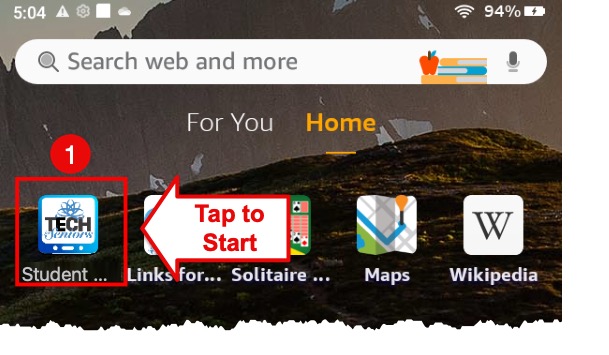
Starting the Student app – Find the Student app icon 1 on your home screen and tap it with your finger.
Main Screen – On the Student app’s Main Screen you will find news and other lessons about your tablet. However, the most important item on the maim screen is the button that says Go to your Learning Community. Above the button you will find information that confirms your assigned learning community.
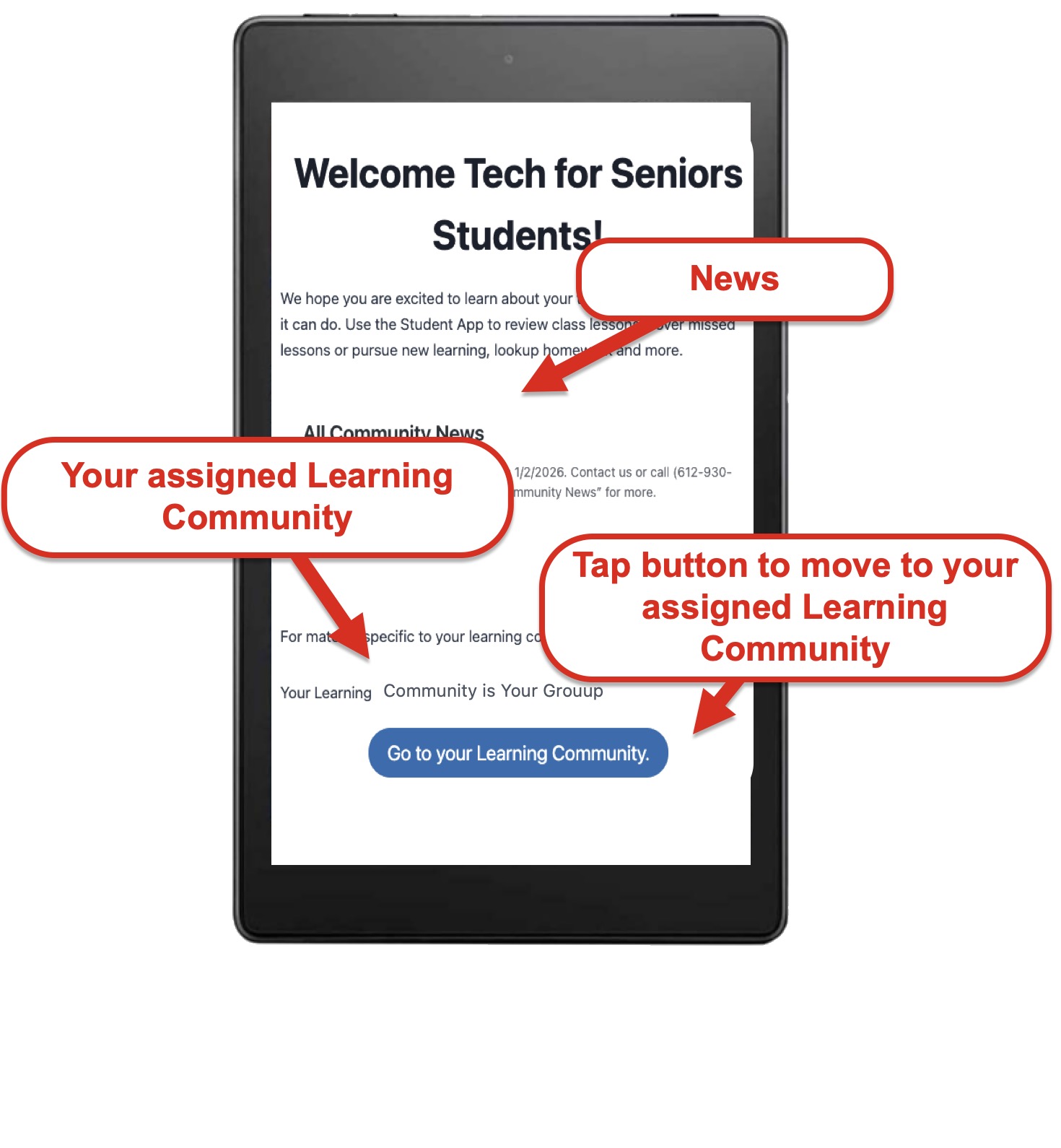
Tap on the Go to your Learning Community button to move to your Learning Community page in order to find your class schedule, topics, homework and news for your specific class. Here is a sample community page that shows examples of what you will find on the page.
Your Learning Community Page
Your Learning Community Page is a page that is dedicated to your learning group and class. It is the hub for the learning that will occur over the next weeks. It contains links, news, schedule, lessons and homework. Yes, your course will have homework!
Below you will find samples and descriptions of the information that you will find on your Learning Community Page.
Links, News & Your Cource
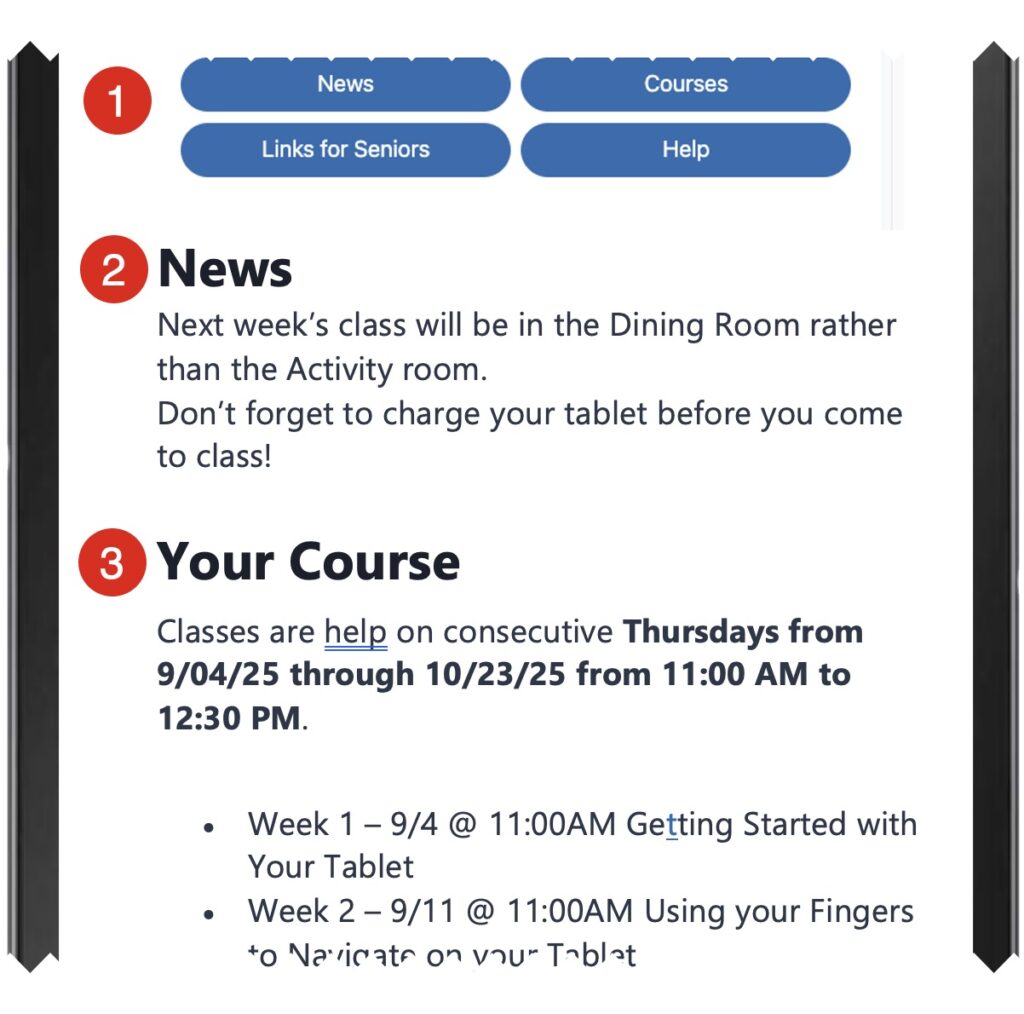
1 Links are buttons that you can tap to move or link you to another section on the page or course. Tap the blue button to make the jump to a different part of the course.
2 News is important information about the class. It could be a reminder to charge your tablet, a new location or other information.
3 Your Course is the schedule and planned topics that will be covered in class. Check the dates and time for your classes here.
Lessons
Each week in this course, there will be Lessons and Homework. The Lessons will initially be covered in class but you can come to the Student App to review or learn more about the topic. The lessons also allow you to learn the topic at your own pace.
Tap on the blue topic name to jump to that information. The blue topic names are known as hyperlinks.
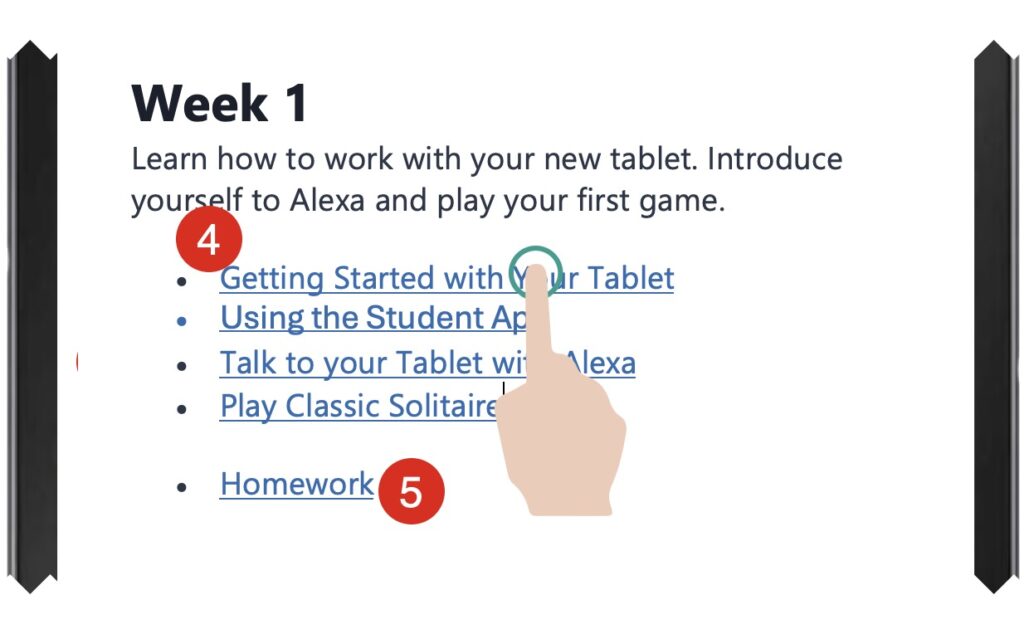
The topics for the week are displayed as hyperlinks. Tap on the topic name to explore that topic. On the linked page you will find information about the topic, occasionally video and homework that you can practice at home.
Ugh! You mean there is homework? Yes, practice is important to learn something new and completing your homework will help you master the topic. Tap Homework to jump to the homework for the week.
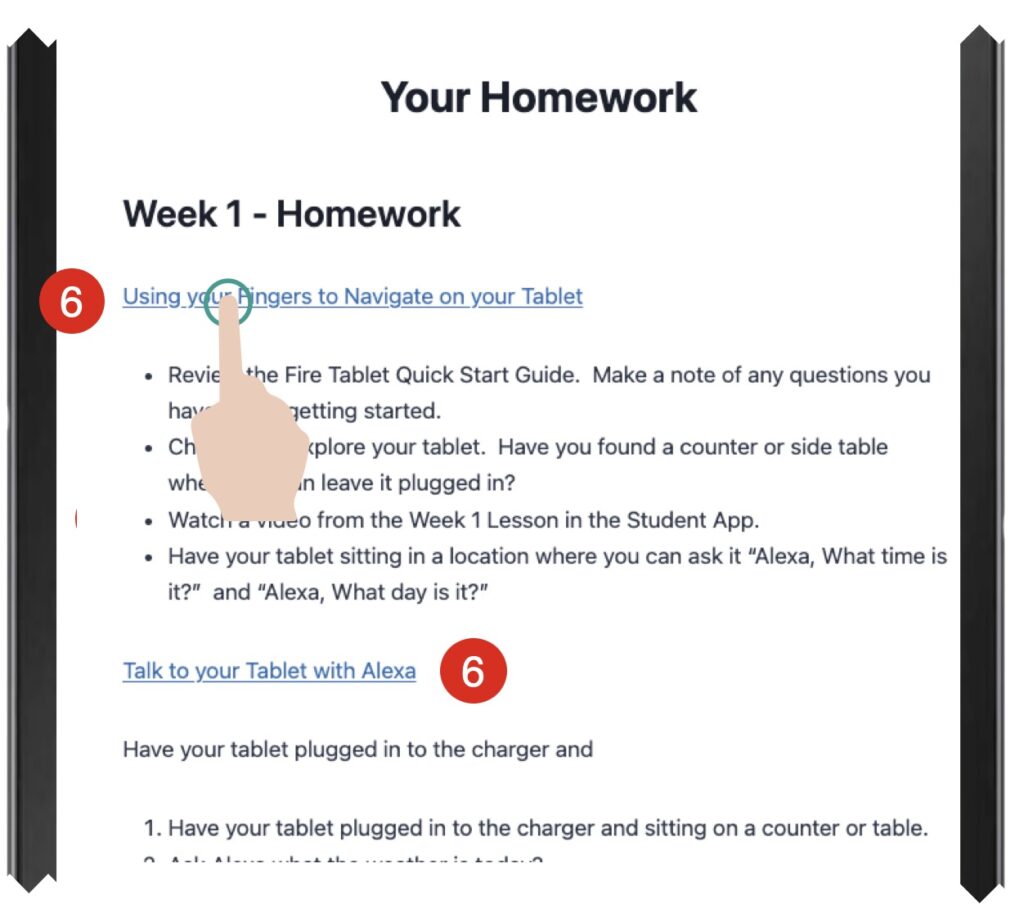
The homework for a topic is also available at the end of the topic lesson. You can complete the home work at that time. However, you can also find the homework for the week on the Learning community by tapping on Homework.
6 When completing the homework, you will also find a hyperlink back to the topic. This is handy if you need to review the topic while completing the homework.
Tools to Help Move Around
The Student app provides tools to help you access your lessons and support your exploration of learning. Let’s review these tools.
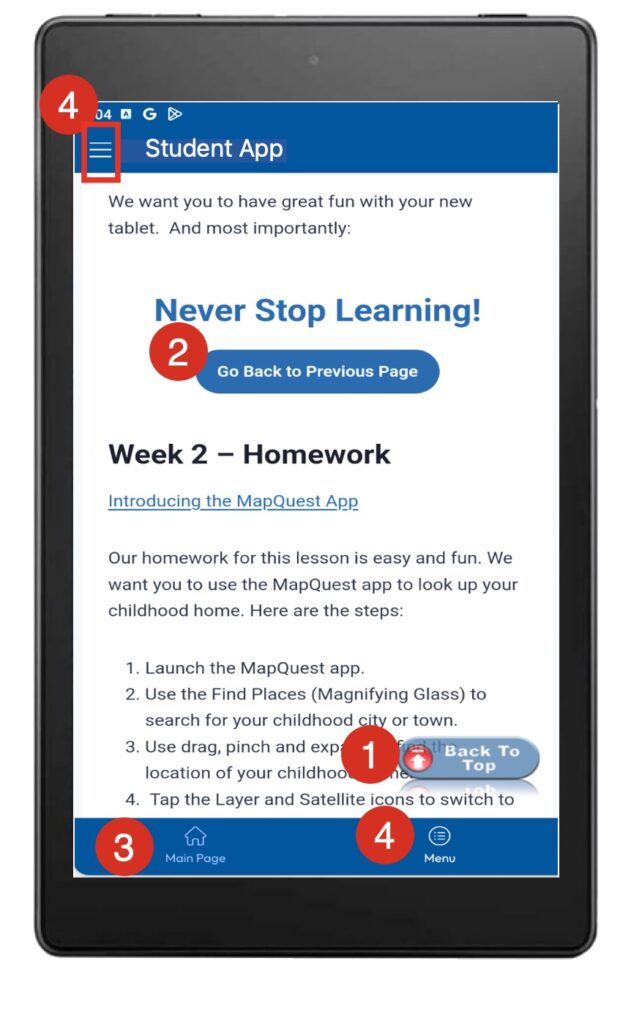
1  Back To Top will jump to the top of the current page. Useful when you are deep into a lesson and you need to review a previous topic.
2  Back to Previous Page will move you back to the previous app page you were on. Use this to get back to your Community Page while reviewing a topic.
3  Main Page will jump to the app’s main Welcome page. Use this to get back to the front page of the app.
4  Menu, sometimes described as the hamburger icon, will present a menu where you can choose to jump to your Community Page, Links, or access the Help Contact Me function of the app.
Using the Student App – Homework
Using the Student App
- Use the Student app to view your Learning Community page. Swipe up on the page to scroll down where you can see the topics that will be explore in Week 2.
- Tap the Go To Top button to return to the top of your Learning Community Page. Use the Homework Button to view the homework for Week 2.
- Tap the Main Page icon on the bottom bar of the app to return to the Main/Front page of the app.
- Return to your Learning Community page. This is your home page for this course.
Have fun playing and remember…..