
Access your Tech for Seniors Emails
Sending and receiving email is essential for a digital life. It is also essential to participate in the Tech for Seniors (TFS) laptop program. We use email to respond to your questions, recommended new things to learn and communicate with you.
This lesson will review the steps to access your Tech for Seniors email
In your initial session, we set up your email account so that you are ready to send and receive the TFS emails using Microsoft Outlook. We also demonstrated how to get to your emails. Let’s review the steps.
1 Launch Outlook, the tool we use to send and receive emails on your laptop. Look on the Windows Taskbar and click on the Outlook icon.
Look for this icon  with on the desktop or here in the taskbar:
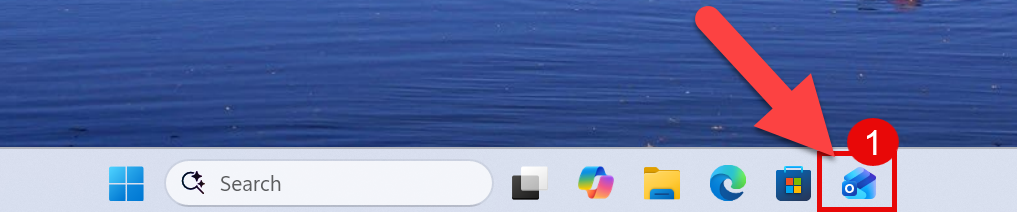
Click once on the taskbar Outlook icon to start the app.
Use the numbered step-by-step to access and reply to your email.
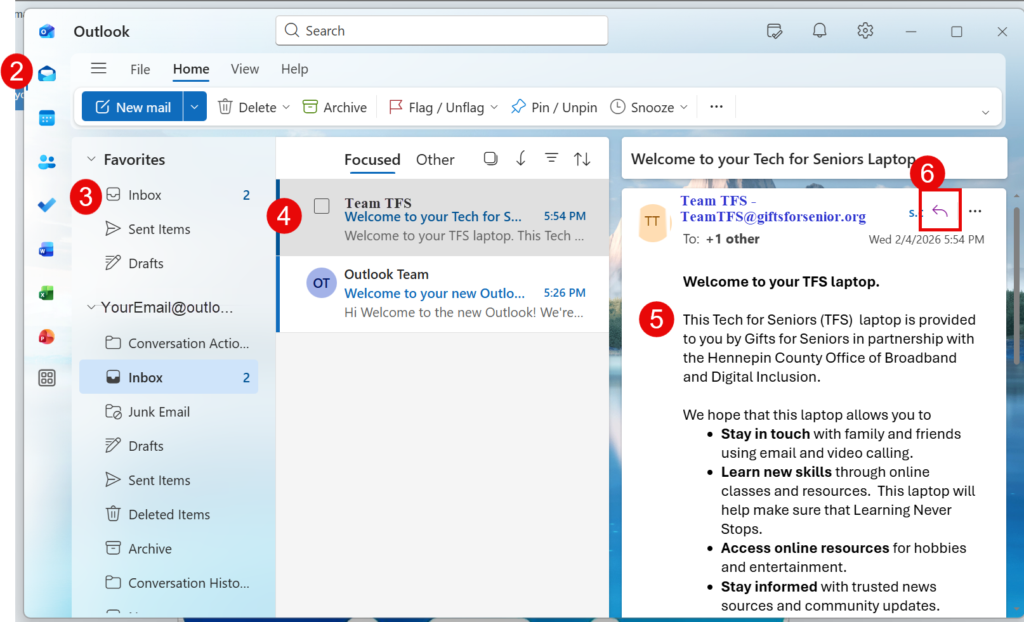
Follow these steps:
2 Click on the Email icon found in the toolbar on the left side of your screen. Email is one of several functions that Outlook can provide. For now we will stick to email.
3 Click on your Inbox to display the contents of the Inbox where you will see email you have recreived.
4 The Inbox displays your received email. You simply click on the email that you want to display.
5 Read your email in the right panel. Use your mouse to scroll up and down the email if needed.
6 It is very easy to reply to an email. Click the reply arrow and you will see this screen where the replay email address is already entered.
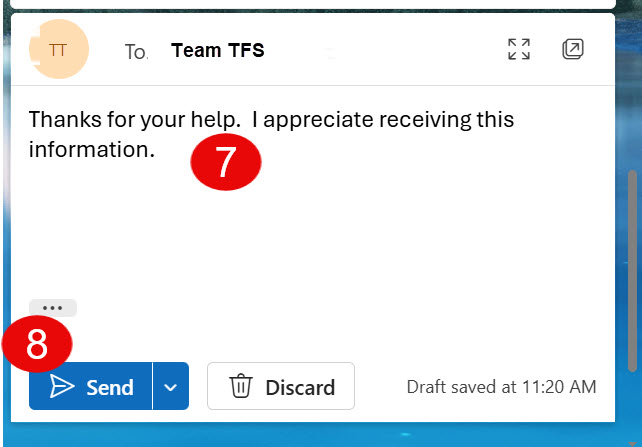
7 Type your reply message in the message box.
8 Click Send to send the message.
Watch a video to review the basics of these steps
Sending and Receiving email is simple using the Outlook app. The TFS program will send you email checking in on your progress. You can also send email to TeamTFS to ask questions and tackle roadblocks.
What to dig deepter into Outlook email. Click on Send and Receive Email with Outlook to access more training on sending and receiving email.
Have fun exploring and remember…..