
Connecting to WiFi and the Internet
In order to communicate or connect to other computers you will need to connect to the Internet using WiFi. This is how most people connect to get information, communicate, download books and more.
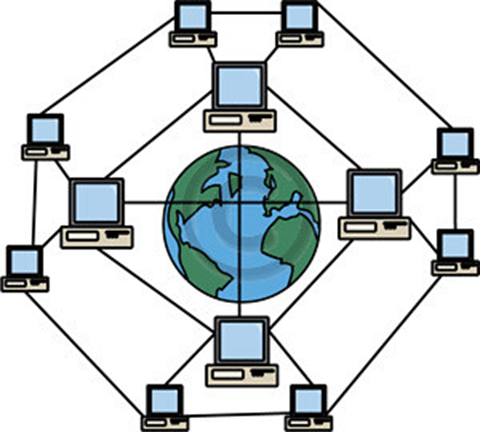
The Internet is a global system of interconnected computers that use standard rules to let devices around the world exchange information. When viewing this lesson, you are viewing this page on another computer that you are connected to through the Internet.
Wi‑Fi is the wireless networking technology that uses radio signals so computers, phones, and tablets can connect to the Internet. Think of it as the “in‑home wireless link” between your device and the Internet.
Is your laptop connected?
Look on the lower right corner of your Windows screen to find the WiFi icon located on the right end of the Windows Taskbar. You will see the WiFi icon to the left of the Volume, Battery and Date-Time indicators. You will see one of two indicators, not connected and connected.
Not Connected

You will see a globe icon to indicate your not connected to WiFi or the Internet
Connected
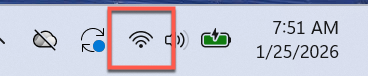
You will see the WiFi icon if your laptop is connected to WiFi
Before you Connect
Do you know the name of the WiFi network and it’s password? You will need this information in order to connect. If you have a WiFi router in your home, you will find the name and password in the information you received from your supplier. Or often, you will find it on a label on your router.
If you ware using WiFi in a facility, asked a staff member for the WiFi name and password.
How to connect your laptop to WiFi.
You can connect using tools found on the lower right corner of the desktop and taskbar.
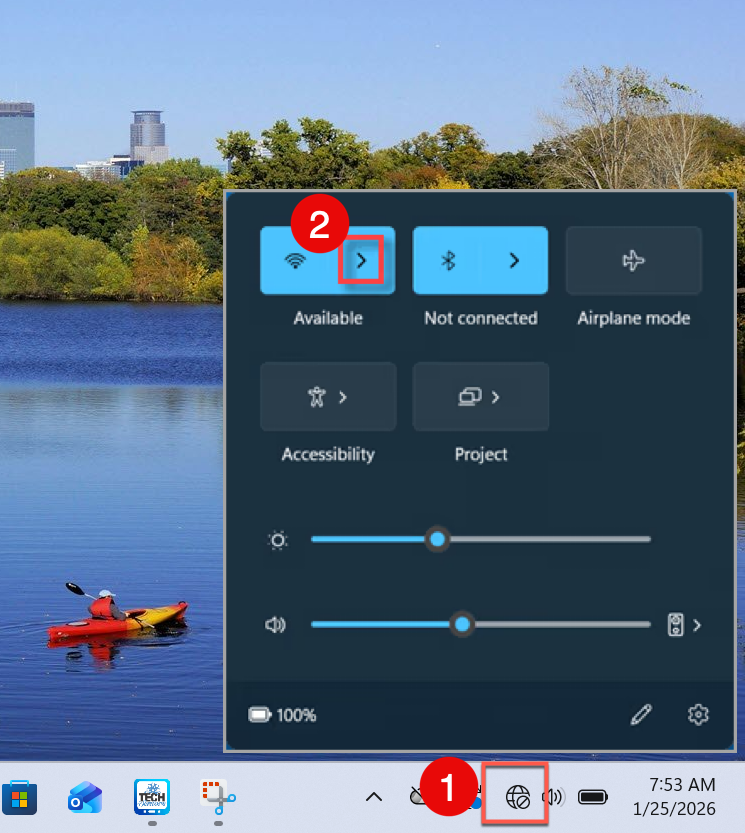
1. Click the network icon on the right side of the taskbar (it looks like a Wi‑Fi signal, or a globe if not connected).
2. Click the right‑arrow or “Manage Wi‑Fi connections” next to the Wi‑Fi icon to see the list of available networks.
3. Click the network name you want to join, check Connect automatically if you want it to reconnect next time, then click Connect.
4. When asked, type the network password and click Next or Connect.
If you don’t know the password but have access to the WiFi router in your home, many routers have a WPS button on the side of the router that you can press to connect without typing the password. Press the WPS button and look for the connection status below.
5. Wait a few seconds until it says Connected; the Wi‑Fi icon in the taskbar should now be active.
Video Demonstration – Connecting to WiFi
If you need more help getting connected, watch this video for a step-by-step demonstration of the process. Click on the Play arrow (▷) to watch.
Have fun exploring and remember…..