
The Parts of your Laptop
Your laptop has a few basic parts that are important for your operation. Let’s start with a diagram.
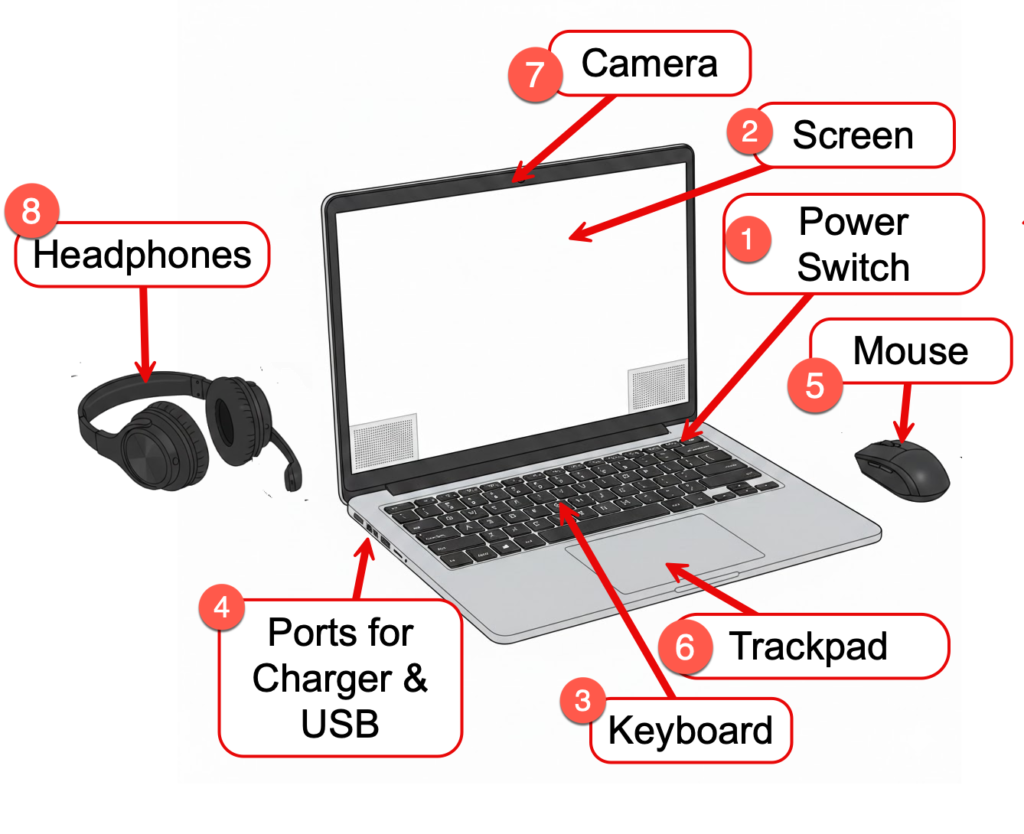
Based on the provided diagram, here is a numbered list of the laptop components and their functions for your training materials:
1 Power Switch: The button used to turn the laptop on or off, typically located on the top corner of the keyboard base. See Pro Tips for Power and On/Off below.
2 Screen: The main visual display area where you see your operating system, apps, and documents.
3 Keyboard: The primary input device used for typing text and entering commands. It functions similar to the keyboard on a typewriter.
4 Ports for Charger & USB: Side-mounted connection points used to plug in power cables or external devices like thumb drives. See charging below.
5 Mouse: A wireless external pointing device used for navigating and running applications. You will learn to use it to move the cursor or pointer to run programs and applications. You will run programs by clicking or from the desktop, double clicking the program’s icon.
6 Trackpad: A touch-sensitive surface built into the laptop base that allows you to control the cursor with your finger. Instead of buttons like you find on a mouse, some trackpad have buttons. On others you will tap on the pad to perform a mouse click.
7 Camera: A built-in webcam located above the screen, used for video calls and taking photos. Many laptops have a privacy cover over the camera. You will need to open the slider to use Zoom for video calls. Find the slider on the upper edge of the laptop screen and move to the side to open the camera.
8 Headphones: An external audio device with a microphone, used for listening to sound and speaking during calls privately. Your headphone will plug into a USB port on the edge of your laptop.
The Power Supply
The power supply acts as a power source for the laptop, and as a recharger for the laptop’s battery.
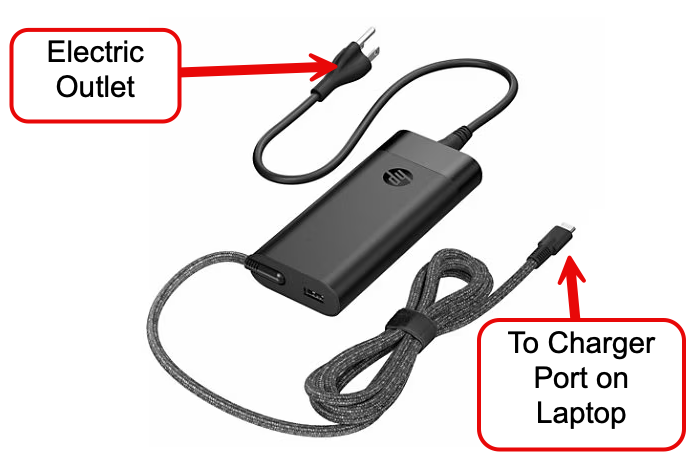
Plug the eletrical end into a wall outlet or power strip. Plug the other end into the laptop. You Plug in the power supply when:
- The battery is low or flat and you want to use the laptop,
- You want to recharge the battery,
- You will be using the laptop for a long period of time
It varies a lot depending on the laptop, its settings and what it is being used for, but most laptops will run for a couple of hours or so on a full battery.
Pro Tips for Power and On/Off
- On many laptops, a quick tap of the Power Switch will put the laptop to sleep. Sleep is a state that turns off the screen and puts the laptop in lower power mode. Another tap of the Power Switch will bring the laptop out of sleep ready for your actions. Sleep does require battery or plugin power to keep it sustained for more than a day.
- You can get the same sleep action from simply closing the cover. Open the cover to resume.
- If your laptop is misbehaving and not performing as you expect, you can press and hold the Power Switch for a few seconds to force a restart of the device.
Video Review
Are you looking for another review of these essential topics. Watch the video below by clicking on the Play arrow in the center of the video.
Have fun exploring and remember…..