
DOC – Backing up and Restoring a WordPress website
It is VERY good idea to take a backup before making any changes to an environment.
The techforseniors.info Domain website is hosted byHostinger.com. Within the Domain we use subdomains, such as Staging and Test to do work that might potentially negatively impact our production web presence. Refer to the DOC – How to use the Staging Environment for more information on sub-Domains. Realize that a prefix is used to identify our sub-Domains, ex staging.techforseniors.info. Sub-Domains may also be called Instances or websites. When you log into a particular website, be it a Domain or sub-Domain, it appears you are in your own environment – and you are, virtually. That’s why it is probably best to take a backup from within the system you will be working with, since that will be much easier to restore if needed. It will also be smaller and take less time than a backup of the full Domain.
Our recommendation is to do backups using the Updraft plugin.
Backups can also be done from the Hostinger.com admin panel. Our production domain (techforseniors.info) is automatically backed up daily. A backup at the Hostinger level backs up the techforseniors.info website but NOT all the sub-Domain websites.
There are 3 major components of a WordPress website: the WordPress folders, the plugins we have installed into the environment, and the database (which contains the pages, posts, code snippets, etc.). It is best to back them all up to avoid any compatibility issues instead of restoring only part of the website.
Using the Updraft plugin for backups
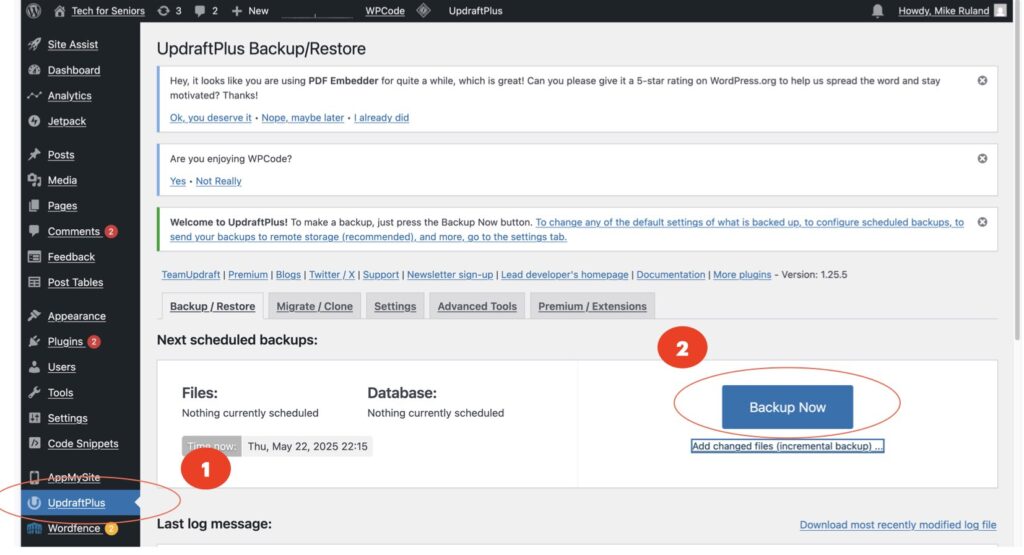
The simplest way to back up an environment (staging or production) is to use the UpdraftPlus plugin. Log into the environment you want to back up, for example the techforseniors.info system. From the WordPress menu, select “UpdraftPlus” (#1) and then “Backup Now” (#2). It can take a little while to back up the system so be patient!! Be sure to record the backup date and time in case you need to fallback to this version of the environment.
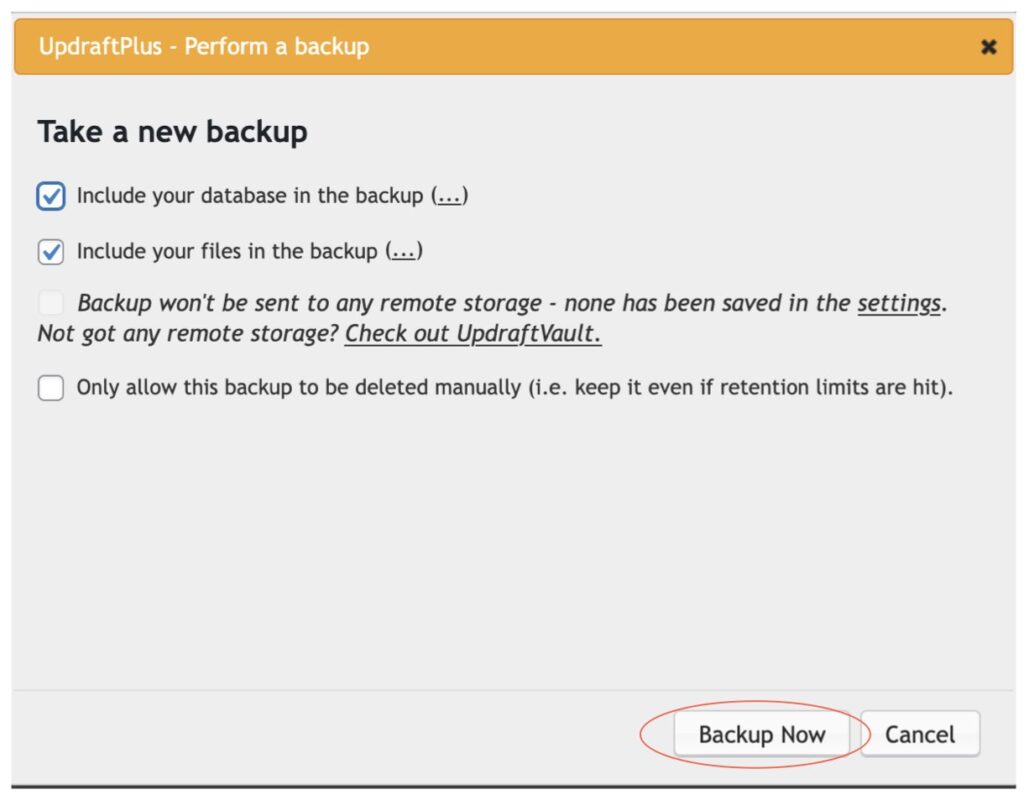
UpdraftPlus will next prompt you to identify which components to backup, we recommend backing up both the files AND the database during these maintenance activities.
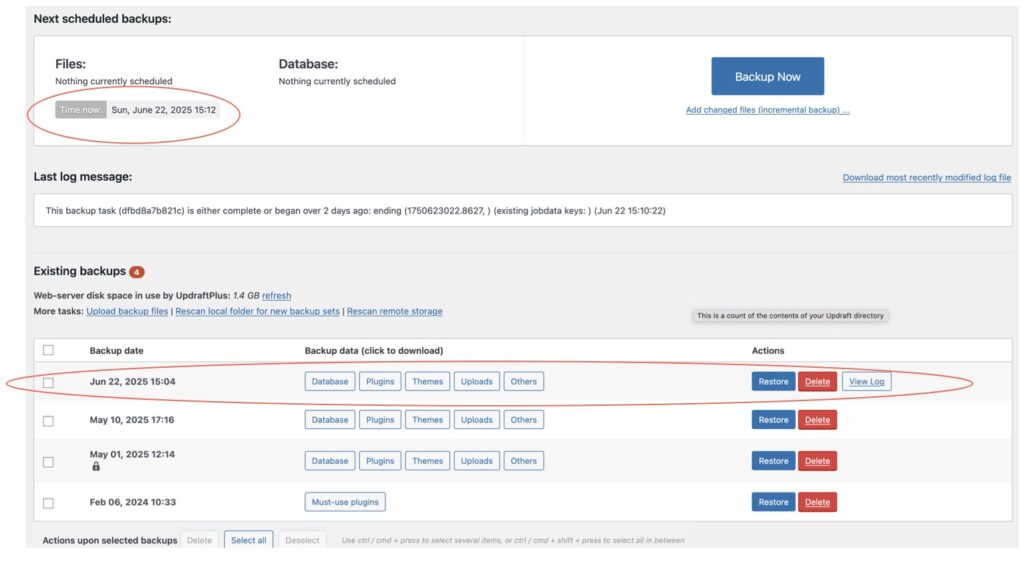
Once the backup is complete you will see a screen listing it. Here you can see the available backup files, review the logs associated with the backup and you can restore or delete the backup.
Using the Hostinger Utilities for backups
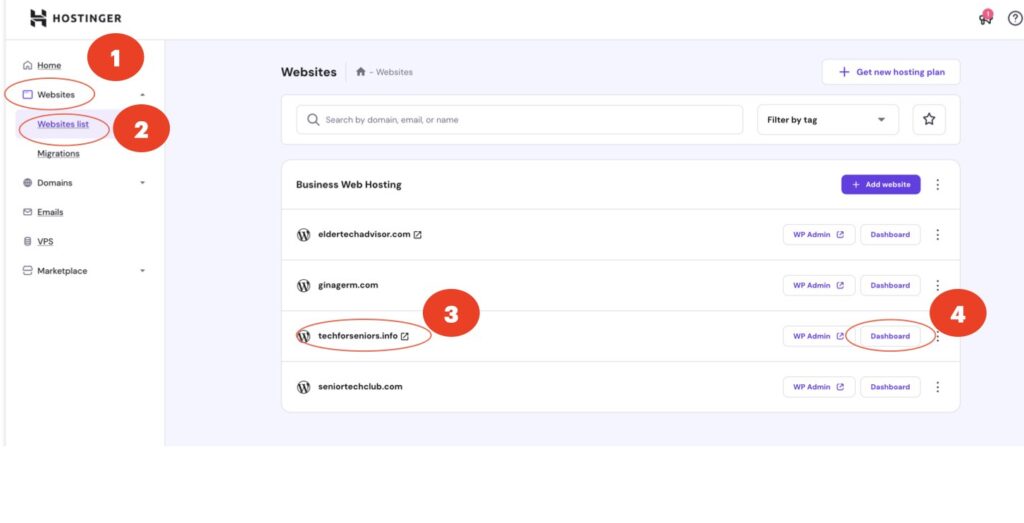
As mentioned earlier, the techforseniors.info Domain is hosted by Hostinger.com. Which provides another way to back up the environment. Using the Hostinger utilities works a little differently than using Updraft: the entire domain is backed up, including the sub-Domains. From the Hostinger home page (see below) select “Websites” (#1) and “Website List” (#2). Then select the “techforseniors.info” website (#3) and the “Dashboard” (#4) button.
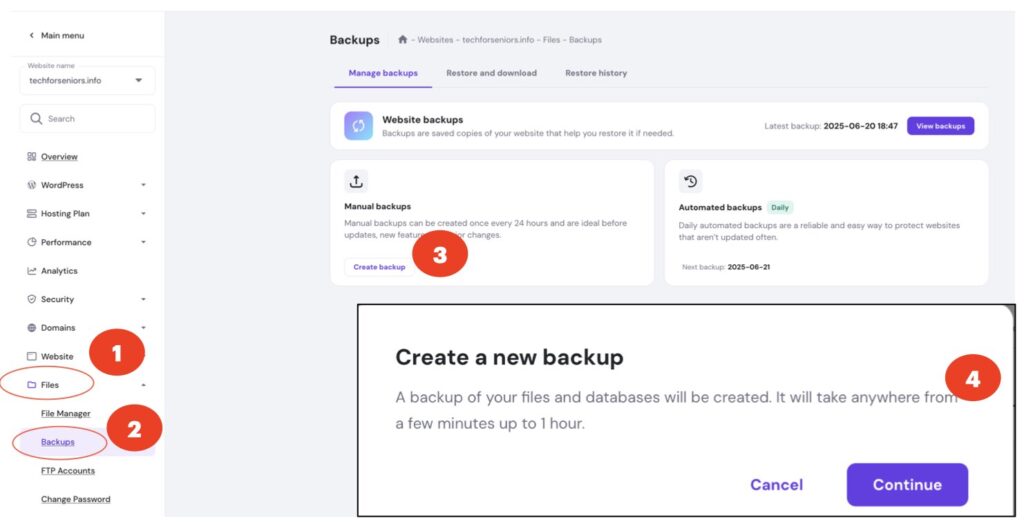
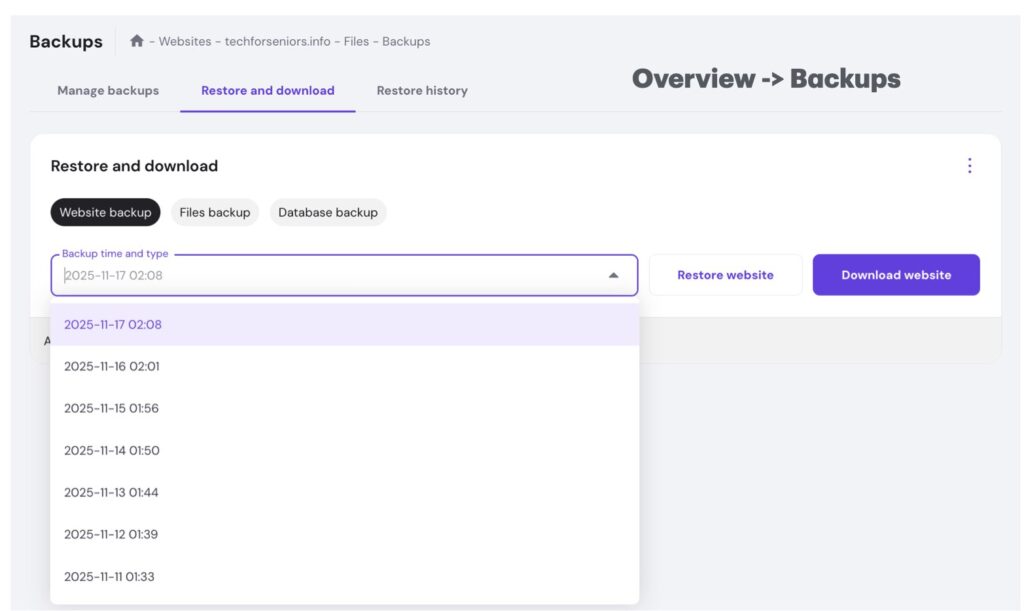
You will be presented with the Staging area management panel. Select “Files” (#1) and “Backups” (#2) and the following page will be presented. Select “Create backup” (#3) to backup the System and “Continue” (#4) when prompted. You can also restore the environment or selectively backup only the files or database. Note that you can only do one Hostinger manual backup every 24 hours. You can also Restore or Download the backup to another computer on the “Restore and download” panel.
Here you can see that a backup has been taken of the Domain (including the sub-Domains) every day. Remember that a Hostinger backup backs up all the instances/websites/Wordpress environments in the Domain.
Restoring a WordPress Website
Restores can also very straight forward using the same panels. Be sure no one else is on the system when you restore. Since restoring a website, especially a large one, can be a lengthy operation, it is often recommended to do it in phases. NOTE: Restoring a website will not revert to a previous version of WordPress – only the content in the website.
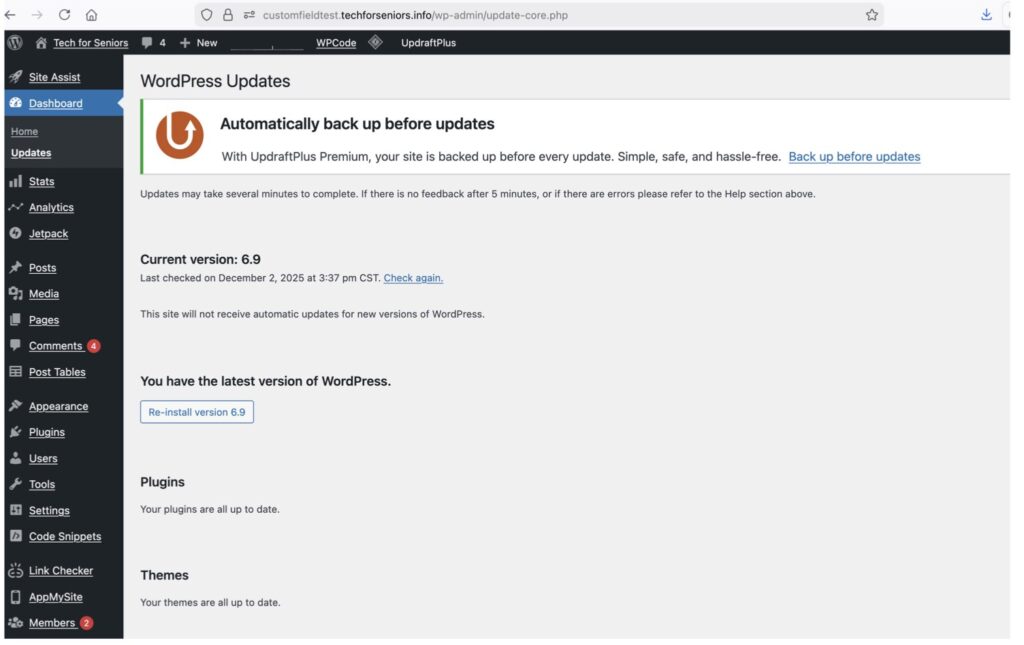
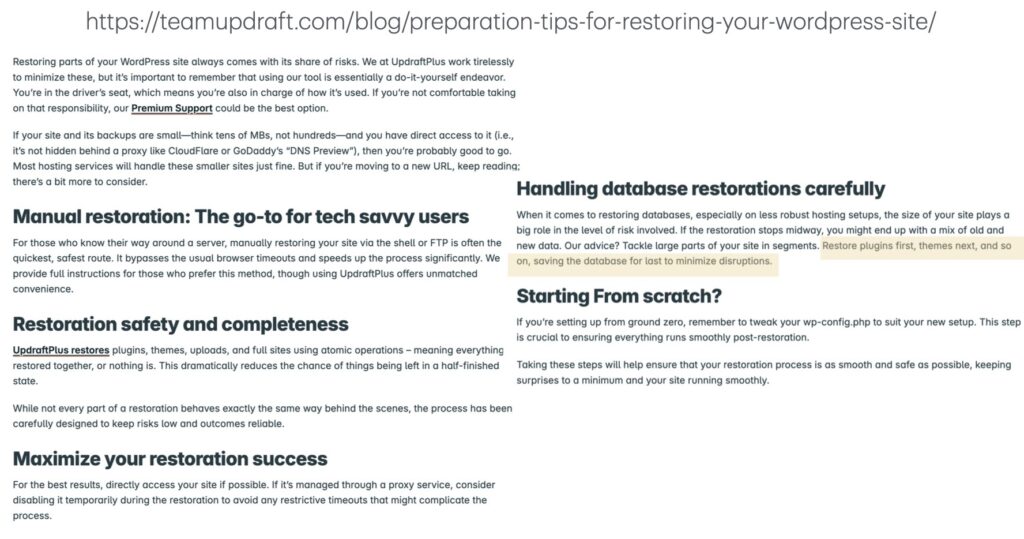
The following example follows the recommendation to do the restore in chunks, doing Plugins and Theme first – they are the most comment update, uploads and others second, and finally the database. This screen shot was taken immediately after updating 8 plugins and the theme.
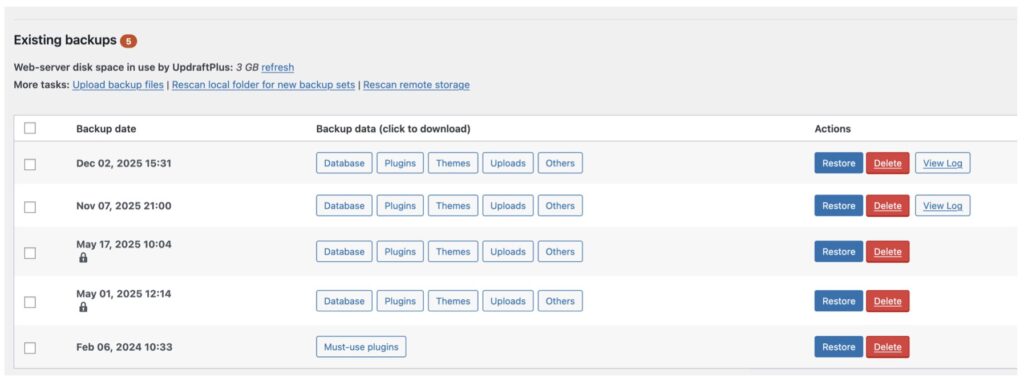
Going to the UpdraftPlus plugin we can see the backups we have for this website. We will select the latest backup (on the top). Not that everything was backed up.
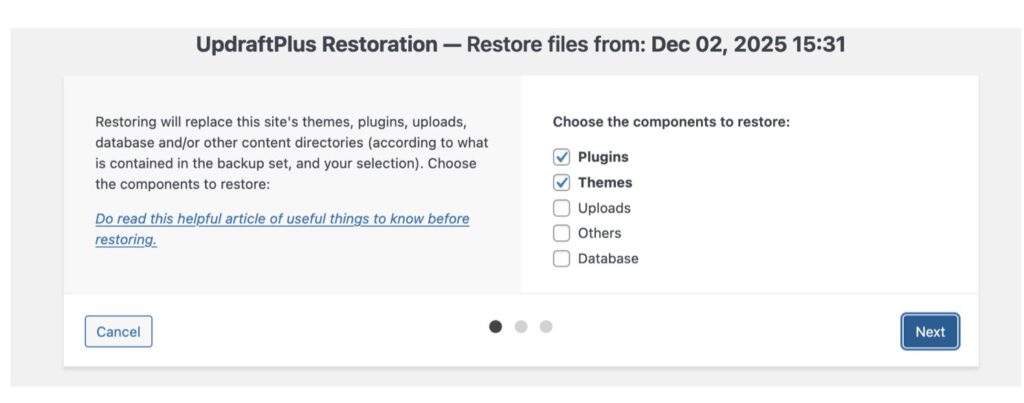
We chose “Restore” on the panel above and got to this screen where we selected the Plugins and Themes to restore first.
The warning on the previous slide is shown below with the recommendation to “chunk” the restore into pieces highlighted in yellow.
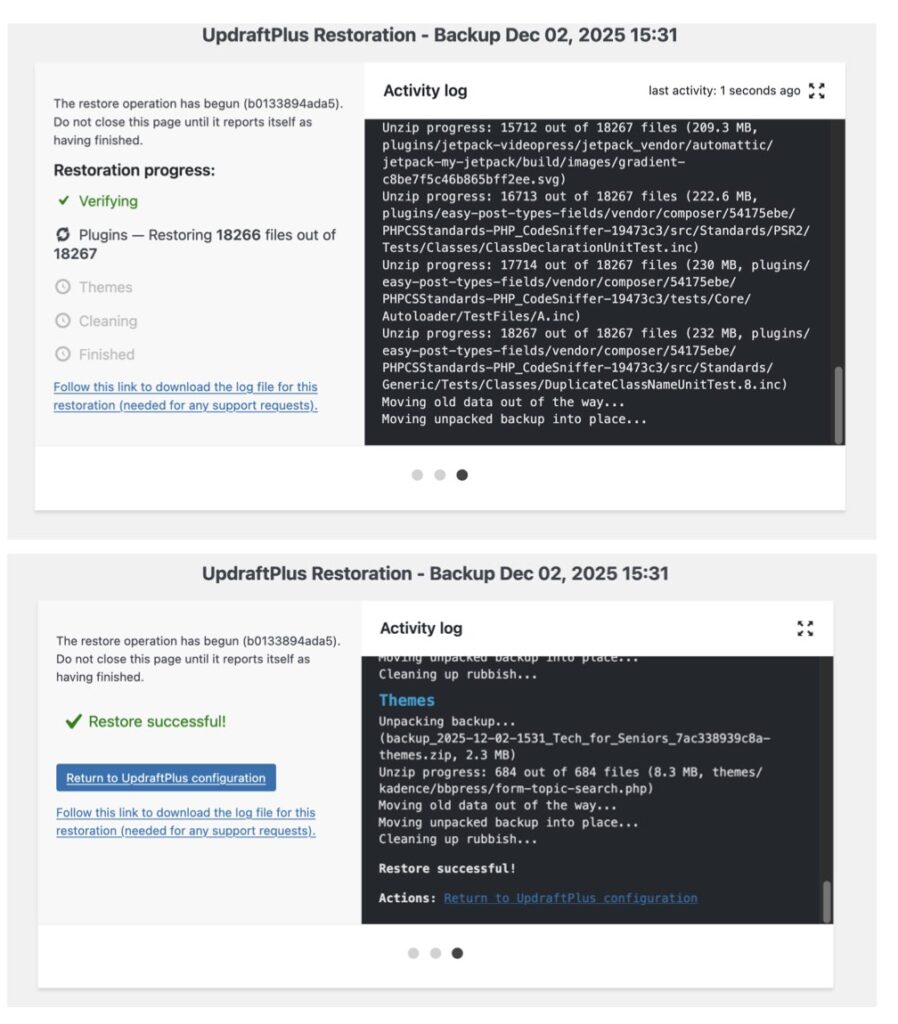
Here we see the results of the restore of the plugins and Themes.
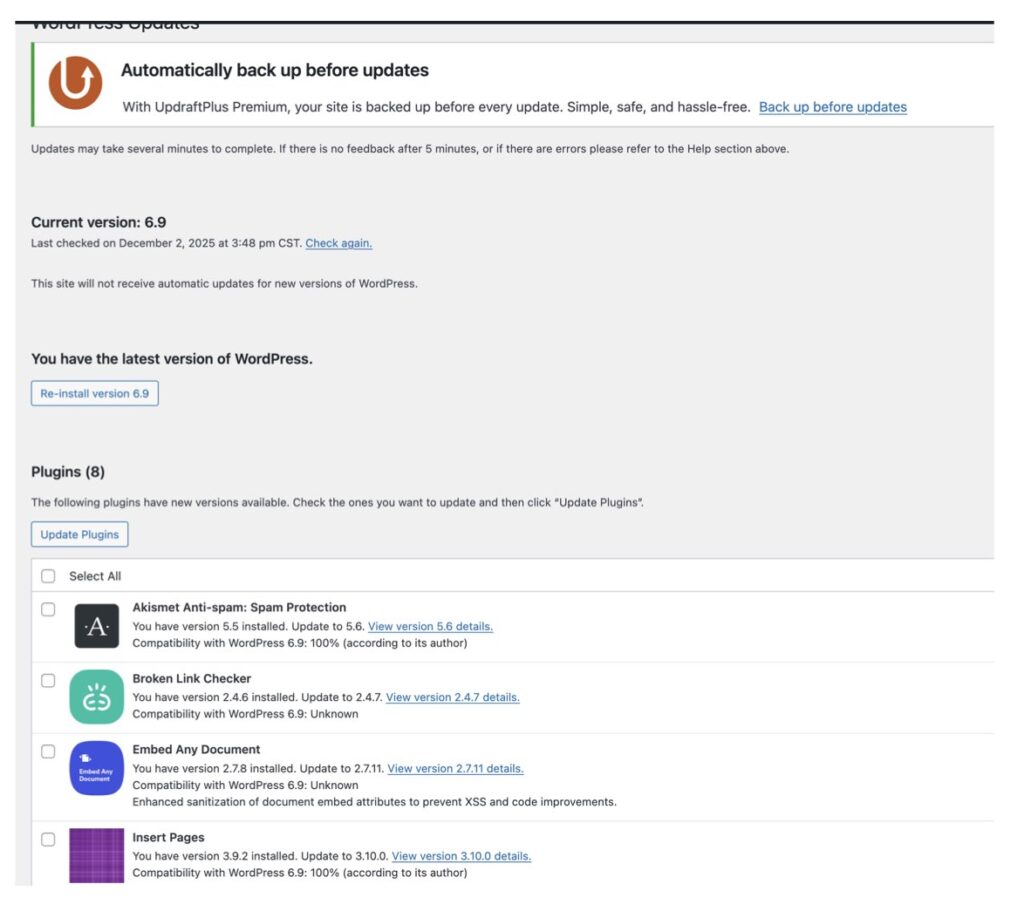
We can see that the updated Plugins and Themes have been restored to their previous versions. Note that the current version of WordPress is still at the updated level (not restored).
In the following set of screen shots we can see that we also updated the Uploads and Other content as the second step of the process.
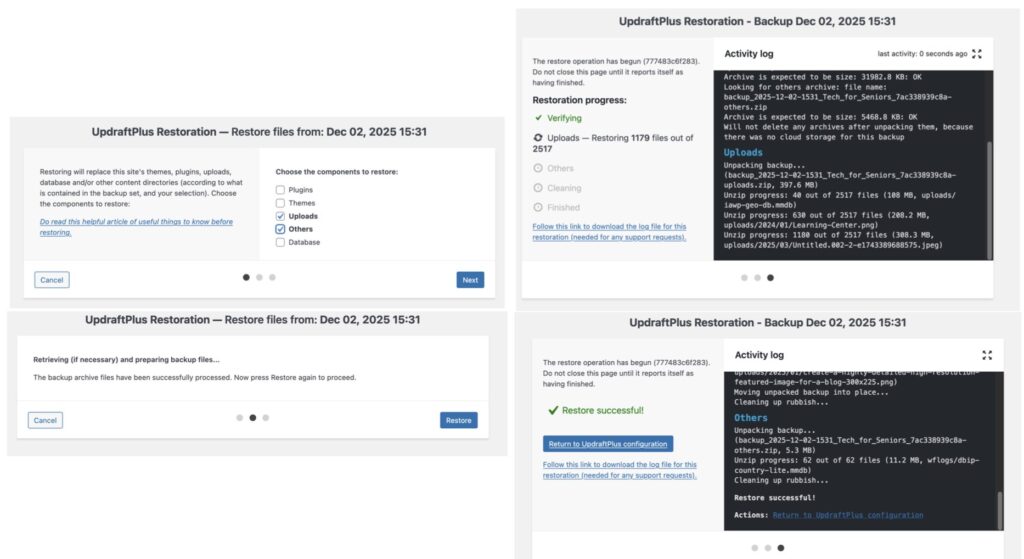
Finally we update the database. This entire process, restoring all 5 components, only took a few minutes since the website was rather small, but it was a copy of the production database. Even though it ran quickly, we still did it in “chunks” to reduce the likely hood of a timeout corrupting our restore.
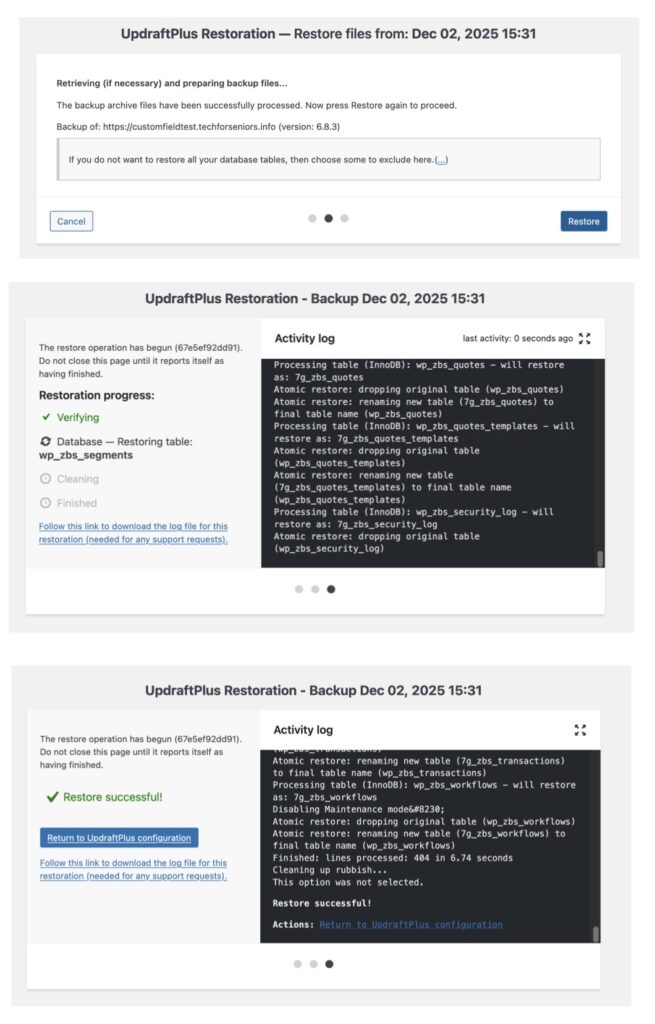
Finally we see the conclusion of the database restore. Note that the upgrade to the WordPress software is still in place and was not restored. This reinforces the idea that WordPress software updates should ALWAYS be done and tested in a staging environment since the normal restores do not roll them back. It also implies that a WordPress update should really be the only thing done in the staging environment since any other changes may be negatively impacted by rolling back the WordPress environment.
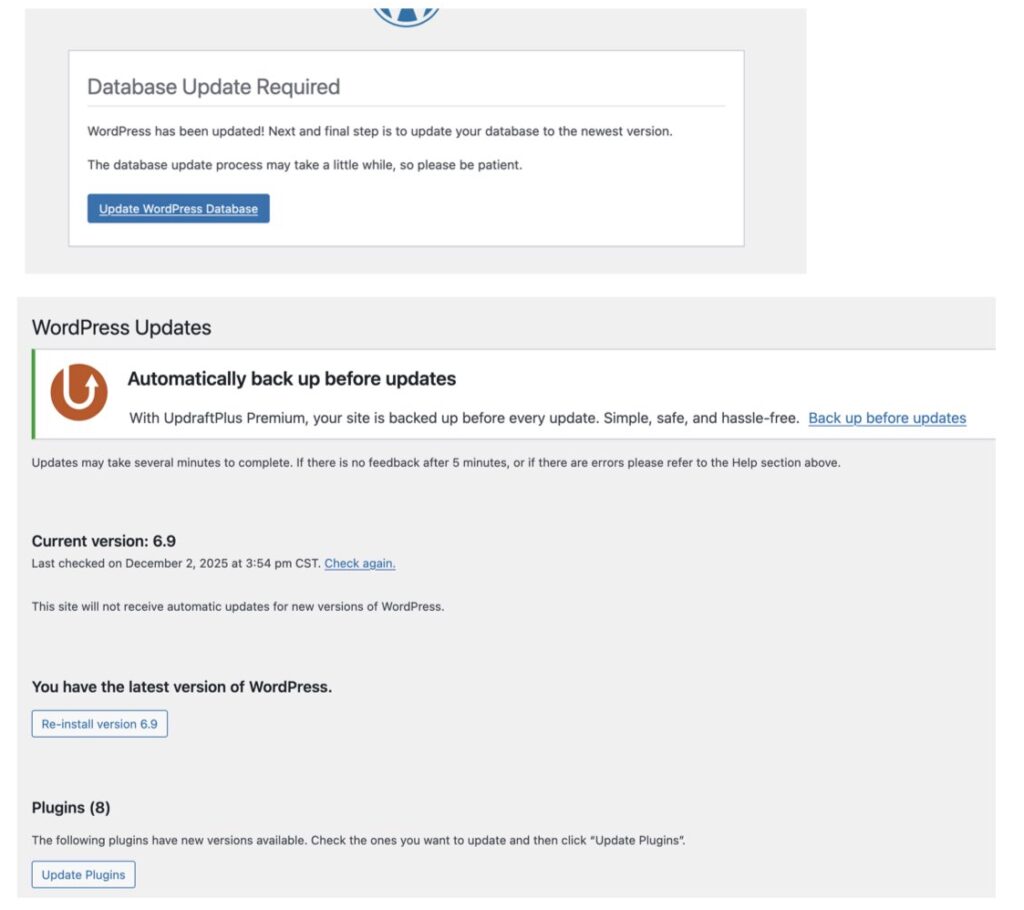
If you tested the WordPress software upgrade and do need to roll it back (not a great idea), the JetPack website discusses the process needed at https://jetpack.com/resources/how-to-downgrade-a-wordpress-website-to-a-previous-version/.
Here’s what it states at the beginning of the discussion:
Most software companies stress the importance of updating, so downgrading can feel quite unnatural. But you might run into circumstances where you need to revert to a previous version of a program or operating system you’re using — WordPress is no different in this regard.
While WordPress tries to maintain backwards compatibility between versions, you might still encounter changes in a new release that cause issues for your site. In these cases, you may need to downgrade to a previous version so that your website continues to function properly while you troubleshoot any problems or wait for a bug fix to be released.
This warning substantiates that WordPress updates should be taken very seriously and tested thoroughly in the staging environment before doing it in production!!