
DOC – Understanding Caching
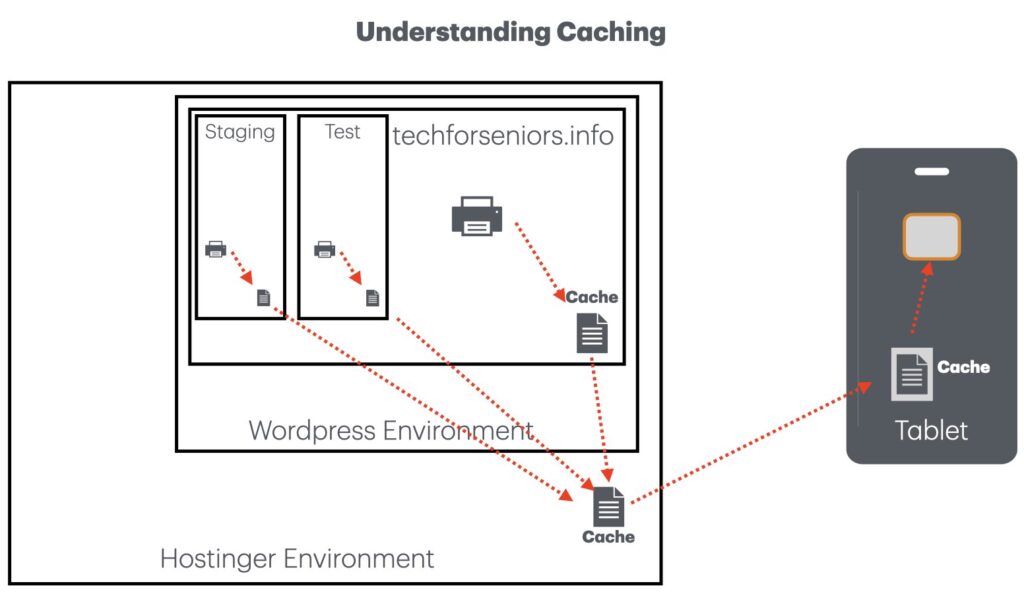
The techforseniors.info Domain website is hosted by Hostinger.com. Within the Domain we use subdomains, such as Staging and Test to do work that might potentially negatively impact our production web presence. Refer to the DOC – How to use the Staging Environment for more information on sub-Domains. Realize that a prefix is used to identify our sub-Domains, ex staging.techforseniors.info. Sub-Domains may also be called Instances or websites.
Occasionally when you are using cookies or updating a Post, you may not see the changes you expect in the Student App . You need to remember that in order to speed things up, we save information at various locations along the transmission path; this is called caching. At the lowest level, closest to the hardware, the Hostinger environment caches information. Next the WordPress systems use the LiteSpeed plugin to cache information. The application and your tablet will also store information. An interesting thing about WordPress is that when a screen is sent, it is constructed using all the information available at time of construction. This means that the screen is saved at each caching location as the data appeared when it was created. A cookie is “baked” (accidental pun, sorry) into the screen image when it is sent. A change in the data used to construct the page that is already sent out may not be seen on your tablet if a previous version of that page is already cached somewhere along the transmission path. Clearing the cache our waiting for the saved copy to expire and be removed is necessary to see the change.
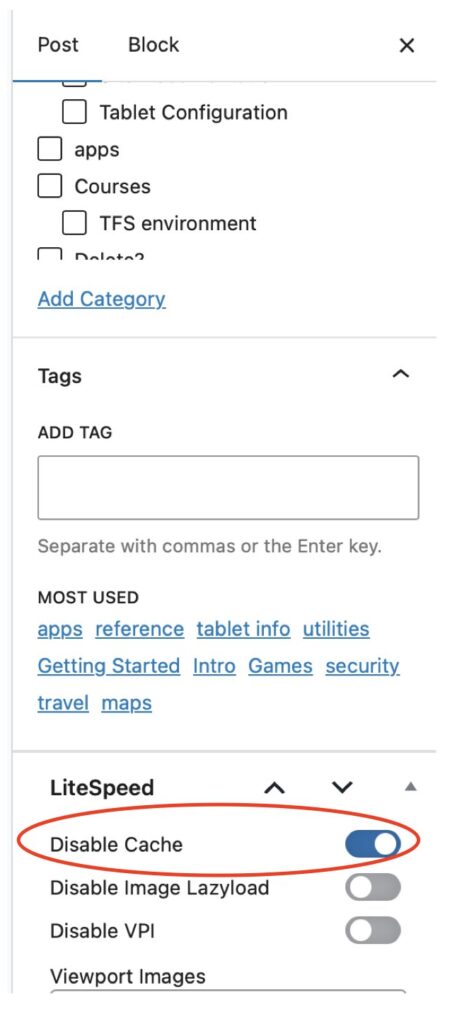
We can label a page as NOT to be cached by selecting this attribute in the LiteSpeed section of the Post Settings (on the far right side of the Post while editing it). Unfortunately, while Hostinger and LiteSpeed honor this setting, the Student app on the tablet does not appear to.
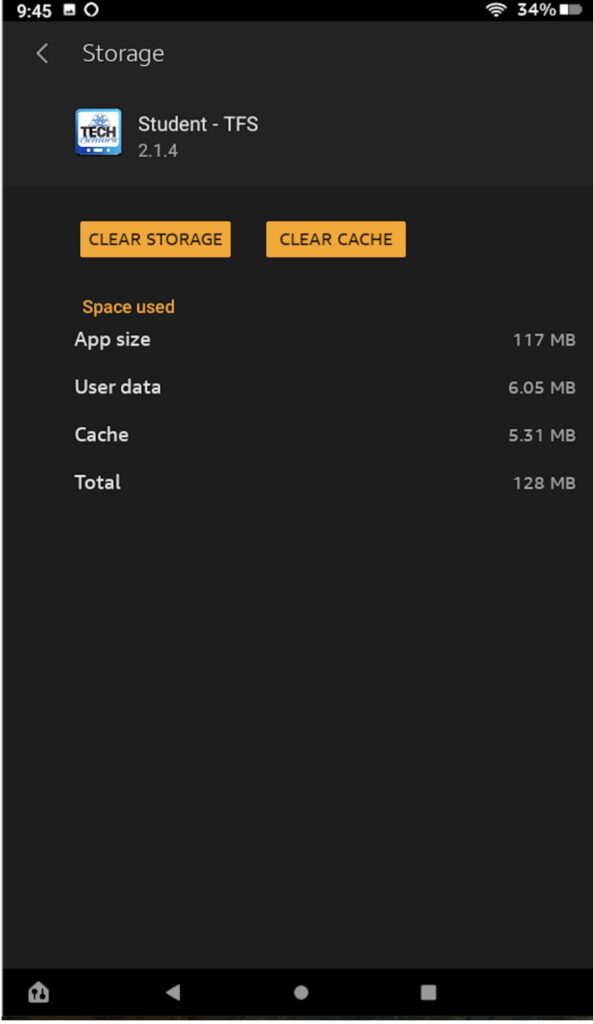
Clearing Tablet Cache shows how to clear cache on the tablet.
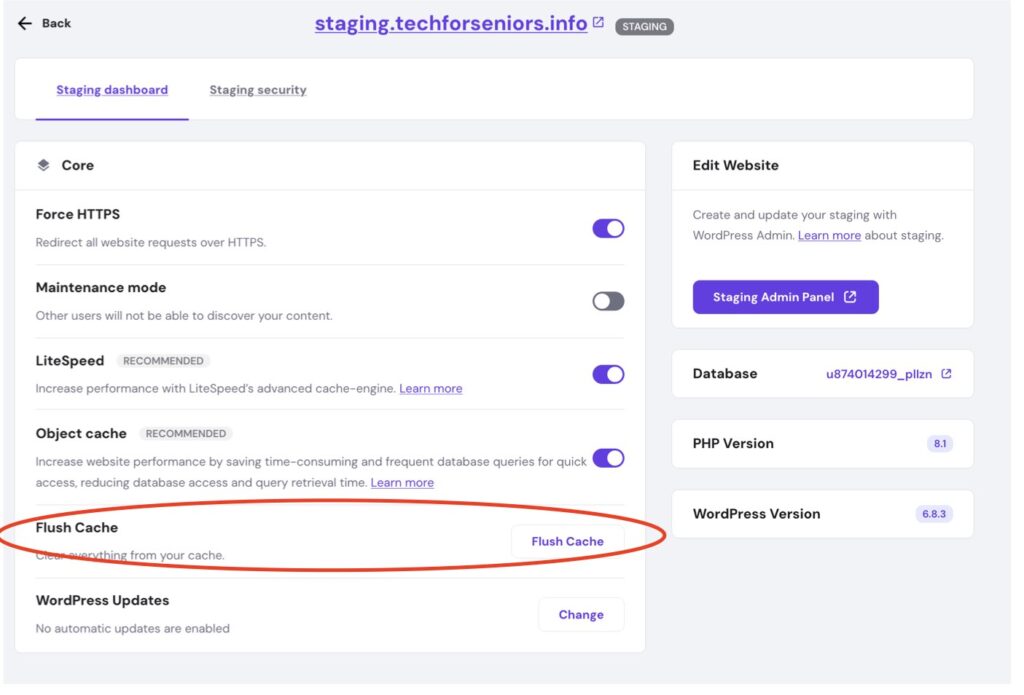
So how do we clear these “stale” pages? The following screenshot shows where you would Flush the cache used by Hostinger. To get there on the Hostinger admin panel, choose Websites -> Websites list -> Dashboard (for techforseniors.info) -> Overview -> WordPress -> Staging -> Manage Staging (for Staging.techforseniors.info) to get to this screen. Notice that we are working with staging so we don’t want to accidentally flush caching for techforseniors.info (the production system). While this won’t really break anything, it may make things run slower as all requests need to go all the way back to the Domain or sub-Domain and be rebuilt.
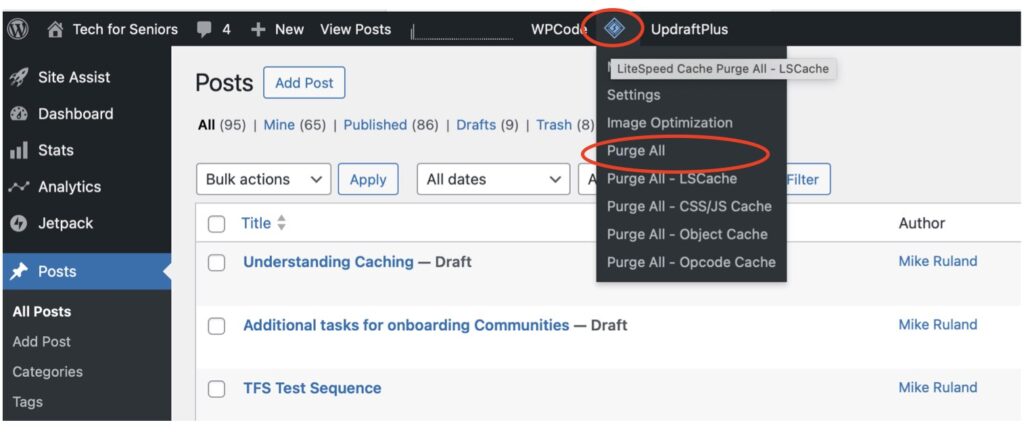
Clearing the cached data in the WordPress environment requires us to log into the Staging area website and select the LiteSpeed icon near the top of the screen (see top circle below). We can than choose to purge all or part of the saved data – Purge All removes it all.
Clearing Cache on the Tablet
Finally we get to the tablet. This is generally what needs to be cleared when we see caching problems on the tablet. On your tablet, go to Settings -> Apps & Notifications -> Student App -> Storage, to get to the screen shown here. My experience is that clearing storage on your tablet will allow you to see the changes as the tablet is the only caching that doesn’t seem to honor the Disable Cache attribute on the Post. It is bast to close the Student App and restart the Student App if you continue to notice an issue.
It is generally best to start clearing cache at the furthest point, in our case the tablet, then Hostinger, then the website (staging). Clearing cache on the website should send the clear signal out to all subsequent caching locations. Although occasionally the Student application on the tablet seems to not want to play nice.